

CC-Hub
Manage CoffeeRouter Claude Code providers and models with CC-Hub, including global, local, and scenario mappings.
Connection rules
CoffeeRouter connects to Claude Code through an Anthropic Messages-compatible endpoint. Use these values in CC-Hub:
| Field | Value |
|---|---|
| Provider ID | coffeerouter |
| Provider Name | CoffeeRouter |
| Base URL | https://www.coffeerouter.ai |
| API Key | Your CoffeeRouter token, such as sk-your-api-key |
| Models | Exact Claude model IDs allowed by the current token |
Add only Claude or Anthropic-compatible chat models that your token explicitly supports. Add other models only after verifying that they work through CoffeeRouter's Anthropic Messages compatibility layer.
Prerequisites
Before you begin, make sure that:
- Node.js and npm are installed.
- Claude Code is installed and has been run at least once.
- You have signed in to CoffeeRouter and created an active token under Token Management.
- You know the exact model IDs allowed by that token. CC-Hub does not fetch CoffeeRouter's model list automatically.
1. Install and launch CC-Hub
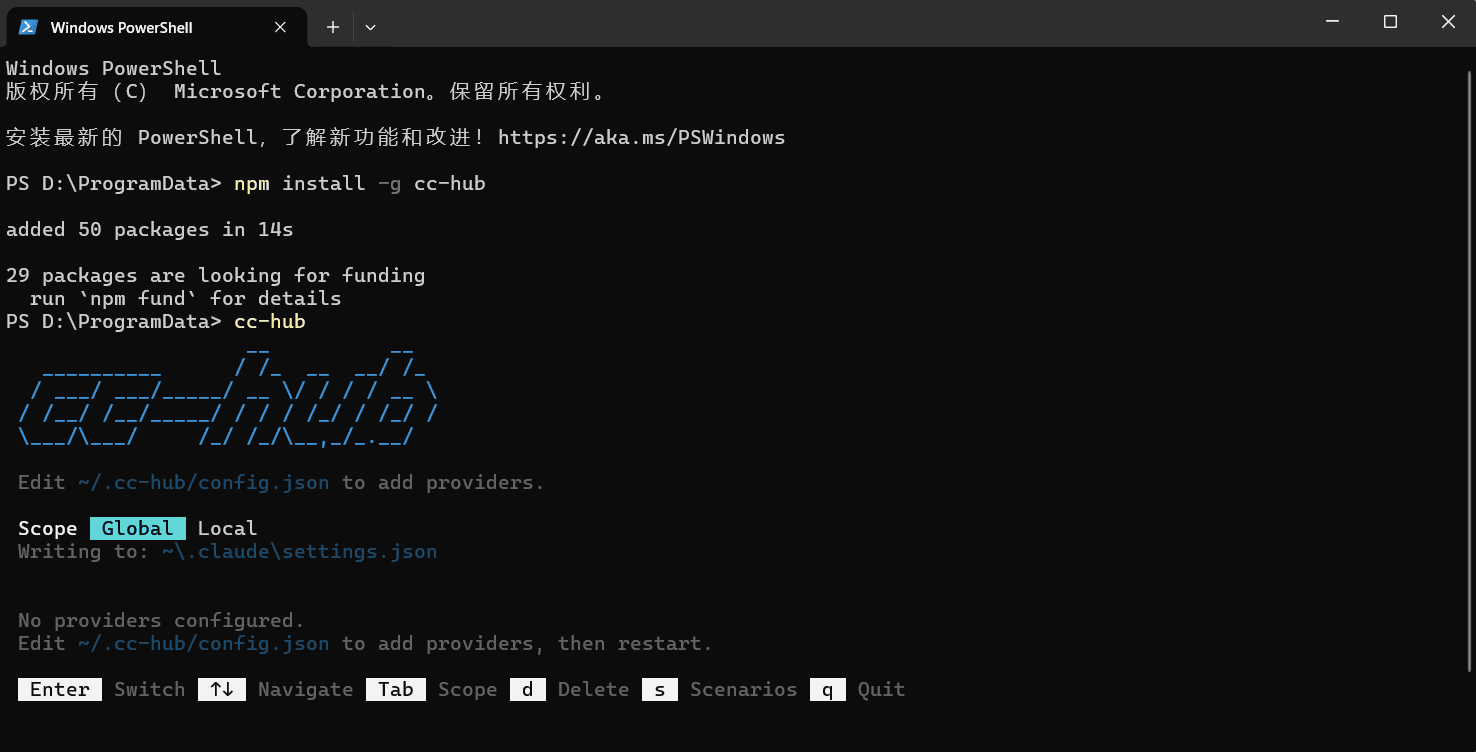
Run the following in PowerShell, Windows Terminal, or a macOS/Linux terminal:
npm install -g cc-hub
cc-hub
To run it without a global installation, use:
npx cc-hub
On first launch, CC-Hub creates:
~/.cc-hub/config.json
On Windows, ~ usually refers to C:\Users\your-user-name.
2. Add the CoffeeRouter provider
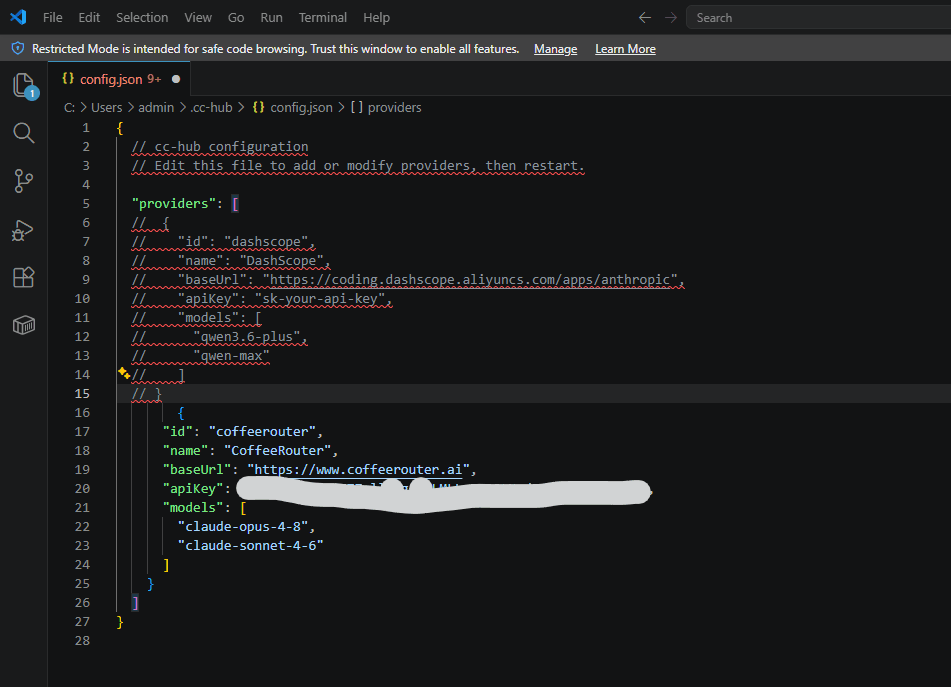
Close CC-Hub and open ~/.cc-hub/config.json in a text editor. Add a CoffeeRouter provider. The file supports JSON5 comments and trailing commas.
{
  "providers": [
    {
      "id": "coffeerouter",
      "name": "CoffeeRouter",
      "baseUrl": "https://www.coffeerouter.ai",
      "apiKey": "sk-your-api-key",
      "models": [
        "your-claude-sonnet-model-id",
        "your-claude-opus-model-id"
      ]
    }
  ]
}
Replace sk-your-api-key with your CoffeeRouter token and replace each model ID with an exact name shown in Token Management. The sample names do not guarantee availability for your token.
3. Select and activate a model
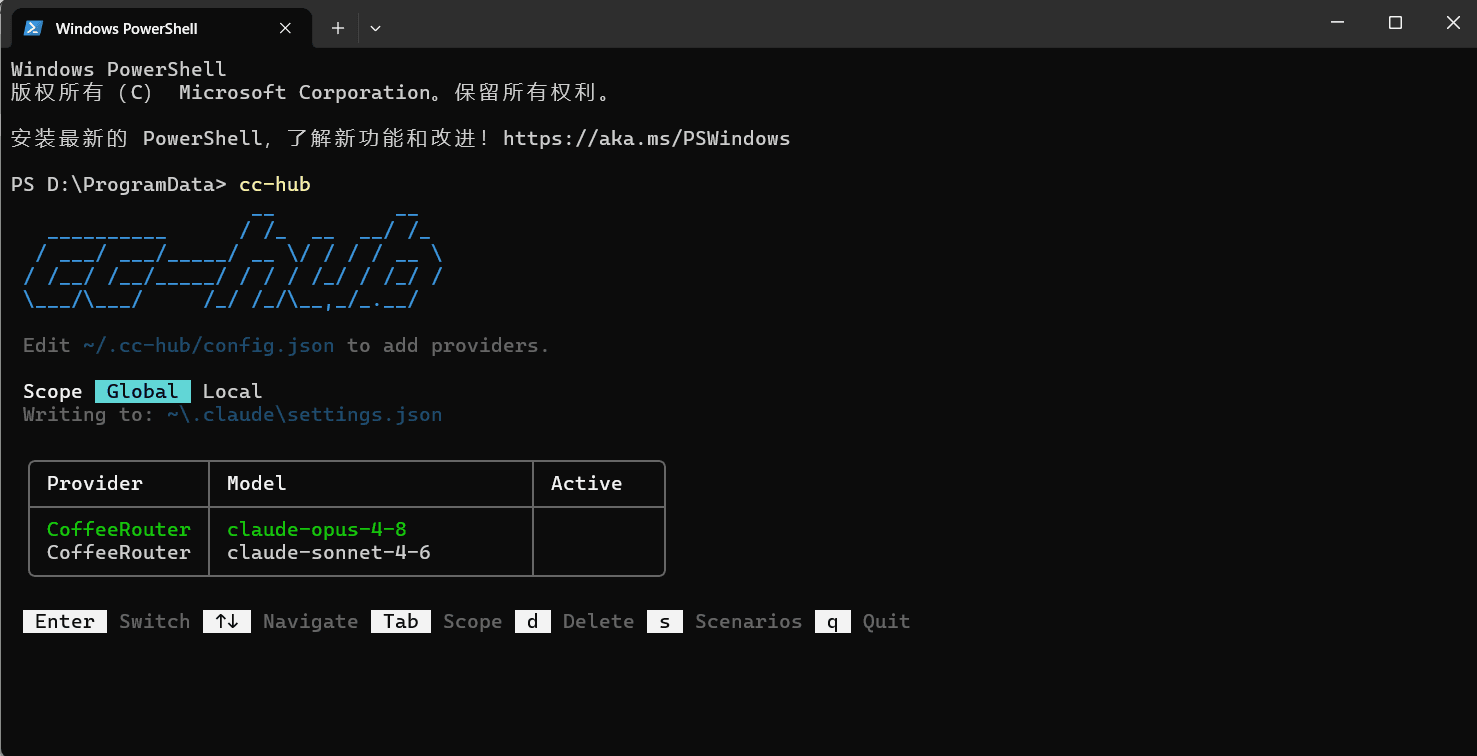
Save the configuration, then run CC-Hub again:
cc-hub
In the terminal UI:
- Use
↑and↓to select a model under CoffeeRouter. - Press
Enterto activate it. - Exit CC-Hub after the success message appears.
CC-Hub writes the Base URL, API Key, and model ID to the selected Claude Code configuration scope. Restart Claude Code so new sessions use the updated configuration.
4. Choose global or project scope
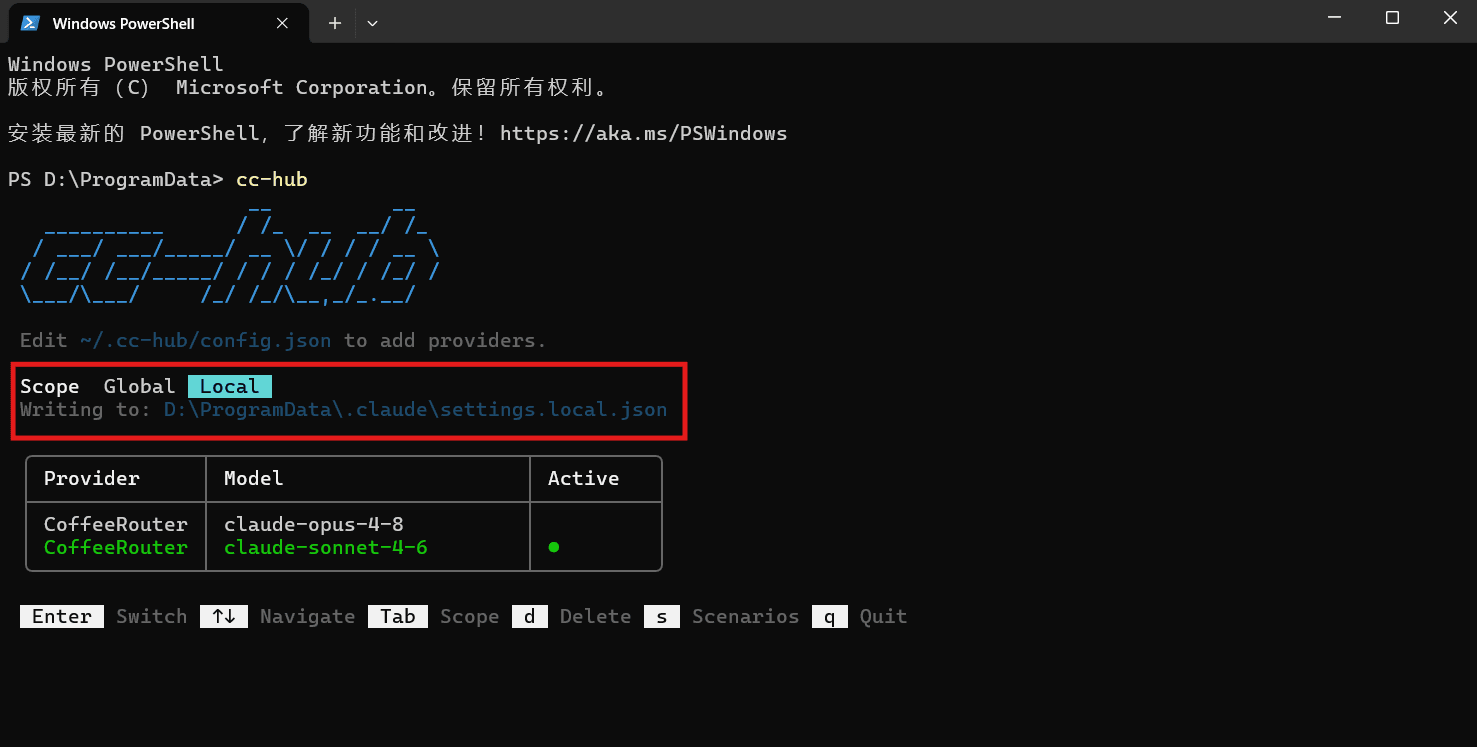
Press Tab to switch between Global and Local scopes:
| Scope | File written by CC-Hub | Use case |
|---|---|---|
| Global | ~/.claude/settings.json | Default Claude Code configuration for the current user |
| Local | .claude/settings.local.json in the current directory | Override the global configuration for one project |
Before using Local scope, change the terminal's working directory to the target project and then start cc-hub. Project settings can override global settings. If a switch does not take effect, verify both the selected scope and the directory where CC-Hub was launched.
5. Map models by scenario
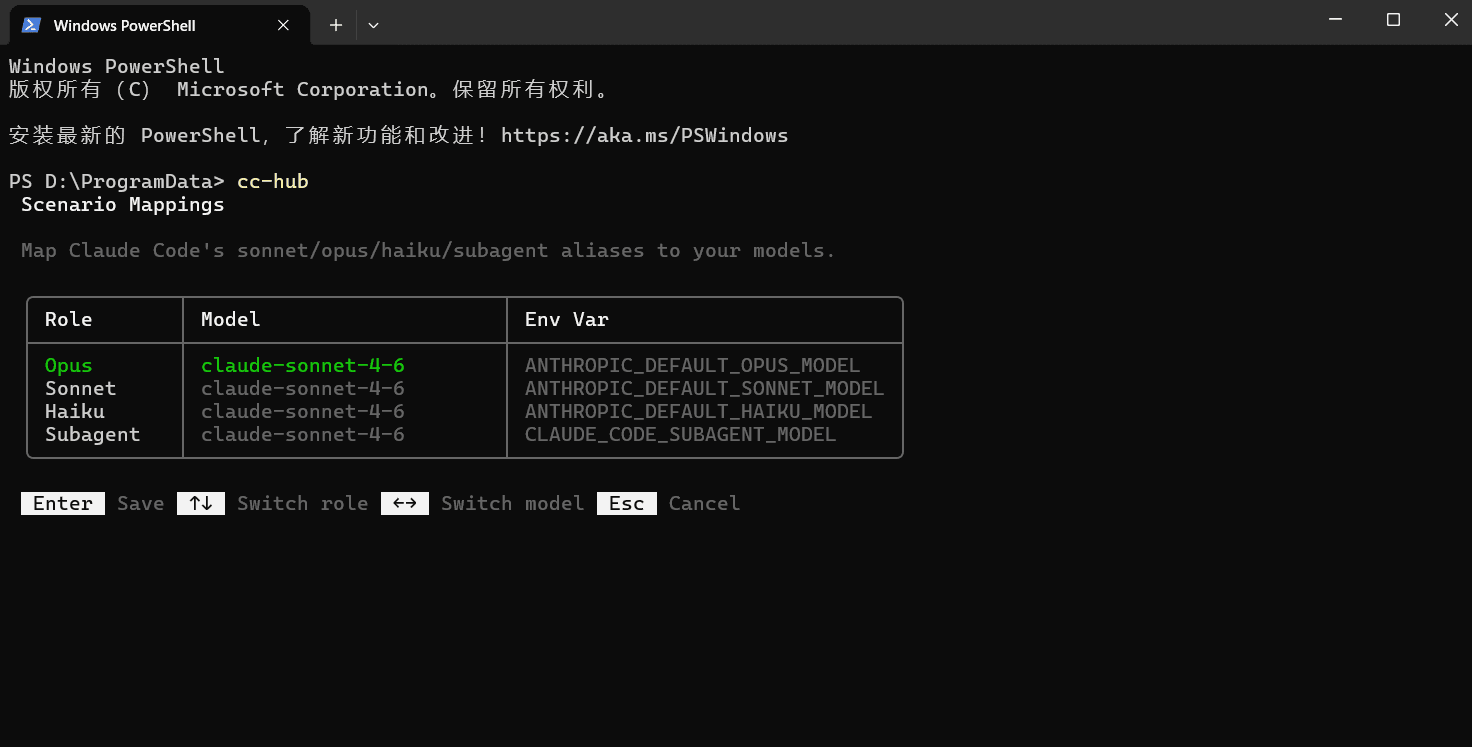
Press s in CC-Hub to open scenario mapping. You can assign separate models for:
- Opus
- Sonnet
- Haiku
- Subagent
Use the arrow keys to choose a scenario and model, press Enter to save, or press Esc to cancel. CC-Hub writes ANTHROPIC_DEFAULT_OPUS_MODEL, ANTHROPIC_DEFAULT_SONNET_MODEL, ANTHROPIC_DEFAULT_HAIKU_MODEL, and CLAUDE_CODE_SUBAGENT_MODEL respectively.
What CC-Hub changes
After a model is activated, CC-Hub writes values similar to these into the selected Claude Code settings file:
{
  "env": {
    "ANTHROPIC_AUTH_TOKEN": "sk-your-api-key",
    "ANTHROPIC_BASE_URL": "https://www.coffeerouter.ai",
    "ANTHROPIC_MODEL": "your-claude-model-id"
  }
}
If the existing configuration uses ANTHROPIC_API_KEY, CC-Hub tries to preserve that authentication field. When neither authentication field exists, it defaults to ANTHROPIC_AUTH_TOKEN. Back up existing Claude Code settings before switching, especially if the file contains other custom configuration.
Security
Troubleshooting
Why does the Base URL not include /v1?
CC-Hub writes this value to ANTHROPIC_BASE_URL, and Claude Code requests the Anthropic Messages path itself. Using the site root avoids a duplicated /v1/v1/messages path.
Why are CoffeeRouter and its models missing after launch?
CC-Hub does not discover providers or models automatically. Check the JSON5 syntax, provider fields, and model array in ~/.cc-hub/config.json, save the file, and restart CC-Hub.
Why does Claude Code still use the previous model after a successful switch?
Quit Claude Code completely and open it again. Also check whether CC-Hub is using Global or Local scope. Local settings apply per project and can override Global settings.
Why do I get a 401 or authentication error?
Check that the token is complete, active, unexpired, has sufficient balance, and permits the current device under any IP allowlist rules. Also check for conflicting ANTHROPIC_AUTH_TOKEN and ANTHROPIC_API_KEY values in your environment or Claude settings.
Why do I get a 404 or /v1/v1/messages path?
Change baseUrl to https://www.coffeerouter.ai, remove /v1, /messages, and trailing slashes, activate the model again, and restart Claude Code.
How do I revoke or replace a token?
Revoke the old token in CoffeeRouter first, update apiKey in ~/.cc-hub/config.json, and activate the model again. Pressing d in CC-Hub only removes a model from its local configuration; it does not revoke the CoffeeRouter token.