

CCRelay
Connect Claude Code and other agent clients to CoffeeRouter through CCRelay with an OpenAI Chat provider, local proxy configuration, and model mapping.
CCRelay is a local AI API relay that switches providers, converts protocols, and maps models between clients such as Claude Code, Claude Cowork, and Codex and their upstream model services. This guide adds CoffeeRouter as a CCRelay upstream provider and uses Claude Code for the final connection test.
Prerequisites
Before you begin, make sure that:
- You have created an active token on the Token Management page in the CoffeeRouter console.
- The token can access at least one chat model and has available quota.
- Claude Code is installed if you want to follow the client test in this guide.
- CCRelay is installed. Download the latest build from the official CCRelay Releases page.
CCRelay provides these installation options:
- VS Code / Cursor extension: download the latest
.vsix, open the editor command palette, run Extensions: Install from VSIX..., and select the downloaded file. - Desktop app: download the Windows or macOS installer that matches your operating system and processor architecture from the Releases page.
1. Open the CCRelay Dashboard
With the VS Code / Cursor extension, click the CCRelay status bar item, or open the command palette and run CCRelay: Open Dashboard. With the desktop app, choose Open Dashboard from the tray menu.
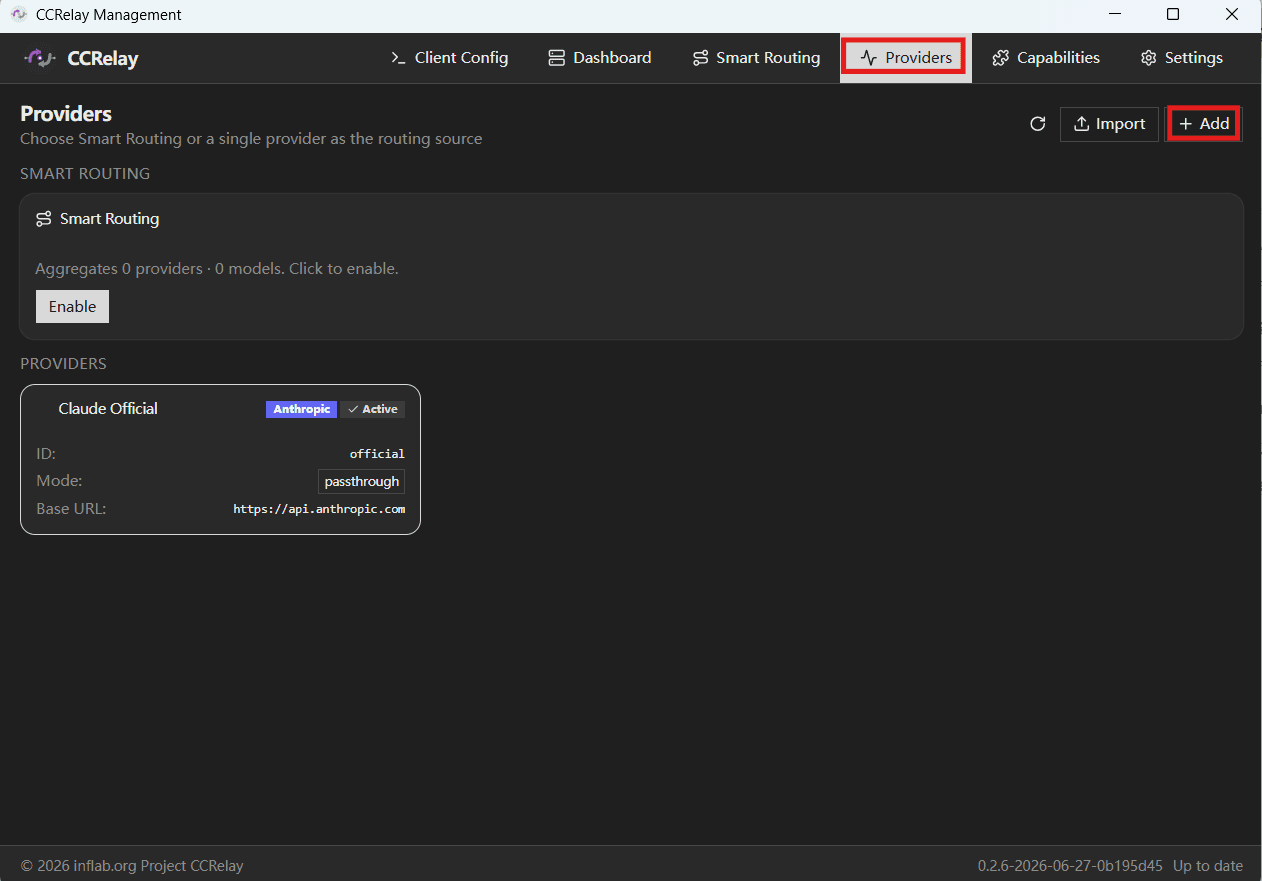
Open Providers, then click Add.
2. Choose OpenAI Chat
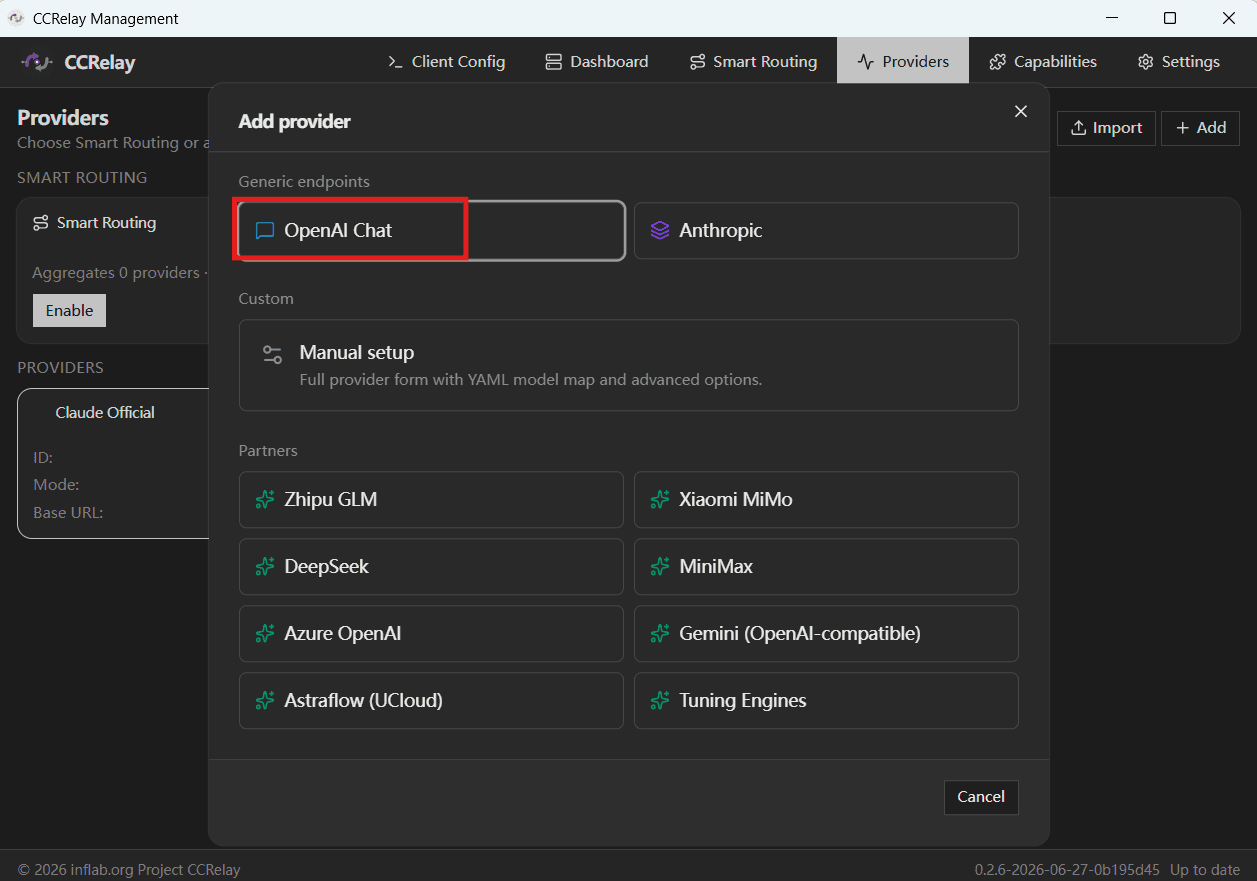
In the Generic endpoints section of the provider wizard, choose OpenAI Chat. Do not choose OpenAI (full) or Anthropic for this guide; the configuration below uses the OpenAI Chat Completions compatible endpoint.
3. Enter the CoffeeRouter Configuration
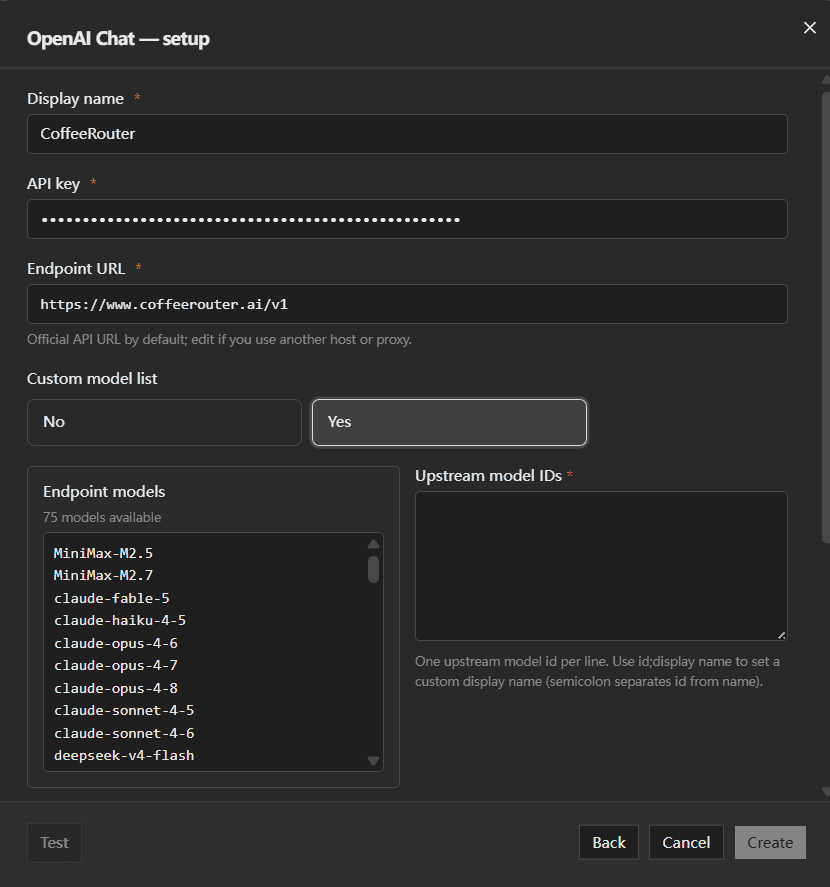
Enter these values:
| Field | Value |
|---|---|
| Display name | CoffeeRouter |
| API key | Obtain it from CoffeeRouter Token Management, for example sk-your-api-key |
| Endpoint URL | https://www.coffeerouter.ai/v1 |
| Custom model list | Recommended: choose Yes and enter model IDs available to the current token |
| Claude Cowork / Claude Code / Codex support | Keep enabled |
After you enter the API key and endpoint, CCRelay attempts to load available models from https://www.coffeerouter.ai/v1/models. When the custom model list is enabled, use the returned model list as a reference and enter one model ID per line in the field on the right.
Each model ID must exactly match the value shown by CoffeeRouter, for example:
claude-sonnet-4-6
gpt-5.4
Never enter a real token in a public screenshot, documentation example, or support ticket.
4. Test and Create the Provider
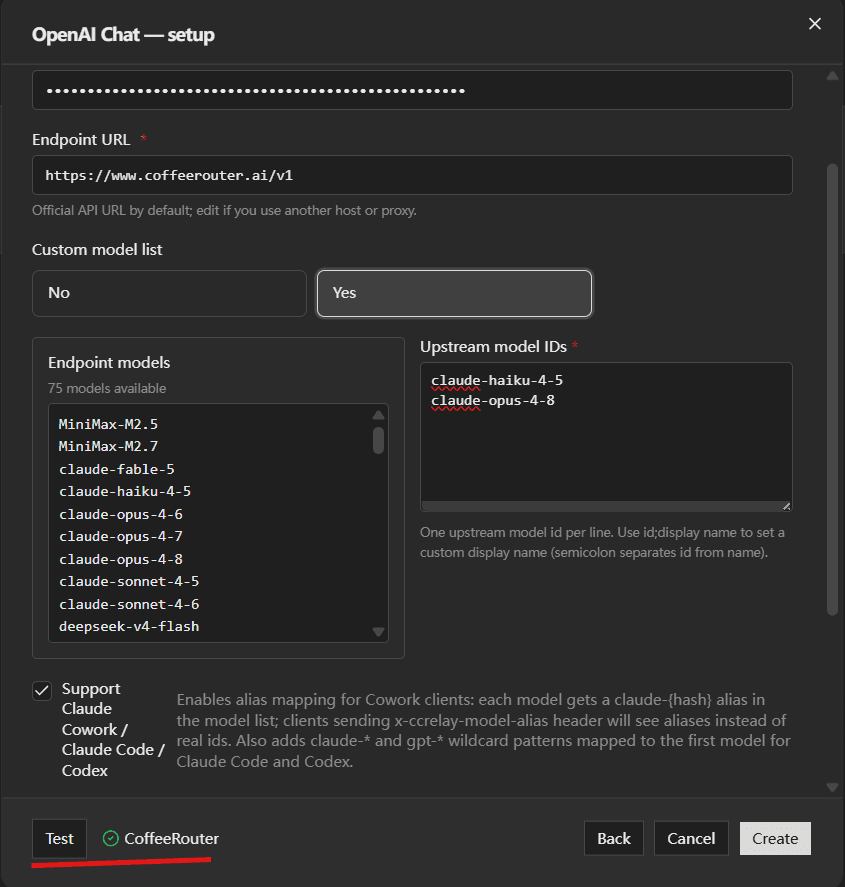
Click Test at the bottom of the wizard. When the test passes, review the preview and click Create.
The wizard creates an enabled CoffeeRouter provider with these important settings:
| Setting | Value | Purpose |
|---|---|---|
| Provider Type | openai_chat | Uses the OpenAI Chat Completions upstream format |
| Mode | inject | Replaces client authentication with the CoffeeRouter token |
| Auth Header | authorization | Sends Authorization: Bearer ... |
| Base URL | https://www.coffeerouter.ai/v1 | Joins with /chat/completions and /models |
If Claude Cowork / Claude Code / Codex support is enabled, the wizard also generates mappings for Claude and GPT model names. You can open the provider editor after creation to review or adjust Model mapping (YAML).
5. Select the CoffeeRouter Provider
Return to Providers and set CoffeeRouter as the current provider. You can also click the CCRelay status bar item or run CCRelay: Switch Provider, then choose CoffeeRouter.
Confirm that the local CCRelay server is running. It listens on 127.0.0.1 and port 7575 by default.
6. Configure Claude Code
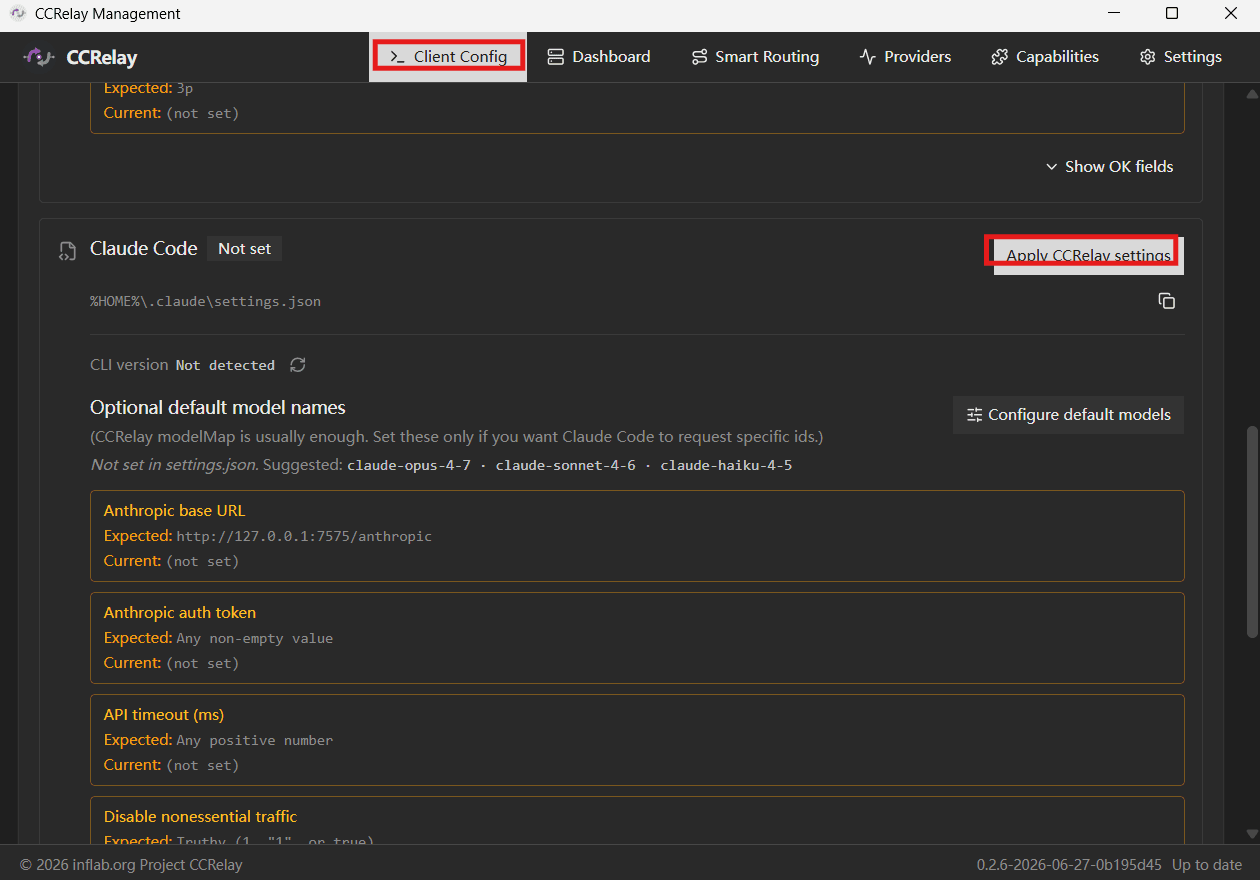
Open Client configuration in the CCRelay dashboard, find the Claude Code section, and apply the settings shown there. CCRelay points Claude Code to its local Anthropic entry point:
http://127.0.0.1:7575/anthropic
To configure it manually, edit ~/.claude/settings.json:
{
  "env": {
    "ANTHROPIC_AUTH_TOKEN": "ccrelay_apikey_placehold_do_not_need_to_setup_here",
    "ANTHROPIC_BASE_URL": "http://127.0.0.1:7575/anthropic",
    "API_TIMEOUT_MS": "3000000",
    "CLAUDE_CODE_DISABLE_NONESSENTIAL_TRAFFIC": 1
  }
}
The ANTHROPIC_AUTH_TOKEN value above is only a placeholder sent to the local CCRelay process. It is not your CoffeeRouter API key. Store the real CoffeeRouter token only in the CCRelay provider.
7. Start and Test
- Confirm that CCRelay is running and CoffeeRouter is the current provider.
- Open a terminal and start Claude Code.
- Send a simple message and confirm that a response is returned.
- If the request fails, open Logs in CCRelay to review the status code, model mapping, and upstream error.
Manual Configuration Reference
If your CCRelay version does not include the provider wizard, or if you prefer to maintain the configuration file directly, edit ~/.ccrelay/config.yaml:
providers:
  coffeerouter:
    name: "CoffeeRouter"
    baseUrl: "https://www.coffeerouter.ai/v1"
    providerType: "openai_chat"
    mode: "inject"
    apiKey: "sk-your-api-key"
    authHeader: "authorization"
    modelMap:
      - pattern: "claude-opus-*"
        model: "your-coffeerouter-model-id"
      - pattern: "claude-sonnet-*"
        model: "your-coffeerouter-model-id"
      - pattern: "claude-haiku-*"
        model: "your-coffeerouter-model-id"
    enabled: true

defaultProvider: "coffeerouter"
Replace sk-your-api-key and your-coffeerouter-model-id with your own token and model ID. CCRelay also supports ${ENV_VAR} syntax in apiKey; when using an environment variable, make sure the process that launches CCRelay can read it.
Troubleshooting
Why must the Base URL include /v1?
An openai_chat provider directly joins its Base URL with /chat/completions and /models. With https://www.coffeerouter.ai/v1, requests reach the correct /v1/chat/completions and /v1/models endpoints.
Why do I get a 404 or a /v1/v1 URL?
Make sure the Base URL contains exactly one /v1. Do not enter https://www.coffeerouter.ai/v1/v1, and do not append /chat/completions to the Base URL.
Why do I get a 401 or 403 error?
Verify that the CoffeeRouter token is complete, enabled, and not expired. The provider should use inject mode and the authorization header. Also check quota, model permissions, and IP allowlist restrictions.
Why is Claude Code using the wrong model?
Review the provider's model mapping. Claude Code may send claude-opus-*, claude-sonnet-*, or claude-haiku-*; map these patterns to a real model ID available to the current CoffeeRouter token.
Why can't I open the dashboard directly in a browser?
This is a CCRelay access-protection mechanism. Use CCRelay: Open Dashboard or open the dashboard from the desktop app tray menu.
How do I revoke the CoffeeRouter token?
Disable or delete the token in CoffeeRouter Token Management, then update or remove the matching CCRelay provider. A dedicated token for CCRelay makes revocation easier.
Security Notes
~/.ccrelay/config.yamlmay contain the complete CoffeeRouter token. Do not upload, share, or commit it to Git.- Do not share screenshots, exported configurations, logs, or terminal output that contain a token. Examples in this guide use
sk-your-api-key. - CCRelay binds only to
127.0.0.1by default. Do not expose it to a LAN or the public internet unless you have configured access control, a firewall, and a trusted network. - Request logs may contain prompts, responses, and model information. Redact them before sharing.