

NextChat
Connect NextChat to CoffeeRouter through the OpenAI-compatible endpoint and add custom models.
Prerequisites
Before you begin, make sure that:
- The latest NextChat is installed.
- You are signed in to CoffeeRouter and have created an active token under Token Management.
- You know the exact model IDs allowed by the token. Each ID must exactly match the value shown by CoffeeRouter.
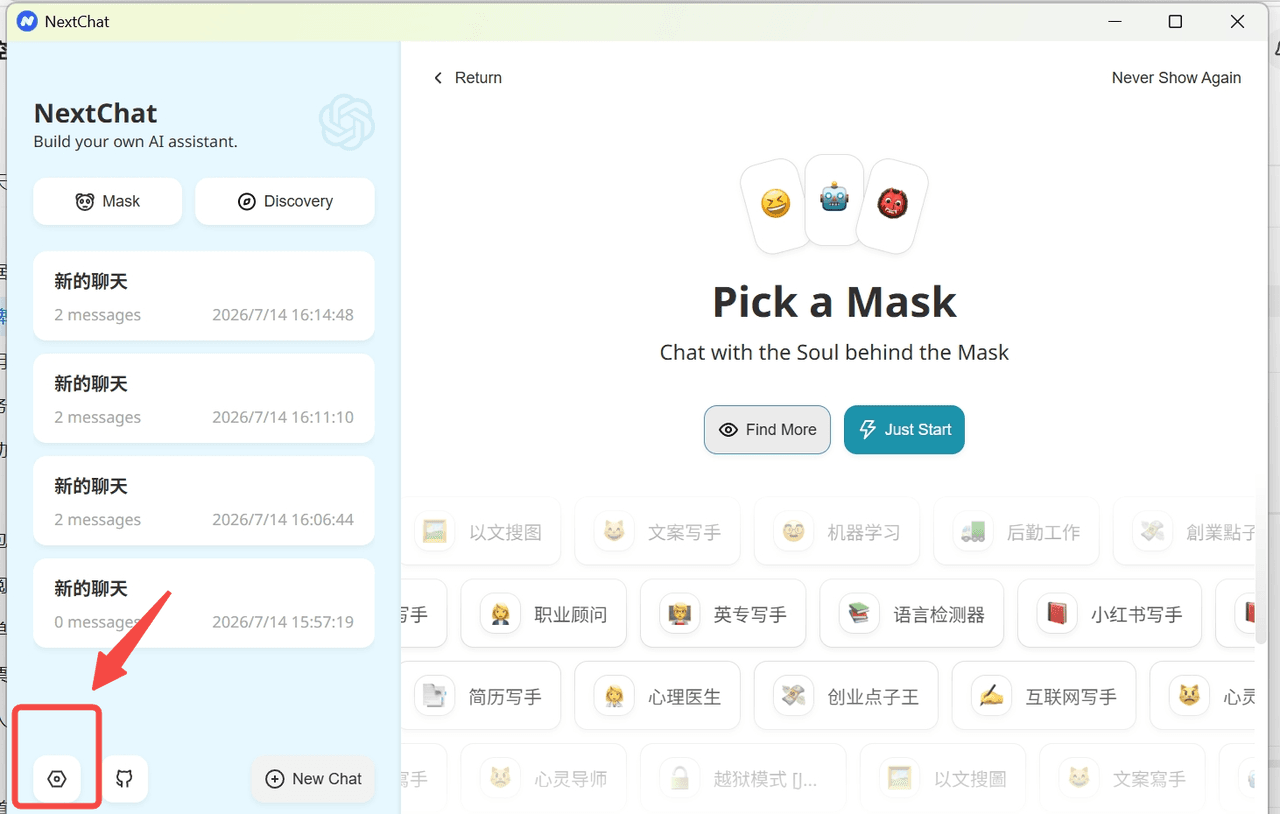
1. Open Settings
Open NextChat and select the Settings icon in the lower-left corner.
2. Configure CoffeeRouter
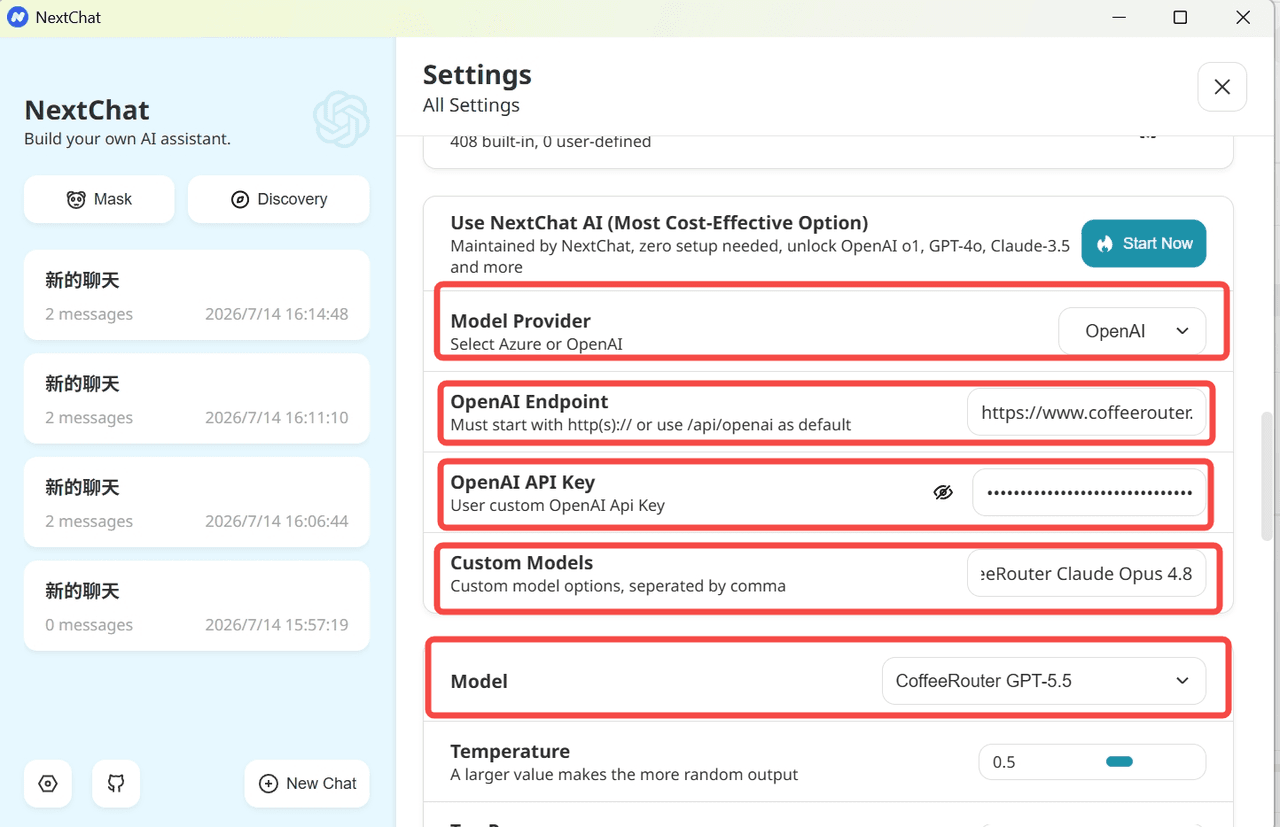
Find the model settings and enter:
| Field | Value |
|---|---|
| Model Provider | OpenAI |
| OpenAI Endpoint | https://www.coffeerouter.ai |
| OpenAI API Key | Your CoffeeRouter token, such as sk-your-api-key |
| Custom Models | Add the models you need using the format below |
The OpenAI Endpoint must be the CoffeeRouter site root, without /v1. NextChat appends /v1/chat/completions automatically. Adding /v1 can produce the invalid path /v1/v1/chat/completions.
Custom Models example:
+gpt-5.5@OpenAI=CoffeeRouter-GPT-5.5,+claude-opus-4-8@OpenAI=CoffeeRouter-Claude-Opus-4.8
Format rules:
+adds a model, and multiple entries are separated with commas.@OpenAIroutes the model through the configured OpenAI provider. Claude models also use OpenAI here because CoffeeRouter exposes them through an OpenAI-compatible endpoint.- The value to the left of
=is the real model ID sent to CoffeeRouter and must exactly match a model allowed by the token. - The value to the right of
=is only the display name in NextChat and can be customized.
The example models only demonstrate the syntax. Actual availability depends on the current token's model permissions. NextChat stores setting changes in its local configuration.
3. Select a model
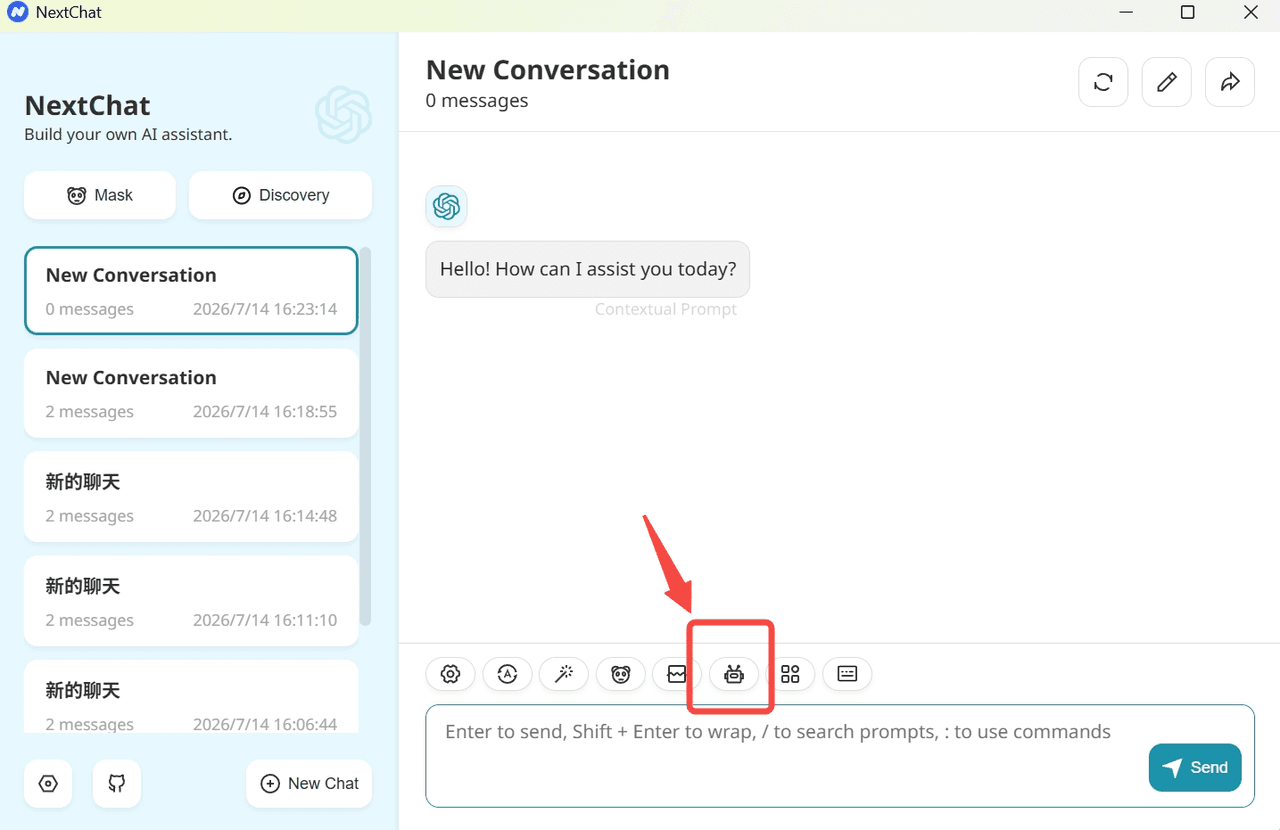
Return to the chat screen and select the model selector button above the message box.
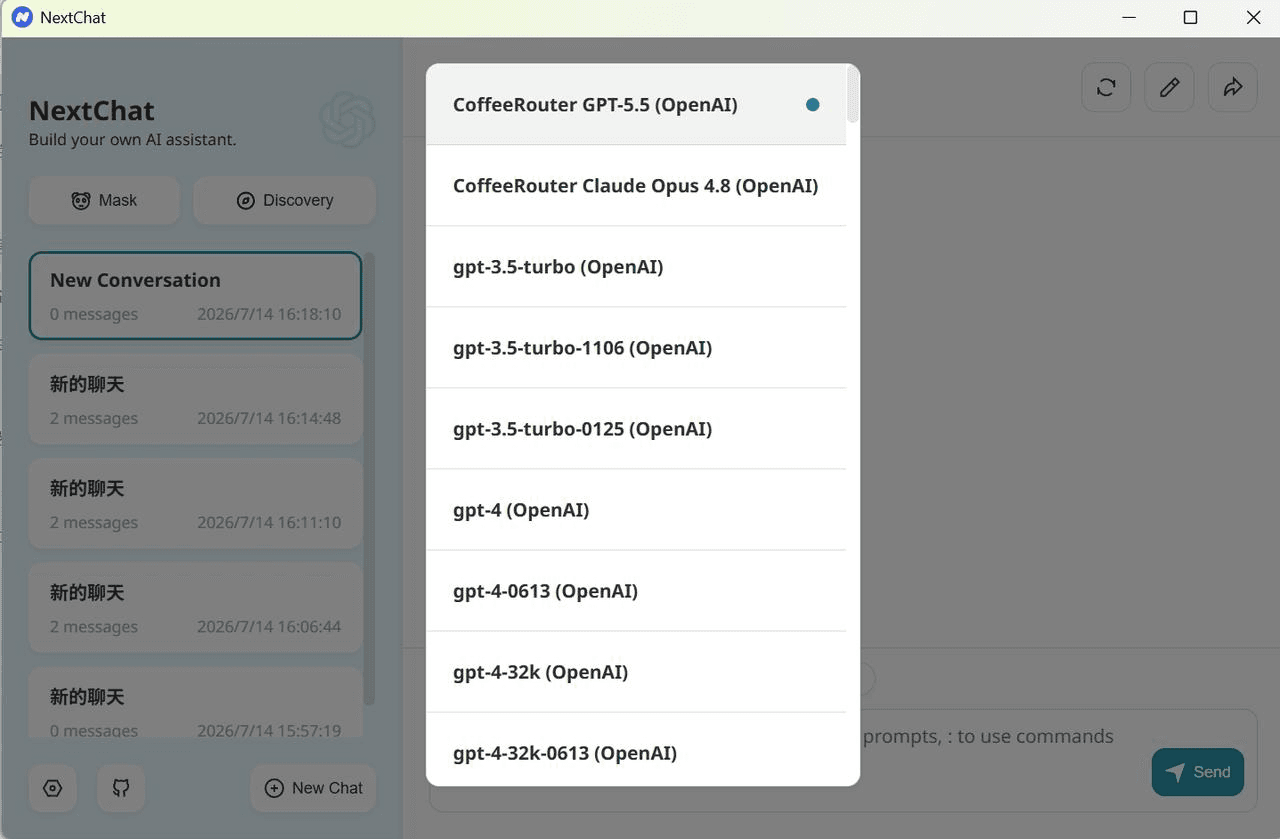
Choose the CoffeeRouter model you just added. The list shows the display name to the right of =, while requests still use the model ID to the left.
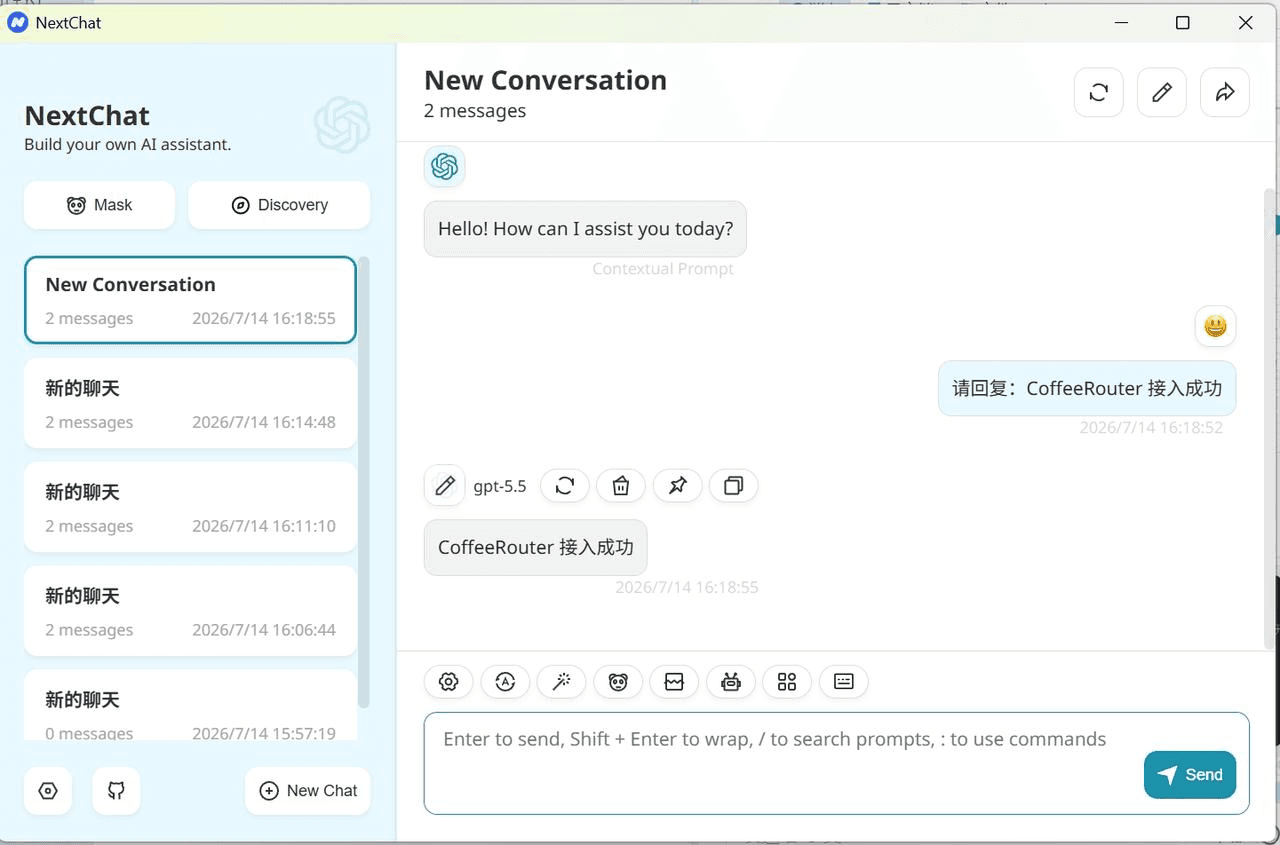
4. Send a test message
Send a short message and confirm that the model responds. If the response uses the selected model without an error, the CoffeeRouter connection is ready.
Security
Troubleshooting
Why does the OpenAI Endpoint omit /v1?
NextChat automatically appends /v1/chat/completions to the site root. Enter
https://www.coffeerouter.ai, not https://www.coffeerouter.ai/v1.
Why does the model not appear after I add it?
Check that every Custom Models entry starts with +, uses commas as separators, and includes @OpenAI. Reopen the model selector or restart NextChat if needed.
Why does NextChat report that the model is missing or unauthorized?
The value to the left of = must be a complete model ID allowed by the CoffeeRouter token. The display name to the right cannot replace the real model ID.
Why do I receive a 401 response?
Check that the full token was copied, remains enabled and unexpired, has available quota, and is allowed by any IP restrictions.
Why do I receive a 404 or see /v1/v1?
Change OpenAI Endpoint to the site root https://www.coffeerouter.ai. Remove a trailing /v1 or any complete request path.