

CC Switch CLI
Configure and switch CoffeeRouter providers for supported AI coding agents with CC Switch CLI.
Prerequisites
Before you begin, prepare:
- A CoffeeRouter token. Create a separate token for each agent when possible so model access, quota, IP rules, and revocation can be managed independently.
- The exact model IDs allowed by the token. They must match the IDs shown on the CoffeeRouter token management page.
- The target agent tool installed locally.
- A supported terminal. Windows Terminal or PowerShell is recommended on Windows; use your usual terminal on macOS or Linux.
Run each target tool at least once before the first provider switch so its configuration directory exists:
claude --help
codex --help
gemini --help
opencode --help
openclaw --help
Hermes users can start Hermes once or confirm that ~/.hermes exists. CC Switch CLI intentionally skips live configuration writes for applications that have not been initialized.
Endpoint and protocol reference
Each tool appends different request paths. Use these values exactly:
| Target app | Base URL | API format | Local proxy |
|---|---|---|---|
| Claude Code | https://www.coffeerouter.ai | Anthropic | Off |
| Codex | https://www.coffeerouter.ai/v1 | Responses | Off |
| Gemini CLI | https://www.coffeerouter.ai | Native Gemini API | Off |
| OpenCode | https://www.coffeerouter.ai/v1 | OpenAI Compatible | Not supported or needed |
| Hermes | https://www.coffeerouter.ai/v1 | chat_completions | Not supported or needed |
| OpenClaw | https://www.coffeerouter.ai/v1 | openai-completions | Not supported or needed |
Claude Code and Gemini CLI take the site root and append Anthropic Messages or Gemini /v1beta paths. The OpenAI-compatible tools require one /v1 segment.
Install CC Switch CLI
CC Switch CLI does not provide an npm or npx installer. Use an official binary release.
macOS or Linux
Run the official installer:
curl -fsSL https://github.com/SaladDay/cc-switch-cli/releases/latest/download/install.sh | bash
The default destination is ~/.local/bin. On macOS, Homebrew is also supported:
brew install cc-switch-cli
For a Homebrew installation, update with brew upgrade cc-switch-cli rather than mixing in the built-in updater.
Windows
Download cc-switch-cli-windows-x64.zip from CC Switch CLI Releases. Extract it and run cc-switch.exe, or place it in a PATH directory that you manage.
Verify the installation:
cc-switch --version
cc-switch --help
Launch and select the target app
Run:
cc-switch
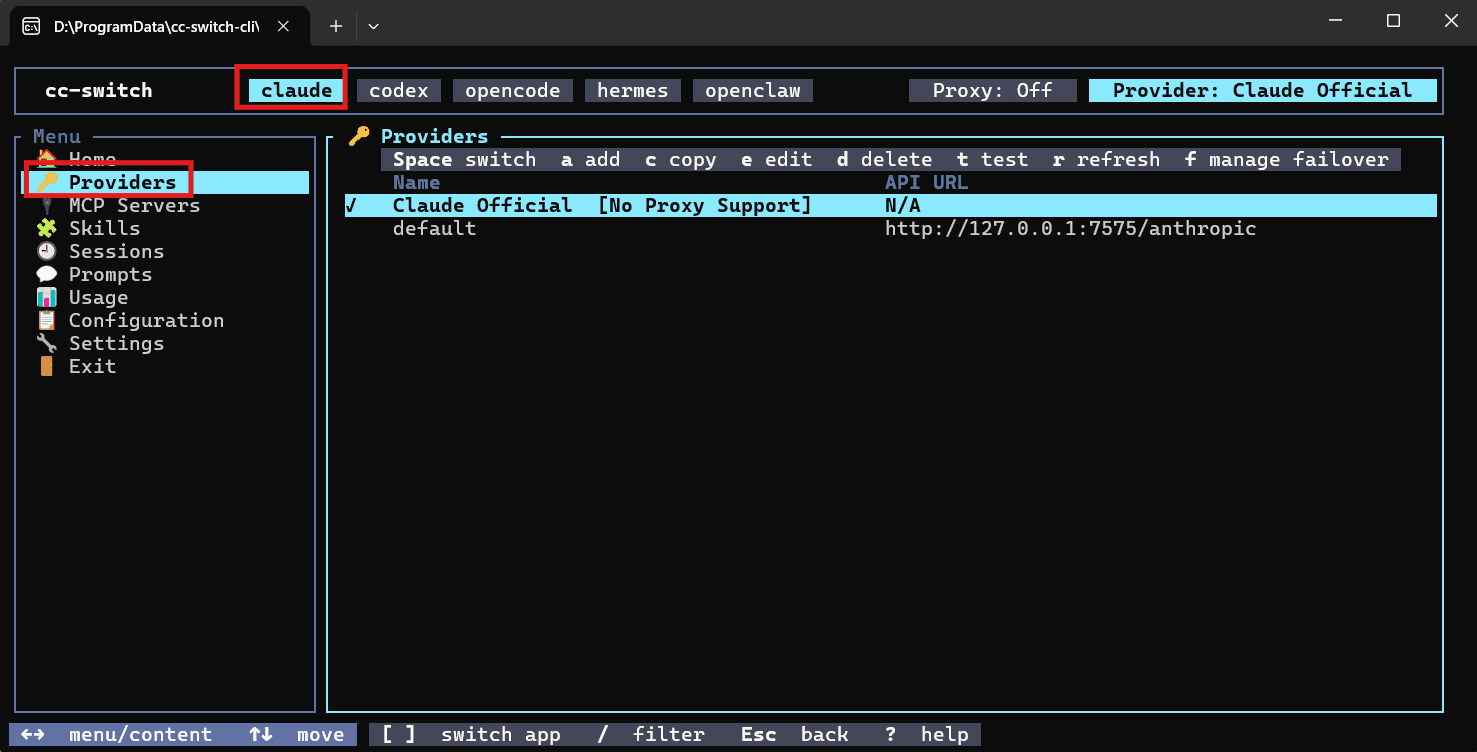
In the full-screen interface, follow the key hints shown at the bottom of your current version:
- Switch to the target application, such as Claude, Codex, or Gemini.
- Open Providers.
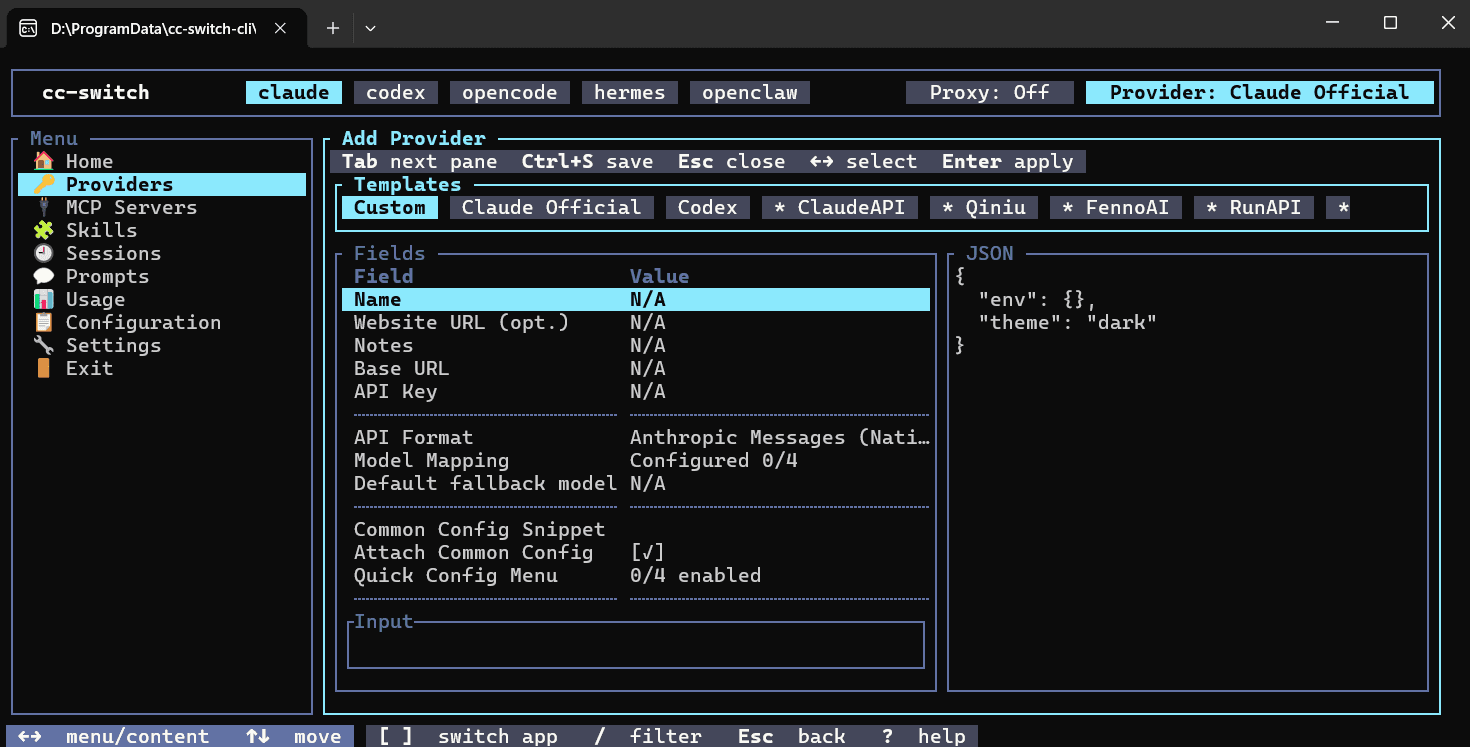
- Choose Add Provider.
- Select the Custom provider template.
TUI shortcuts can change between releases, so follow the hints rendered by the installed version.
Connect Claude Code
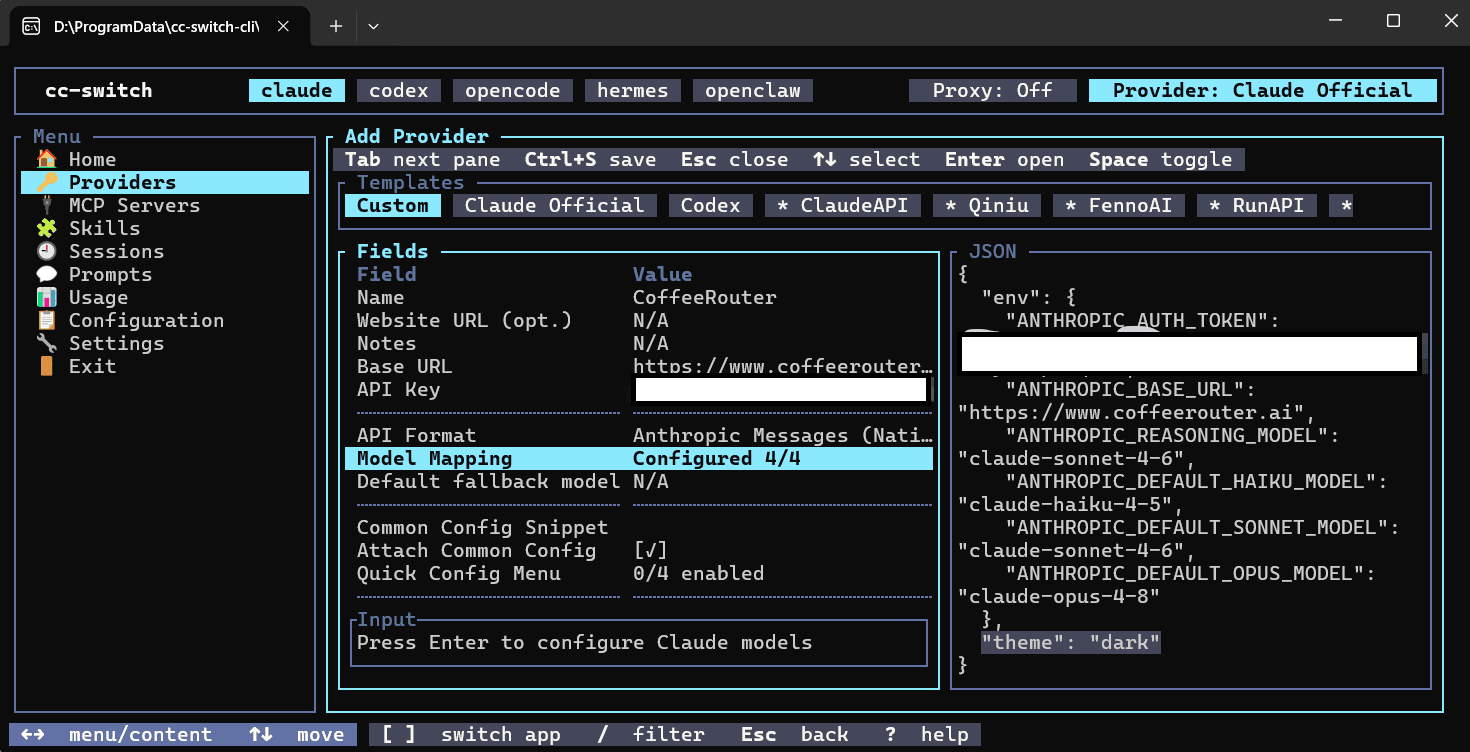
Switch to Claude, add a Custom provider, and enter:
| Field | Value |
|---|---|
| Name | CoffeeRouter |
| Base URL | https://www.coffeerouter.ai |
| API Key | Your CoffeeRouter token, such as sk-your-api-key |
| API Key Field | ANTHROPIC_API_KEY |
| API Format | Anthropic |
| Main / Haiku / Sonnet / Opus | Claude model IDs allowed by the current token |
| Local Proxy | Off |
Do not append /v1. CoffeeRouter exposes an Anthropic Messages-compatible endpoint, so no OpenAI Chat/Responses conversion or local proxy is required.
If the token allows only one Claude model, use that exact ID as the main model and map Haiku, Sonnet, and Opus only when needed.
Connect Codex
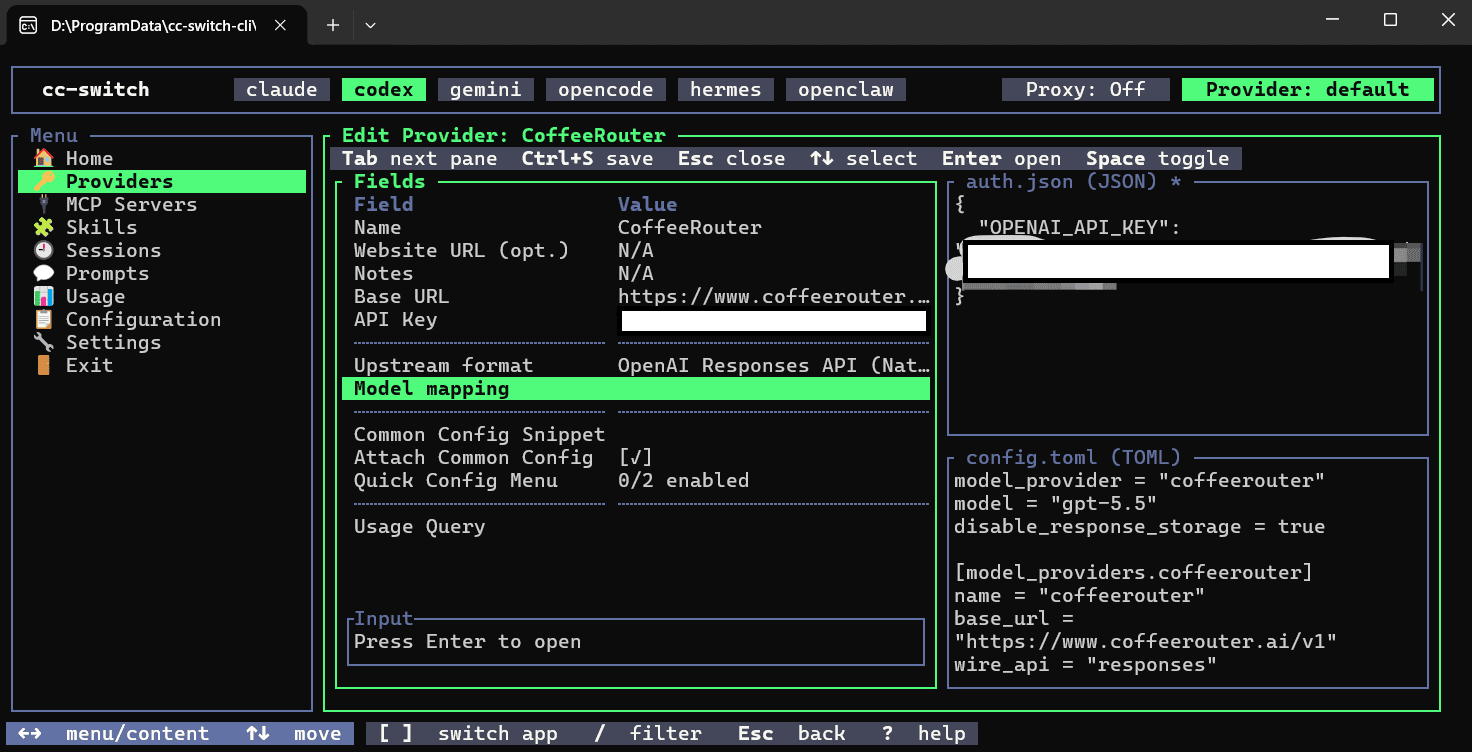
Switch to Codex, add a Custom provider, and enter:
| Field | Value |
|---|---|
| Name | CoffeeRouter |
| Base URL | https://www.coffeerouter.ai/v1 |
| API Key | Your CoffeeRouter token, such as sk-your-api-key |
| Upstream API Format | Responses |
| Model Mapping / Model Catalog | Add at least one model ID allowed by the current token |
| Proxy Takeover / Local Proxy | Off |
Recent versions primarily manage Codex models through Model Mapping / Model Catalog. In Responses mode, this selects the upstream model for a direct connection; it does not enable protocol conversion or the local proxy. If your version also shows a Model field, use the same exact model ID. Do not choose Chat format or enter a URL ending in /v1/v1.
Connect Gemini CLI
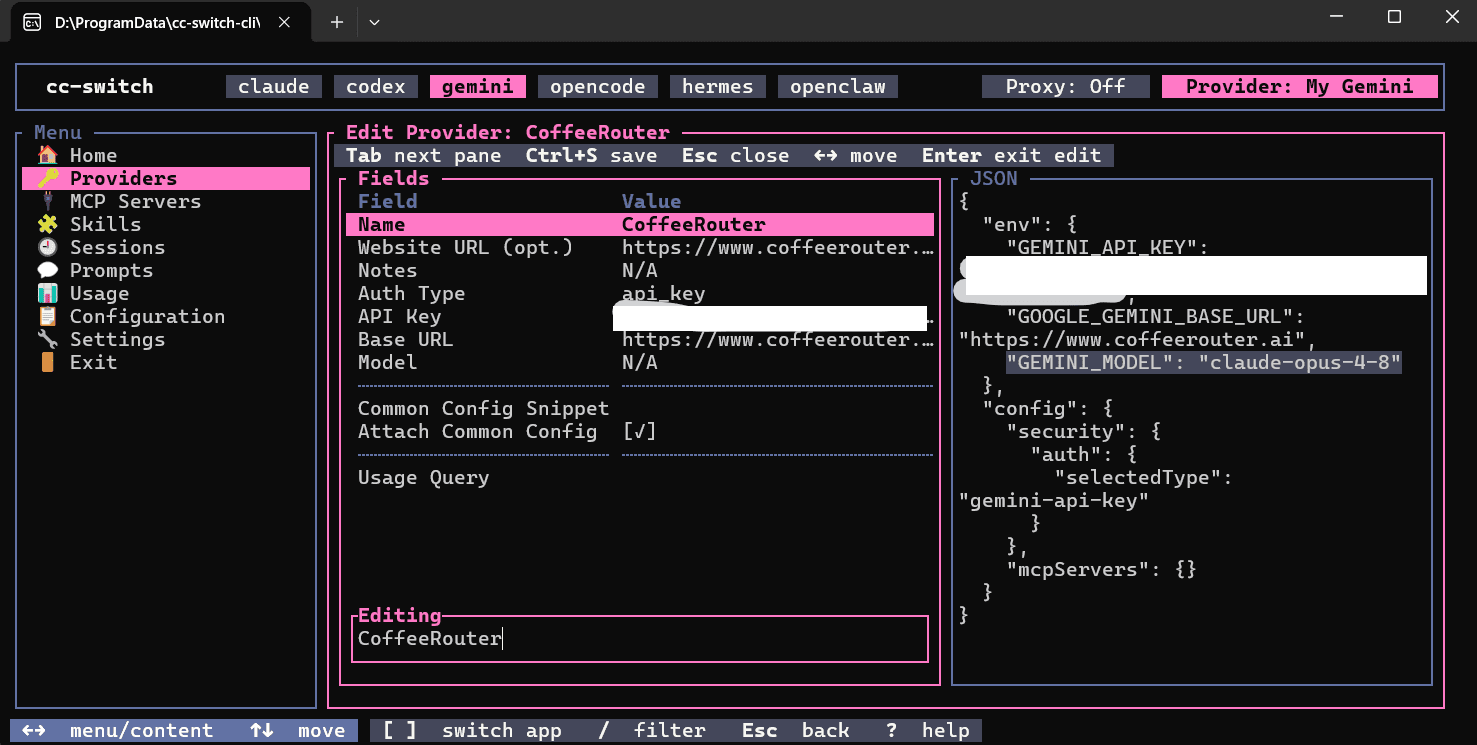
Switch to Gemini, add a Custom provider, and enter:
| Field | Value |
|---|---|
| Name | CoffeeRouter |
| Auth Type | API Key |
| API Key | Your CoffeeRouter token, such as sk-your-api-key |
| Base URL | https://www.coffeerouter.ai |
| Model | A Gemini model ID allowed by the current token |
Gemini CLI stores the Base URL in GOOGLE_GEMINI_BASE_URL and appends /v1beta/models/... itself. Do not add /v1 or /v1beta here.
Connect other tools
CC Switch CLI can also write provider settings for OpenCode, Hermes, and OpenClaw.
OpenCode
| Field | Value |
|---|---|
| Provider Package | @ai-sdk/openai-compatible |
| Base URL | https://www.coffeerouter.ai/v1 |
| API Key | Your CoffeeRouter token |
| Model ID | An exact model ID allowed by the current token |
| Model Name / Context / Output Limit | Optional; fill according to model capabilities |
Hermes
| Field | Value |
|---|---|
| API Mode | chat_completions |
| Base URL | https://www.coffeerouter.ai/v1 |
| API Key | Your CoffeeRouter token |
| Models | Add at least one exact model ID; the first model becomes the default |
OpenClaw
| Field | Value |
|---|---|
| API Protocol | openai-completions |
| Base URL | https://www.coffeerouter.ai/v1 |
| API Key | Your CoffeeRouter token |
| Models | Add at least one exact model ID |
After saving an OpenClaw provider, also set the CoffeeRouter provider and model as the default. OpenCode, Hermes, and OpenClaw do not use CC Switch CLI's local proxy feature.
Activate and verify
Return to the provider list, select CoffeeRouter, and use the current UI's Switch / Activate action. On the first switch, review any import or backup prompt before allowing CC Switch CLI to replace an existing provider configuration.
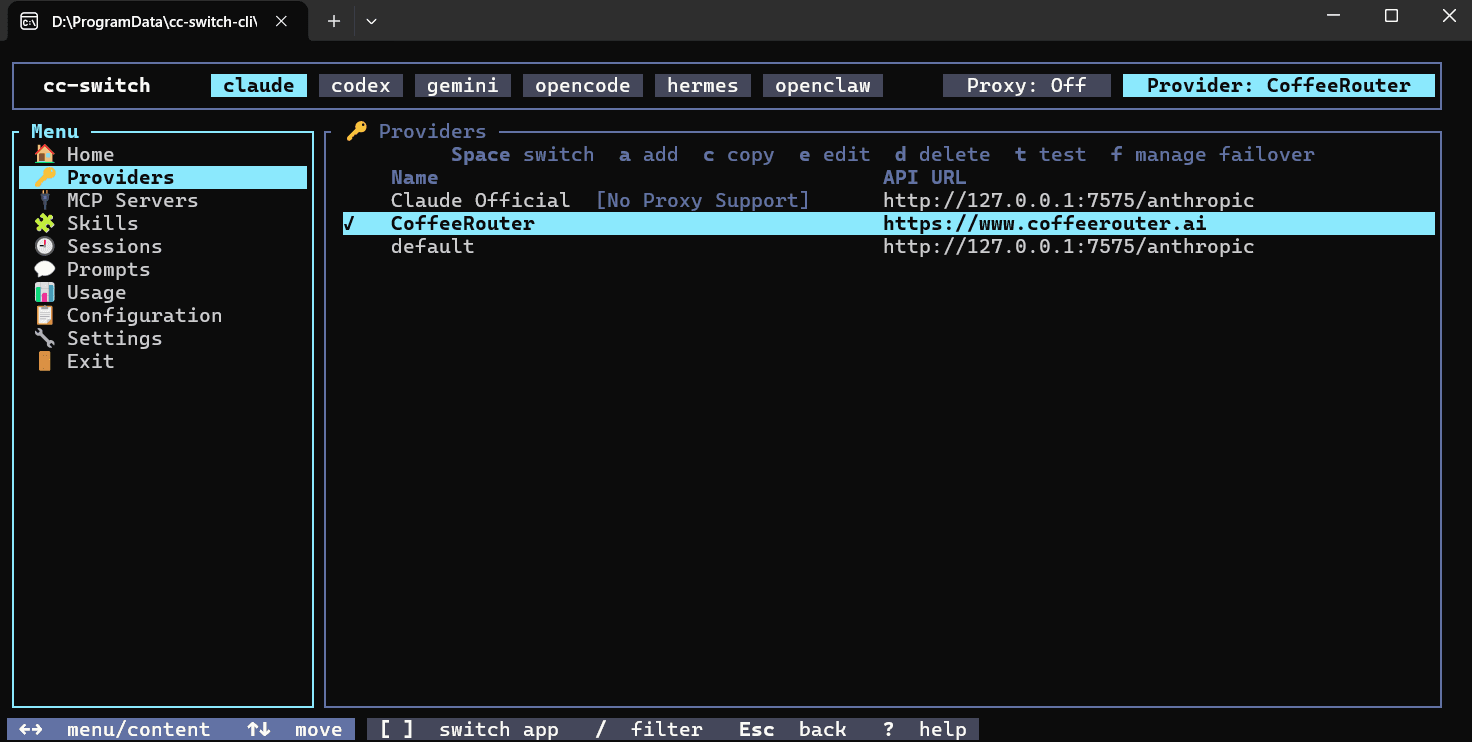
Check the active provider from a terminal:
cc-switch --app claude provider current
cc-switch --app codex provider current
cc-switch --app gemini provider current
Restart the corresponding agent and send a simple test request. If --app is omitted, CC Switch CLI targets Claude by default.
Optional command-line configuration
The TUI is recommended for entering credentials. In automation, the following commands are available, but a real API key may be exposed in shell history, process listings, or recordings. These examples use placeholders only.
Claude Code
cc-switch --app claude provider add --name CoffeeRouter --id coffeerouter --base-url https://www.coffeerouter.ai --api-key sk-your-api-key --model your-claude-model-id --api-format anthropic --api-key-field api-key
cc-switch --app claude provider switch coffeerouter
Codex
cc-switch --app codex provider add --name CoffeeRouter --id coffeerouter --base-url https://www.coffeerouter.ai/v1 --api-key sk-your-api-key --model your-model-id --api-format responses
cc-switch --app codex provider switch coffeerouter
Gemini CLI
cc-switch --app gemini provider add --name CoffeeRouter --id coffeerouter --base-url https://www.coffeerouter.ai --api-key sk-your-api-key --model your-gemini-model-id
cc-switch --app gemini provider switch coffeerouter
provider add is non-interactive. It does not open a wizard when required flags are omitted; launch cc-switch when you need an interactive form.
Configuration files and security
| Content | Default path |
|---|---|
| CC Switch CLI database | ~/.cc-switch/cc-switch.db |
| CC Switch CLI settings | ~/.cc-switch/settings.json |
| Automatic backups | ~/.cc-switch/backups/ |
| Claude Code | ~/.claude/settings.json |
| Codex | ~/.codex/config.toml, ~/.codex/auth.json |
| Gemini CLI | ~/.gemini/.env, ~/.gemini/settings.json |
| OpenCode | ~/.config/opencode/opencode.json |
| Hermes | ~/.hermes/config.yaml |
| OpenClaw | ~/.openclaw/openclaw.json |
On Windows, ~ is the current user's home directory, usually %USERPROFILE%. Run cc-switch config path to display the paths used on the current device.
Troubleshooting
The switch does not take effect
Confirm that the target app has been started once, then check whether environment variables override the generated configuration:
cc-switch env check --app claude
cc-switch env list --app claude
Replace claude with the actual app identifier, then restart the terminal and target application.
Why do some URLs include /v1 while others do not?
Claude Code and Gemini CLI append their protocol paths to a site root. Codex, OpenCode, Hermes, and OpenClaw accept an OpenAI-compatible Base URL and therefore require one /v1 segment.
401 or invalid API key
Make sure the entire token was copied, is enabled, has not expired, has available quota, and allows the current device under any IP rules. Re-enter it in the TUI to avoid quoting or whitespace problems.
404 or path not found
Check the URL for the selected target. Do not duplicate /v1, append /v1beta, or paste a complete request path into the Base URL field.
Model not found or unavailable
Copy a model ID allowed by the current token from CoffeeRouter token management and enter it unchanged. Do not use a display label or abbreviate the ID.
Does CC Switch CLI proxy my requests?
Not by default. It primarily stores and switches local configuration, and the target agent connects directly to CoffeeRouter. Requests pass through a local CC Switch CLI proxy only when that feature is explicitly enabled for Claude, Codex, or Gemini. This guide keeps it disabled.