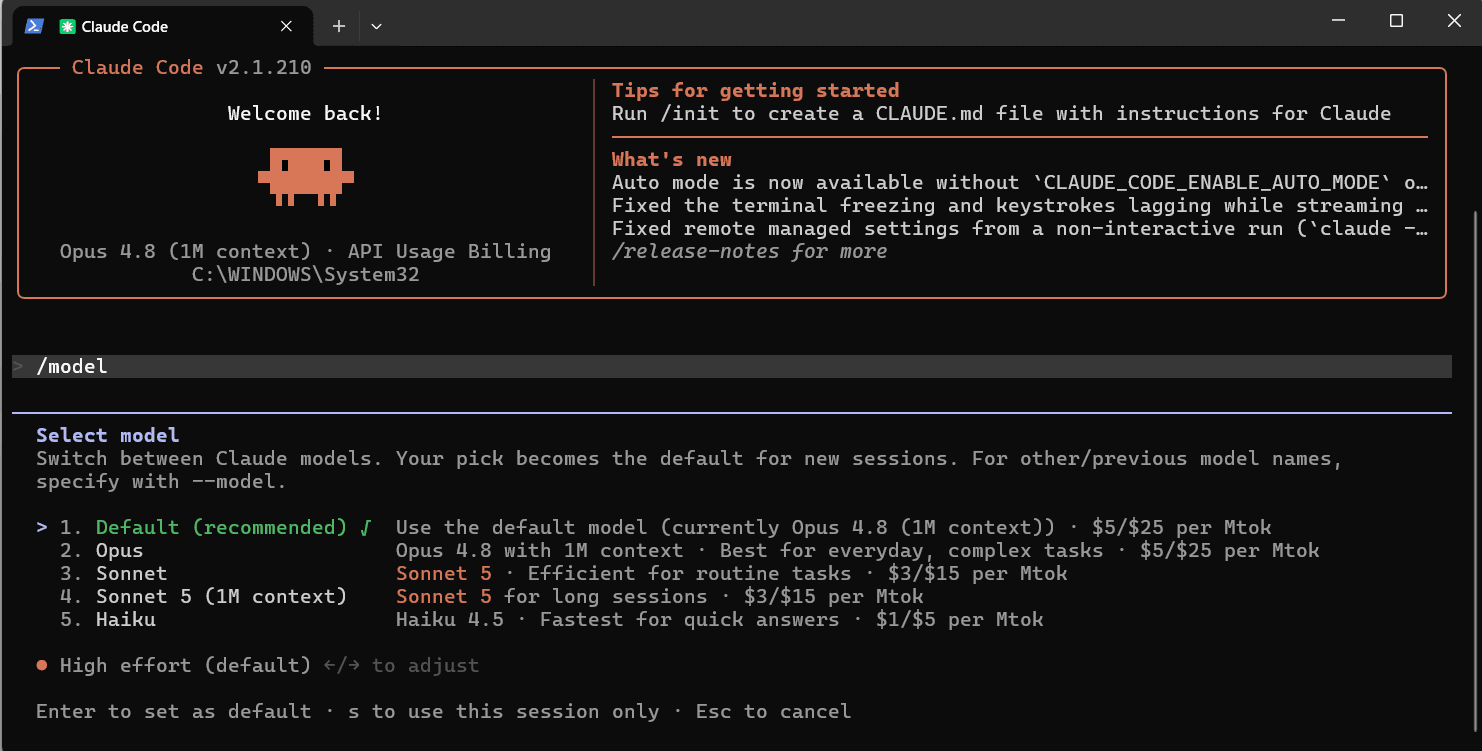
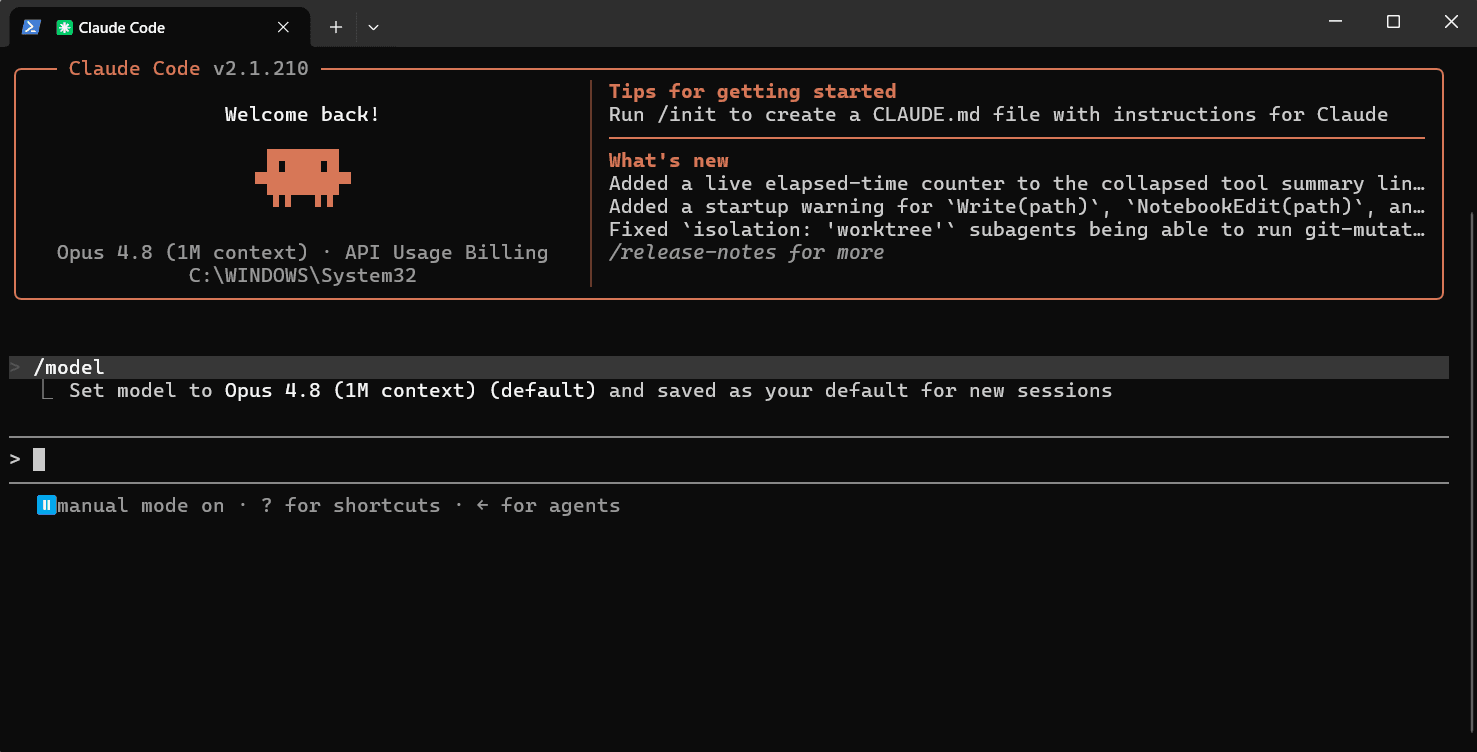
Claude Code Claude Code configuration guide — use Anthropic's terminal-based coding agent with CoffeeRouter. Supports code understanding, multi-file editing, and IDE integration.
Features
Category Feature Code Understanding Deep codebase analysis, utilizing intelligent agents to search and understand project structure and dependencies Automatically generates high-level code overviews, quickly helping users understand the codebase Code Editing Supports multi-file collaborative editing, suitable for complex code modifications Provides practical and usable code suggestions that align with project patterns and architecture Integration Capabilities Supports direct execution in the terminal, eliminating context switching Seamless integration with VS Code and JetBrains IDEs, no copy-pasting required Code Generation & Optimization Automatically generates code, creates tests, fixes bugs, supporting the complete process from concept to commit Optimized for code generation and understanding, combining advanced models like Claude Opus 4 Security & Flexibility Changes require explicit user authorization, ensuring safer file and command operations Adapts to user code standards, supports custom configurations Toolchain Integration Supports integration with tools like GitHub and GitLab to achieve automated workflows Integrates with test suites and build systems, enhancing existing development tools Cross-Platform & Extensibility Supports Windows, macOS, and Linux operating systems Configurable to run in SDKs or GitHub Actions, flexibly adapting to different needs Key Application Scenarios Codebase onboarding and understanding, quick ramp-up for new members Code issue fixing and optimization processes, from problem analysis to PR submission Project code refactoring and new feature implementation User Feedback Highlights Improves daily development efficiency, saving time spent on routine tasks Excellent performance in handling complex multi-step tasks, expanding development possibilities
AI Model Configuration Method
Windows Graphical Guide
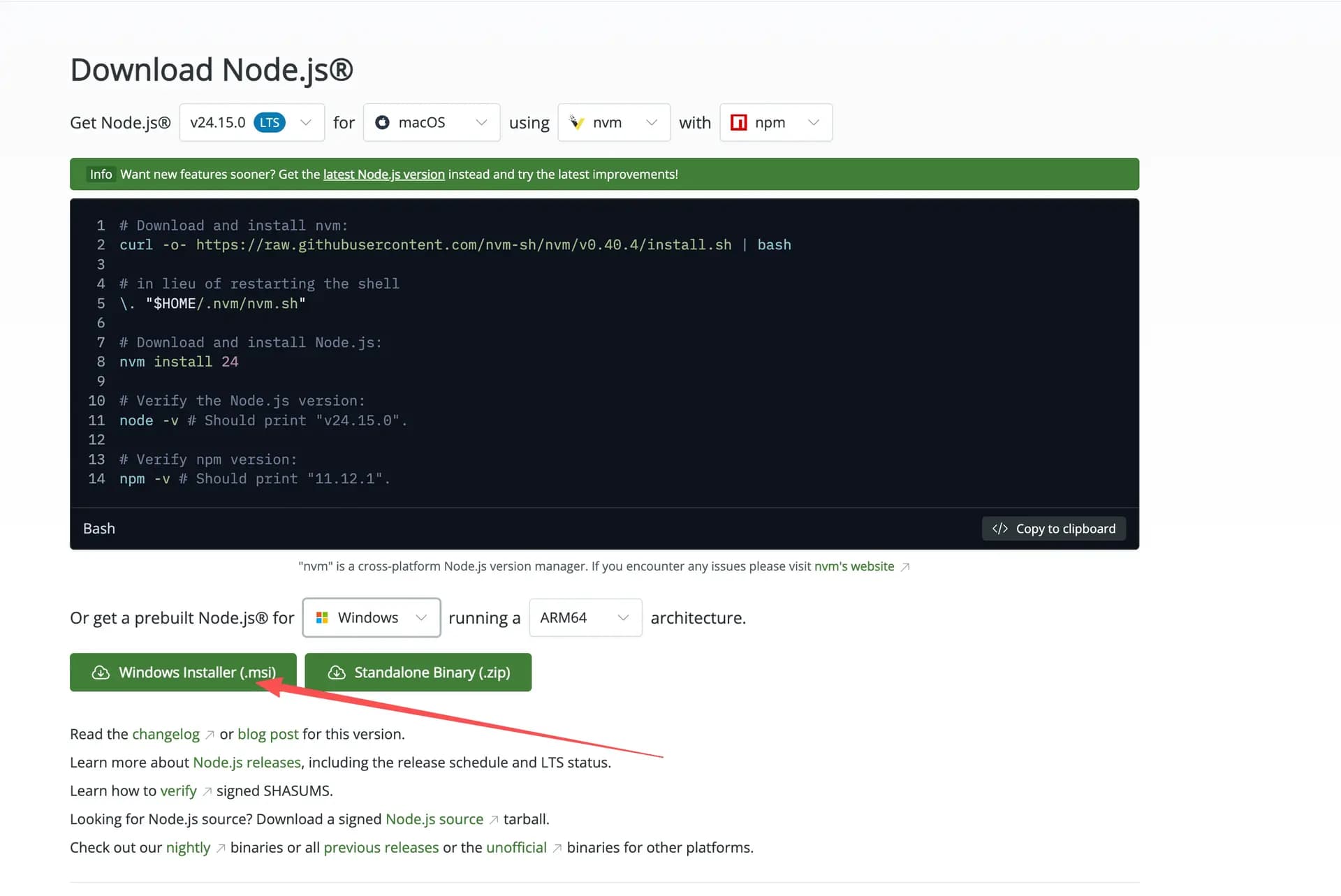
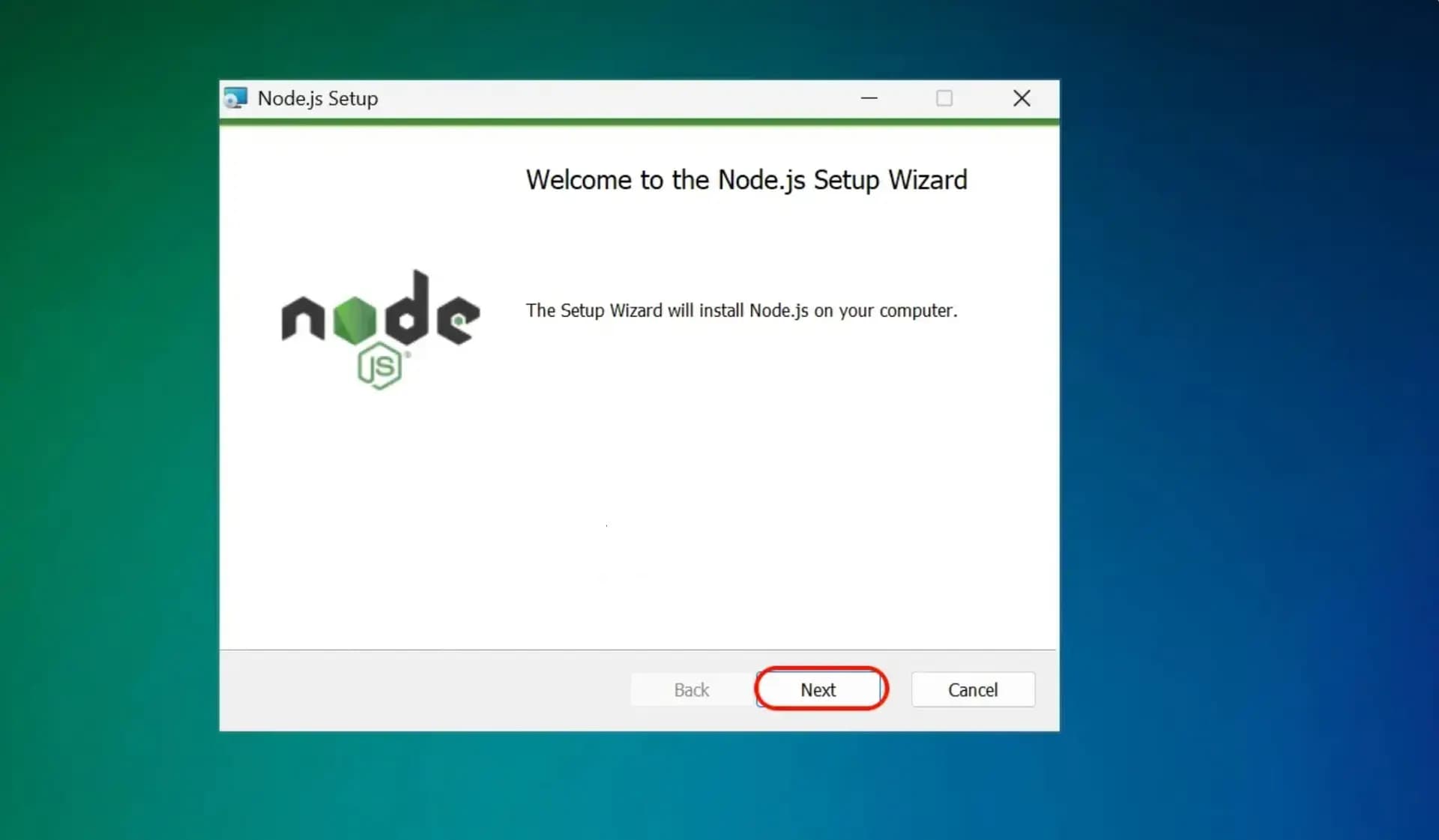
1. Install Node.js Environment
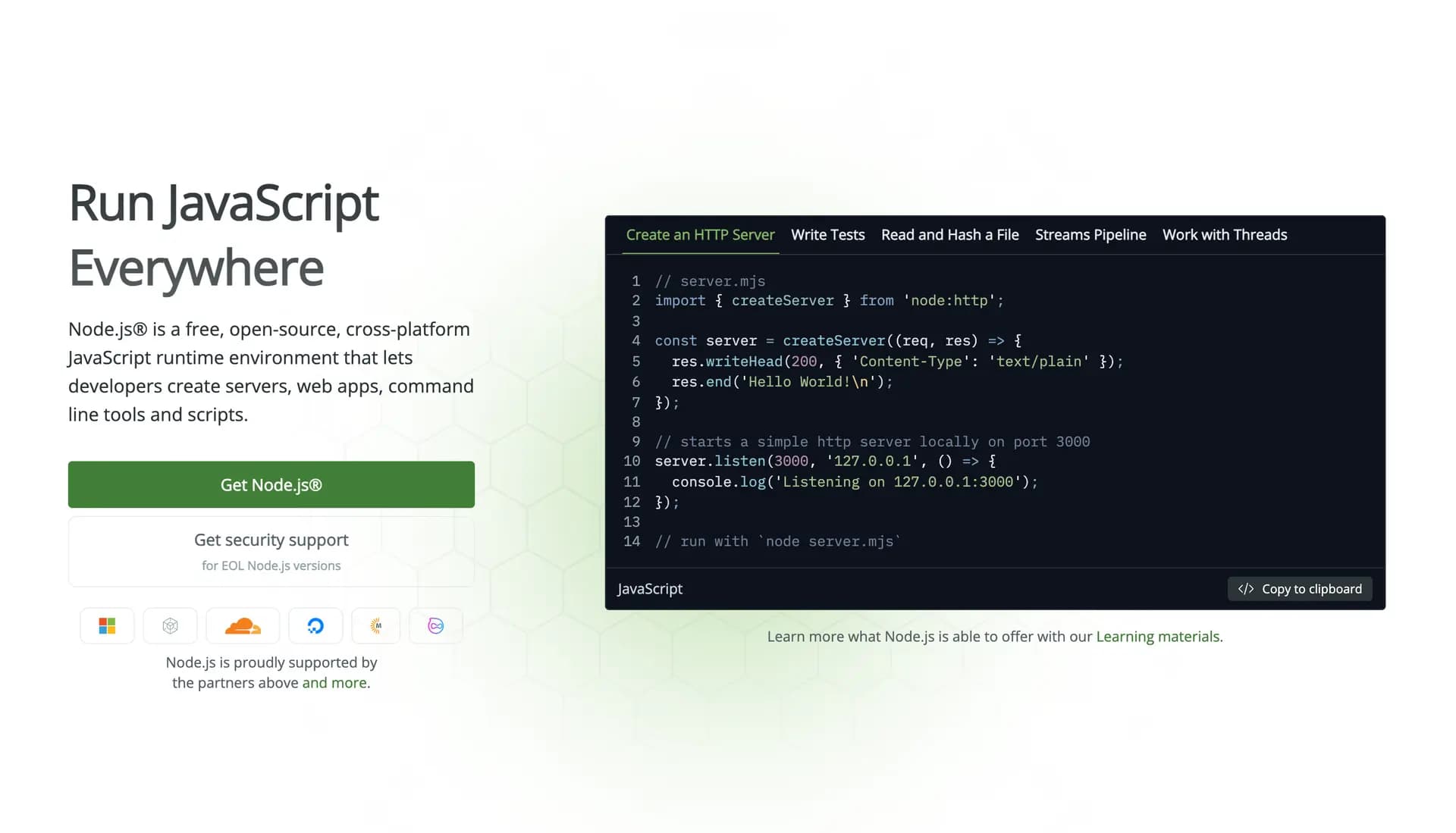
Claude Code requires a Node.js environment to run.
Windows Notes
It is recommended to use PowerShell instead of CMD
If you encounter permission issues, try running as administrator
Some antivirus software may report false positives; you may need to add an exception
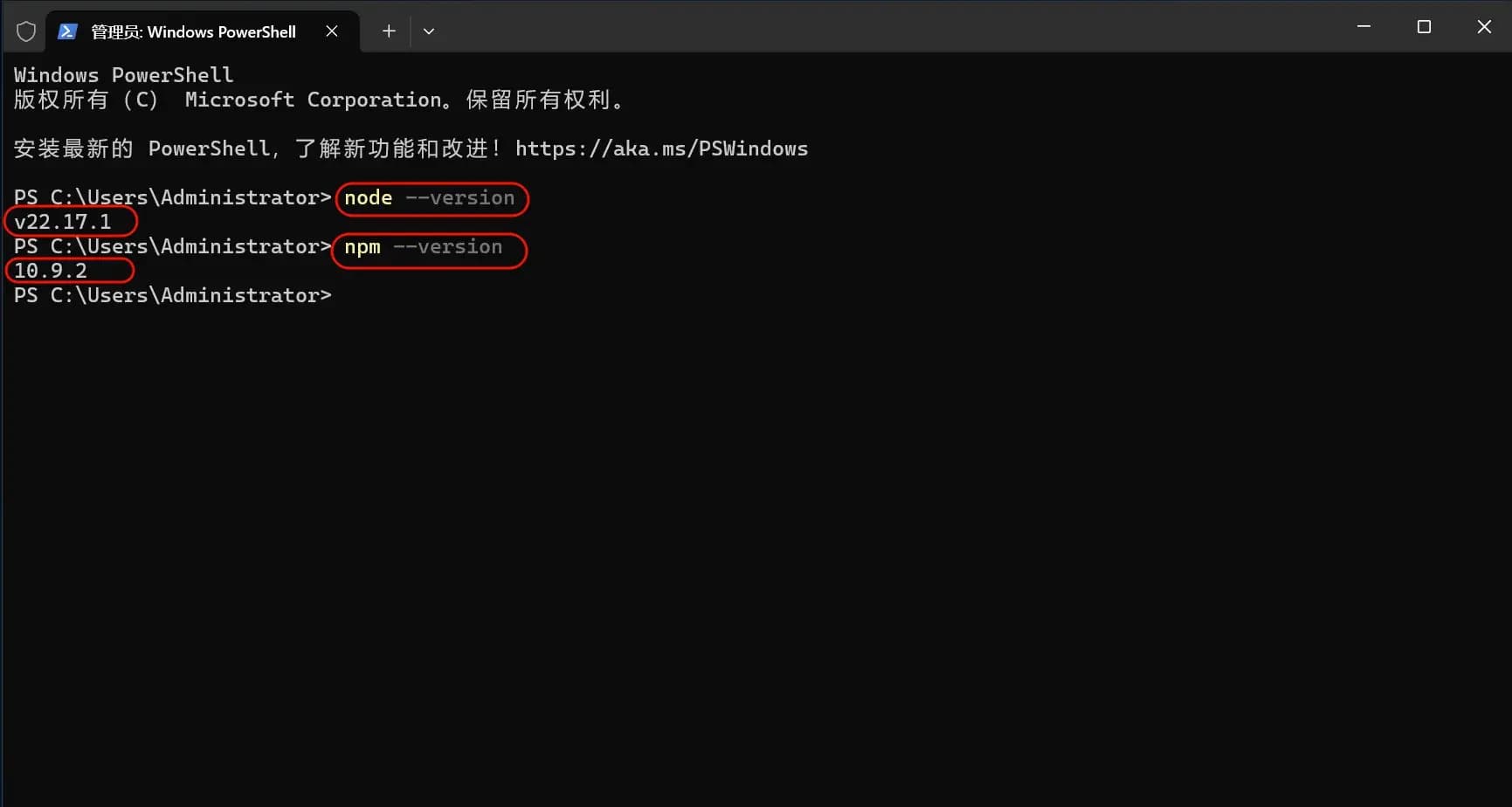
Verify Installation Success
After installation, open PowerShell or CMD and enter the following commands:
node --version
npm --version
If version numbers are displayed, the installation was successful.
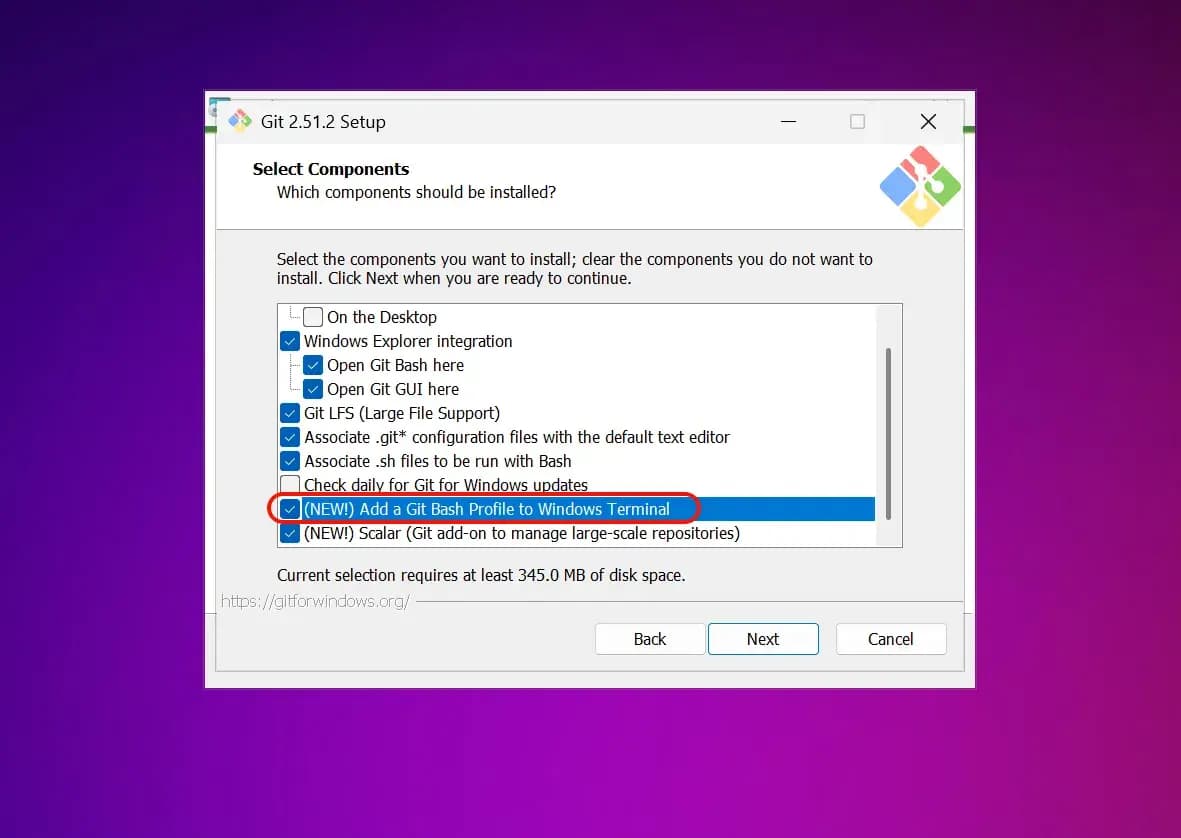
2. Install Git Bash
Verify Git Bash Installation
After installation, open Git Bash and enter the following command to verify:
git --version
If a version number is displayed, the installation was successful.
3. Install Claude Code
Install Claude Code
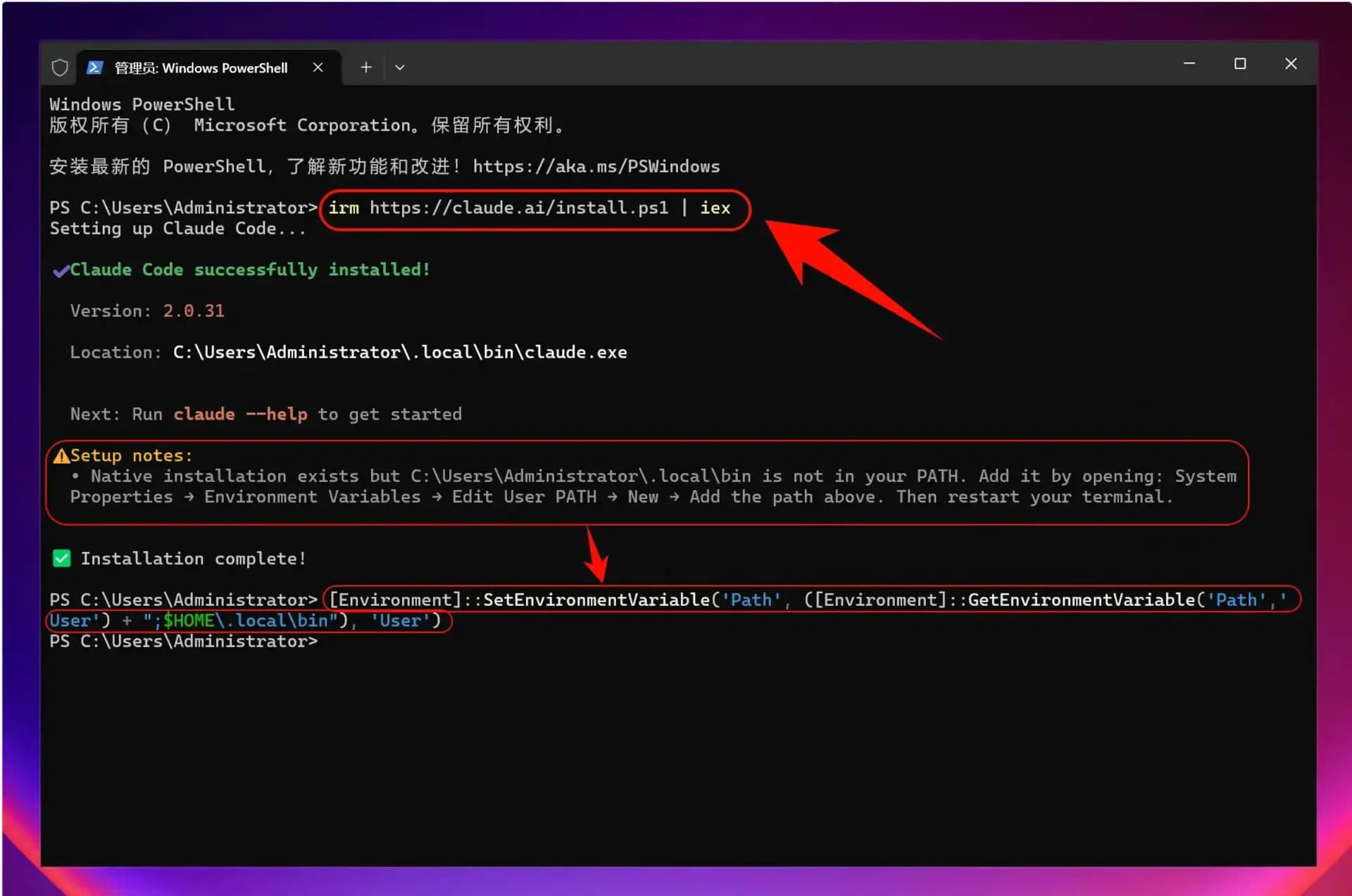
Open PowerShell and run the following command:
npm install -g @anthropic-ai/claude-code
This command will download and install the latest version of Claude Code from the official npm repository.
Add ~/.local/bin to PATH (only if prompted)
[Environment]::SetEnvironmentVariable('Path', ([Environment]::GetEnvironmentVariable('Path','User') + ";$HOME\.local\bin"), 'User')
Verify Claude Code Installation
After installation, enter the following command to check if it was successfully installed:
claude --version
If a version number is displayed, congratulations! Claude Code has been successfully installed.
4. Set Environment Variables
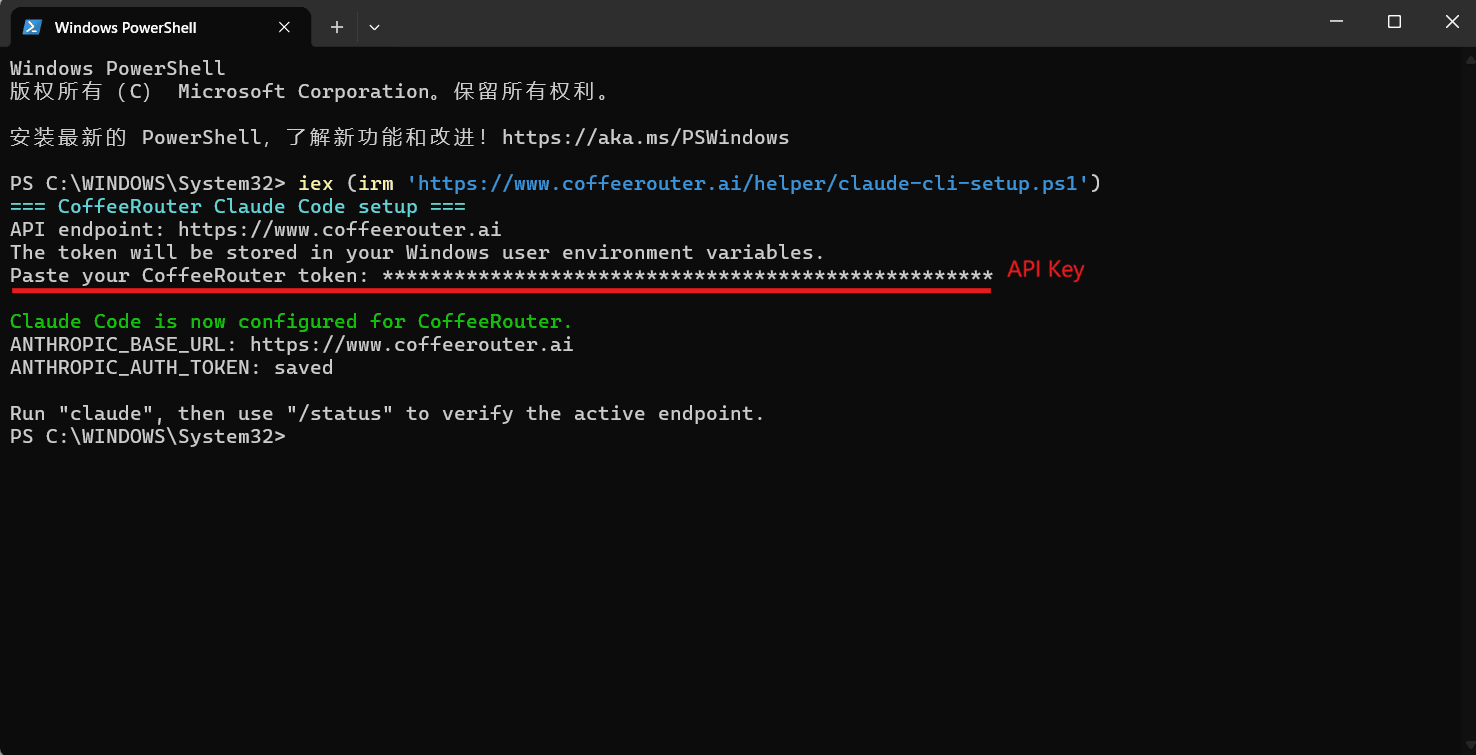
One-Click Setup Command (Windows System)
To allow Claude Code to connect to your relay service, you need to set multiple environment variables:
iex (irm 'https://www.coffeerouter.ai/helper/claude-cli-setup.ps1')
The CoffeeRouter-hosted script fixes the API endpoint to https://www.coffeerouter.ai, prompts for the token without displaying it, and saves the settings for both the current PowerShell session and your Windows user account.
5. Start Using Claude Code
You can now start using Claude Code!
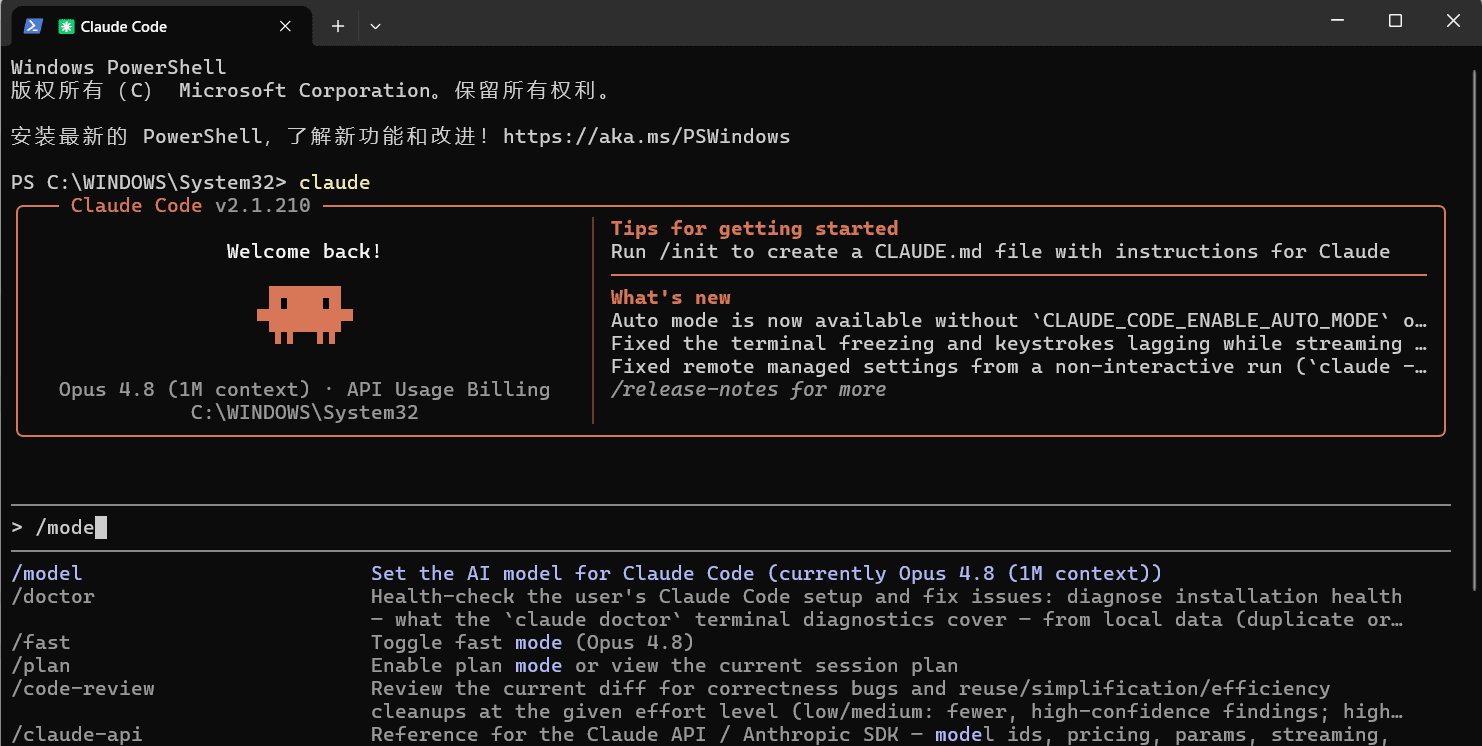
Launch Claude Code
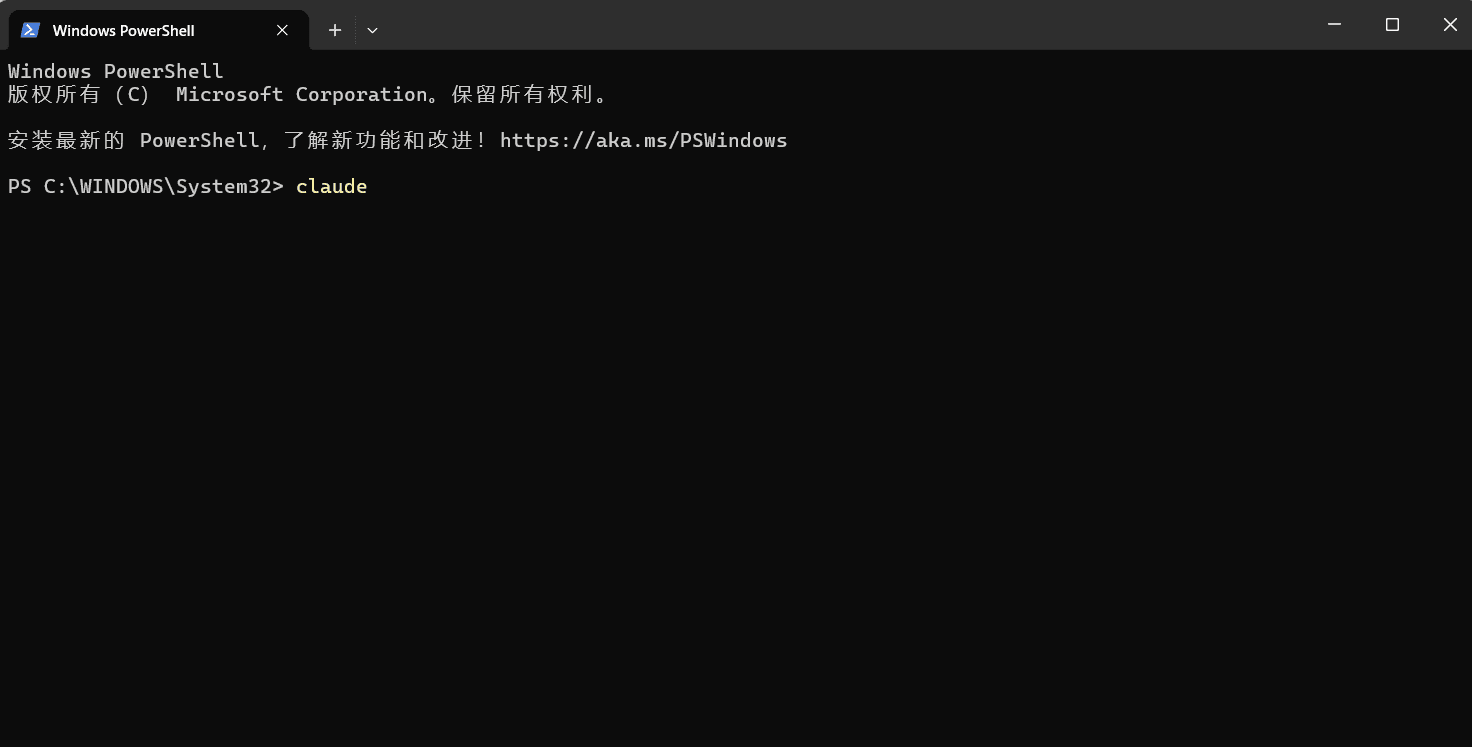
Open PowerShell and launch Claude Code directly:
claude
To use in a specific project:
# Navigate to your project directory
cd C:\path\to\your\project

# Launch Claude Code
claude
Note: After modifying environment variables, all models (including officially preset models) will call the custom access point instead of using official account quotas.
macOS Configuration Guide
1. Install Claude Code CLI
Open Terminal
Install Claude Code
Open Terminal and run the following command:
curl -fsSL https://claude.ai/install.sh | bash
Optional: Run the provided command when prompted
echo 'export PATH="$HOME/.local/bin:$PATH"' >> ~/.bashrc && source ~/.bashrc
2. Set Environment Variables
To allow Claude Code to connect to a third-party relay service, you need to set environment variables:
One-Click Setup for Claude Code Environment Variables
Enter the command:
curl -fsSL https://www.coffeerouter.ai/helper/claude-cli-setup.sh | bash
Verify Claude Code Installation
After installation, enter the following command to check if it was successfully installed:
claude --version
If a version number is displayed, congratulations! Claude Code has been successfully installed.
3. Start Using Claude Code
You can now start using Claude Code!
Launch Claude Code
Launch Claude Code directly:
claude
To use in a specific project:
# Navigate to your project directory
cd /path/to/your/project

# Launch Claude Code
claude
Note: After modifying the ANTHROPIC_BASE_URL environment variable, all models (including officially preset models) will call the custom access point instead of using official account quotas.
4. macOS Common Issues
macOS Security Settings Preventing Execution
If the system prevents Claude Code from running:
Open "System Preferences" → "Security & Privacy"
Click "Open Anyway" or "Allow"
Or run in Terminal: sudo spctl --master-disable
Linux Configuration Guide
1. Install Claude Code
Install Claude Code
Open Terminal and run the following command:
curl -fsSL https://claude.ai/install.sh | bash
If you encounter permission issues, you can use sudo:
sudo curl -fsSL https://claude.ai/install.sh | bash
Verify Claude Code Installation
After installation, enter the following command to check if it was successfully installed:
claude --version
If a version number is displayed, congratulations! Claude Code has been successfully installed.
2. Set Environment Variables
To allow Claude Code to connect to your relay service, you need to set two environment variables:
One-Click Environment Variable Modification
Enter the command:
curl -fsSL https://www.coffeerouter.ai/helper/claude-cli-setup.sh | bash
3. Start Using Claude Code
You can now start using Claude Code!
Launch Claude Code
Launch Claude Code directly:
claude
To use in a specific project:
# Navigate to your project directory
cd /path/to/your/project

# Launch Claude Code
claude
Note: After modifying the ANTHROPIC_BASE_URL environment variable, all models (including officially preset models) will call the custom access point instead of using official account quotas.
4. Linux Common Issues
Missing Dependency Libraries
Some Linux distributions require additional dependencies to be installed:
# Ubuntu/Debian
sudo apt install build-essential

# CentOS/RHEL
sudo dnf groupinstall "Development Tools"
Environment Variables Not Taking Effect
Check the following points:
Confirm that you modified the correct configuration file (.bashrc or .zshrc)
Restart the terminal or run source ~/.bashrc
Verify settings: echo $ANTHROPIC_BASE_URL