OpenAI Codex CLI Installation Tutorial — Install a terminal AI coding assistant on Windows, macOS, Linux, connecting to CoffeeRouter. Supports sandbox policies and atomic patch editing.
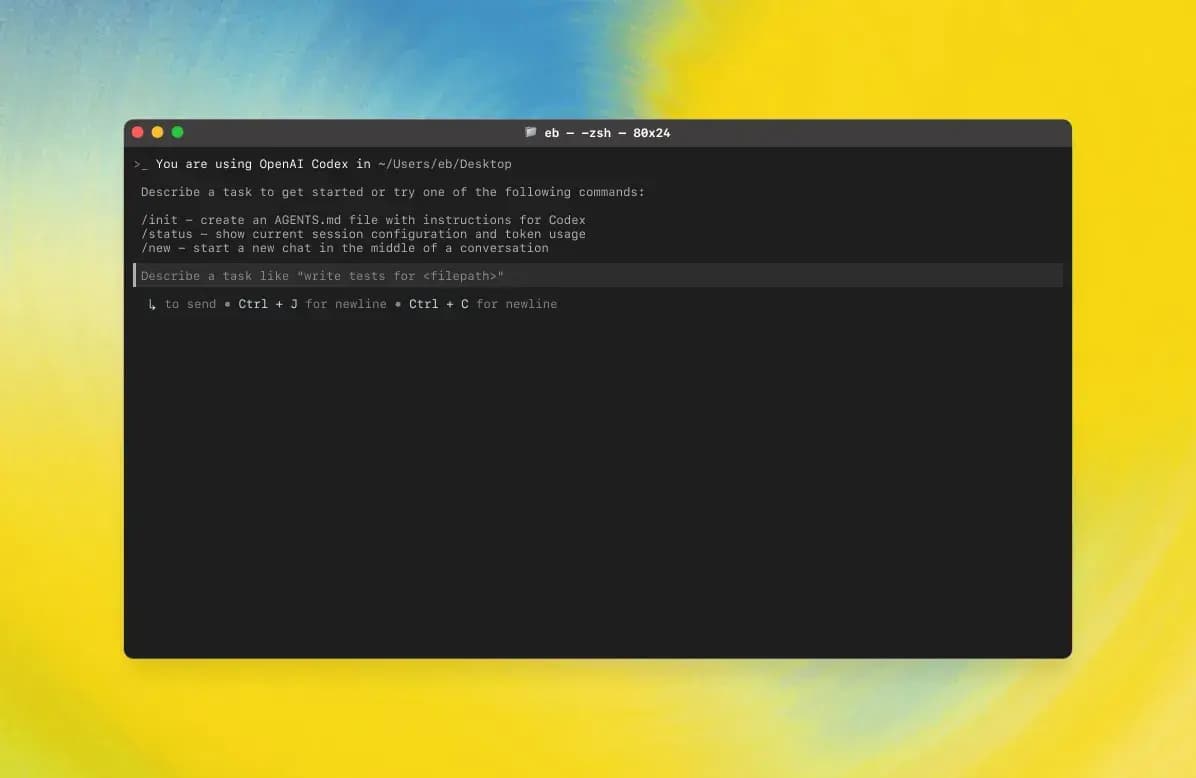
Demo
Features
| Category | Feature
title: OpenAI Codex CLI
description: OpenAI Codex CLI Installation Tutorial — Install a terminal AI coding assistant on Windows, macOS, Linux, connecting to CoffeeRouter. Supports sandbox policies and atomic patch editing.
Demo
Features
| Category | Feature
| Terminal-based Coding Assistant | Codex CLI is a terminal-based interactive coding assistant for editing code, generating patches, and running commands in the command line. |
| Tool-Driven Architecture | Provides tools such as apply_patch, shell, update_plan, and multi_tool_use for controlled modification of repository files and operations. |
| Atomic Patch Editing | Uses a specialized patch format to atomically add/update/delete files via apply_patch, facilitating auditing and rollback. |
| Sandbox and Approval | Supports sandbox policies (e.g., workspace-write, read-only) and approval modes (on-request, on-failure, never) to control write and network access permissions. |
| Plan Tracking | update_plan is used to list steps and track status, requiring only one in_progress step at all times to maintain clear progress. |
| Interaction Protocol | Sends brief introductory explanations before important operations, maintaining a friendly, concise tone and providing progress updates. |
| Security Constraints | Adheres to strict rules (no arbitrary changes to unrelated files, no adding copyright headers, no executing destructive commands), requiring user approval for sensitive operations. |
| Testing and Formatting | Recommends running relevant tests and formatting tools after modifications, but is not responsible for fixing issues unrelated to the current task. |
| Output and Style | Final output adheres to CLI rendering specifications (e.g., ** for headings, backticks for paths/commands), maintaining a scannable and concise structure. |
| Parallel Execution | Supports running multiple tools in parallel via multi_tool_use.parallel to improve efficiency. |
AI Model Configuration Method
Windows Graphical Guide
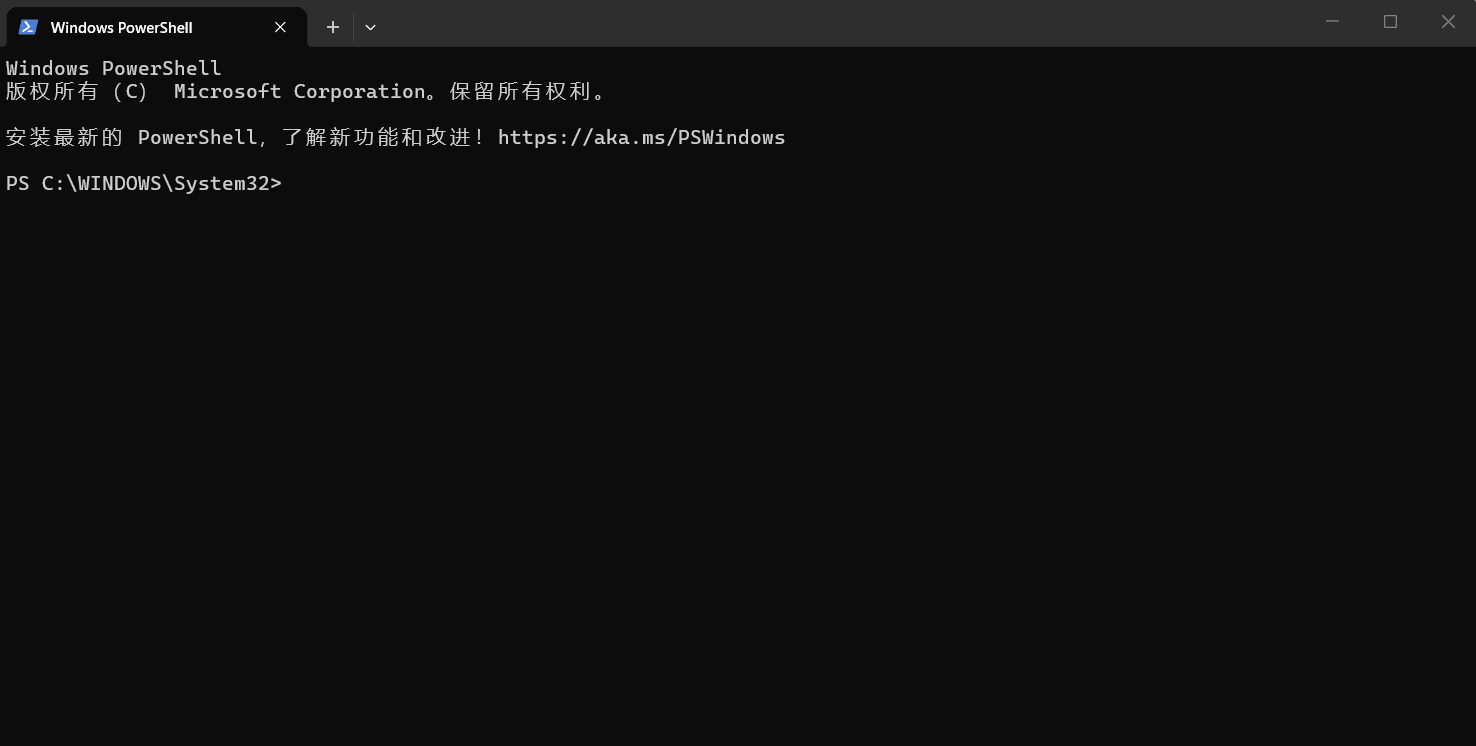
1. Open Terminal
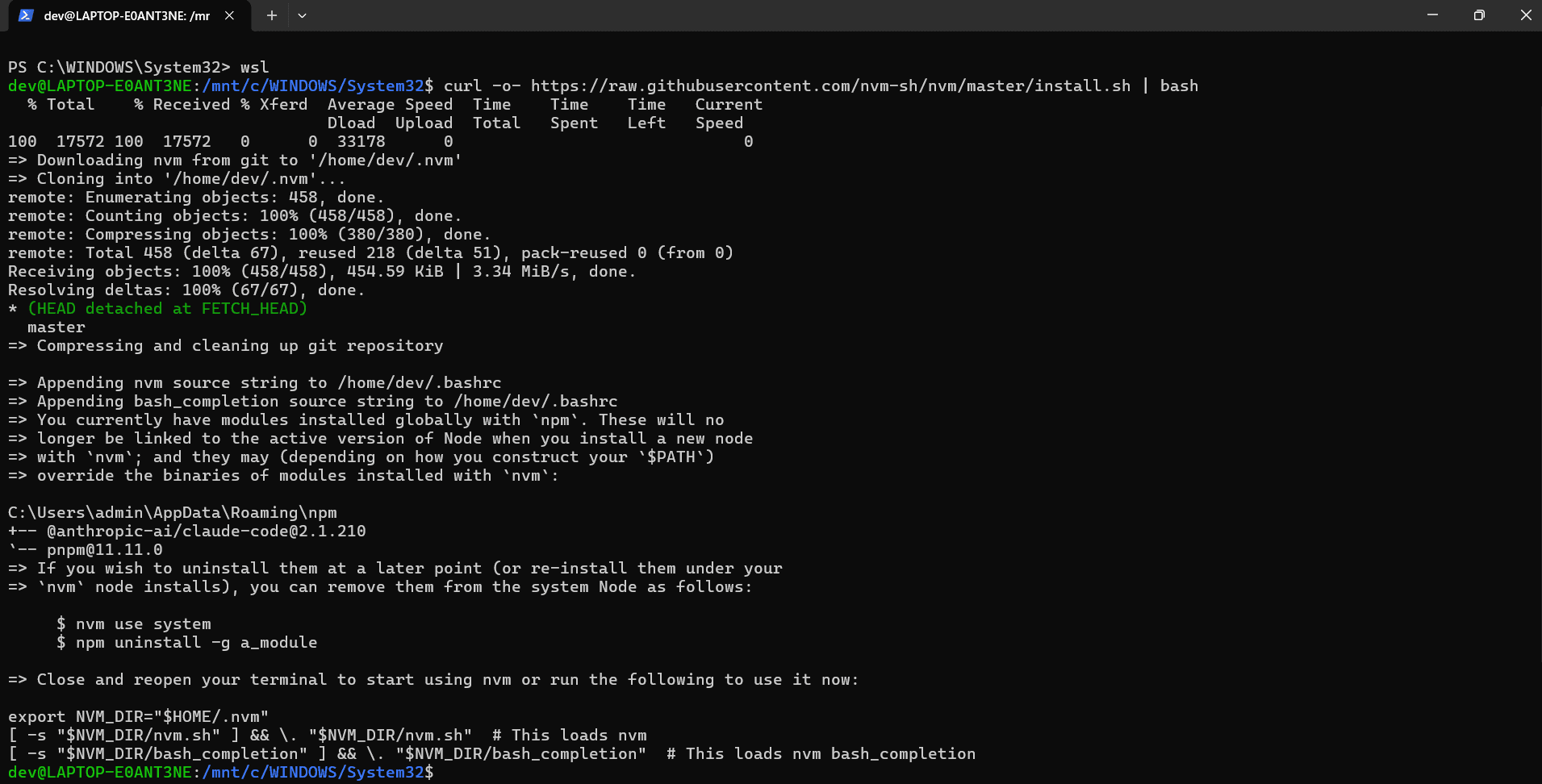
2. Install WSL
For optimal performance on Windows, please install and use Windows Subsystem for Linux (WSL2).
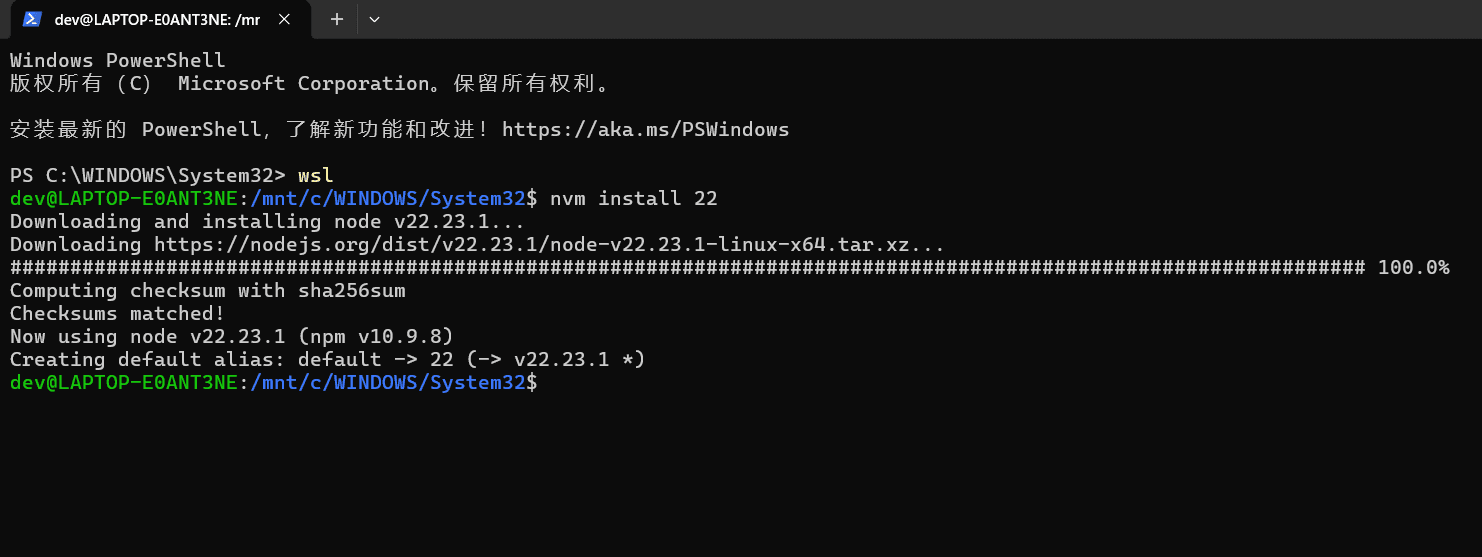
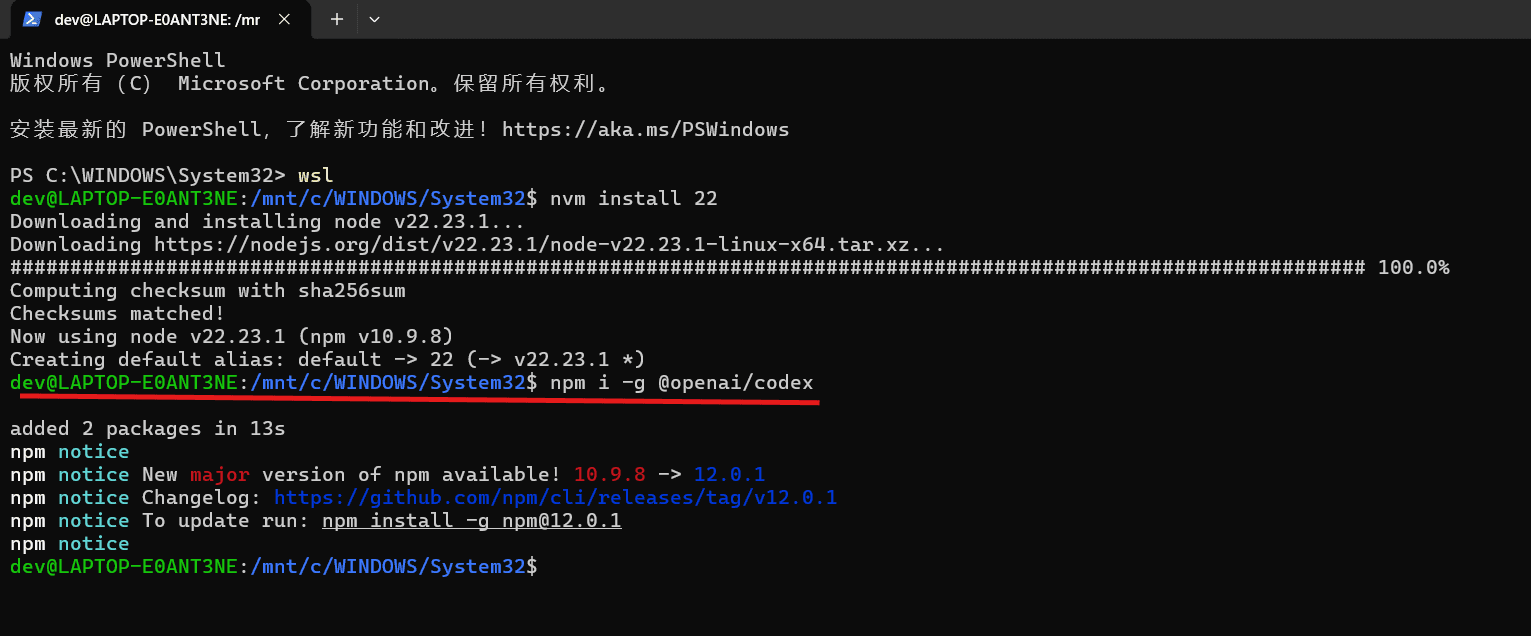
3. Install Codex CLI
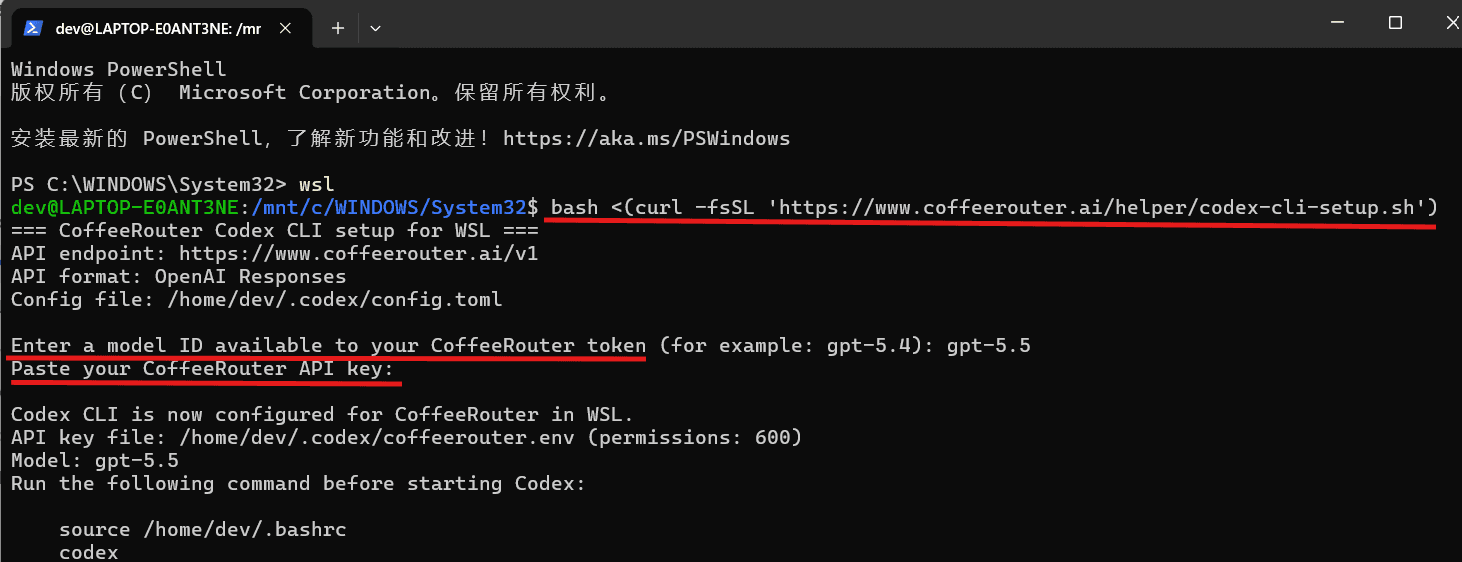
4. Modify Configuration File
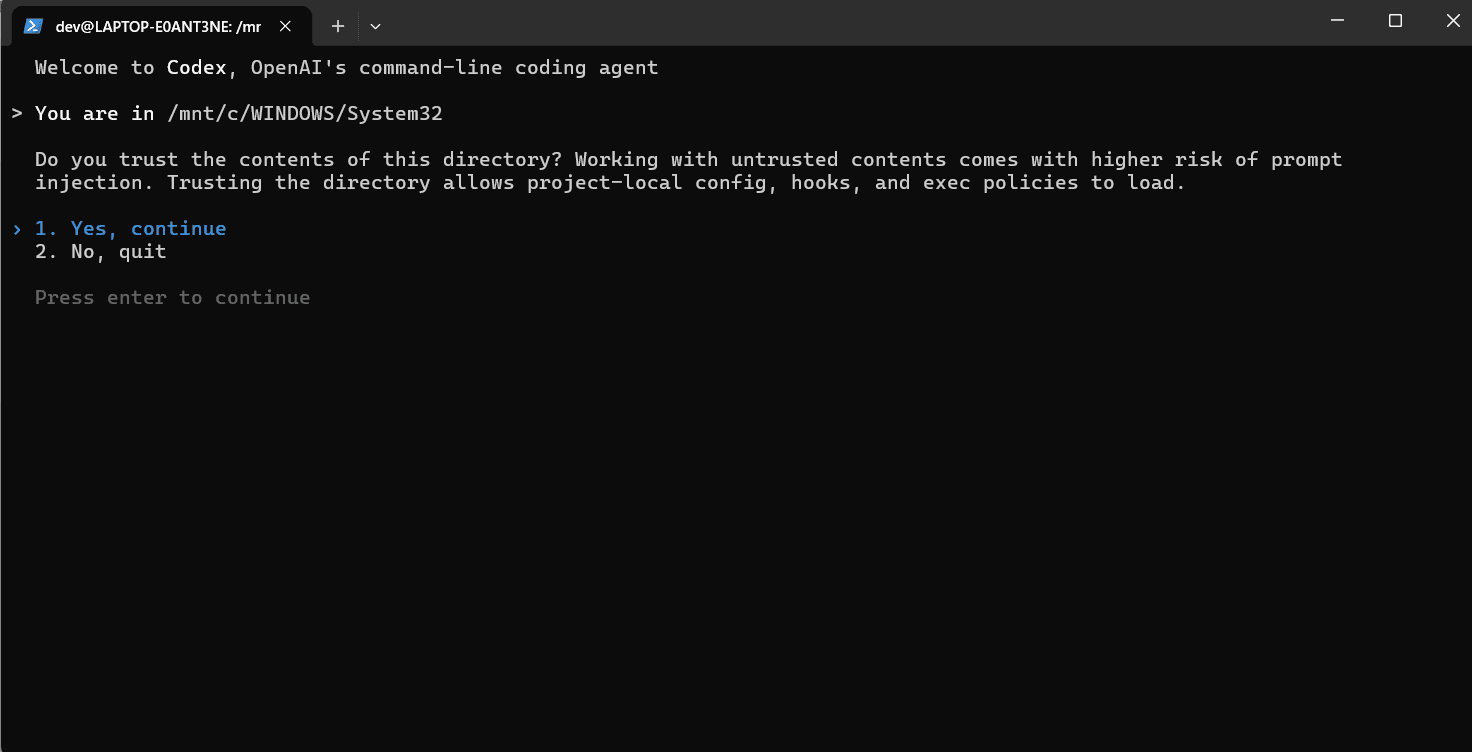
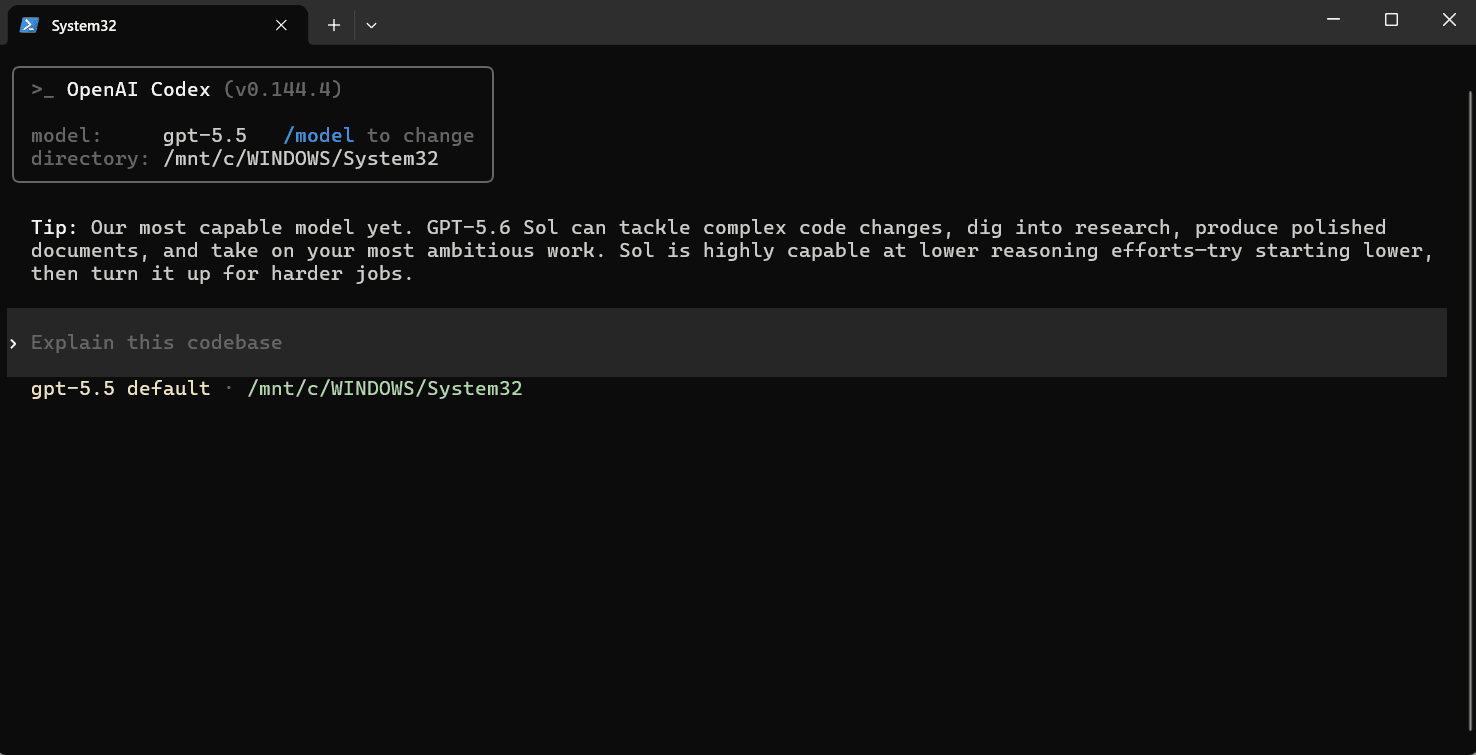
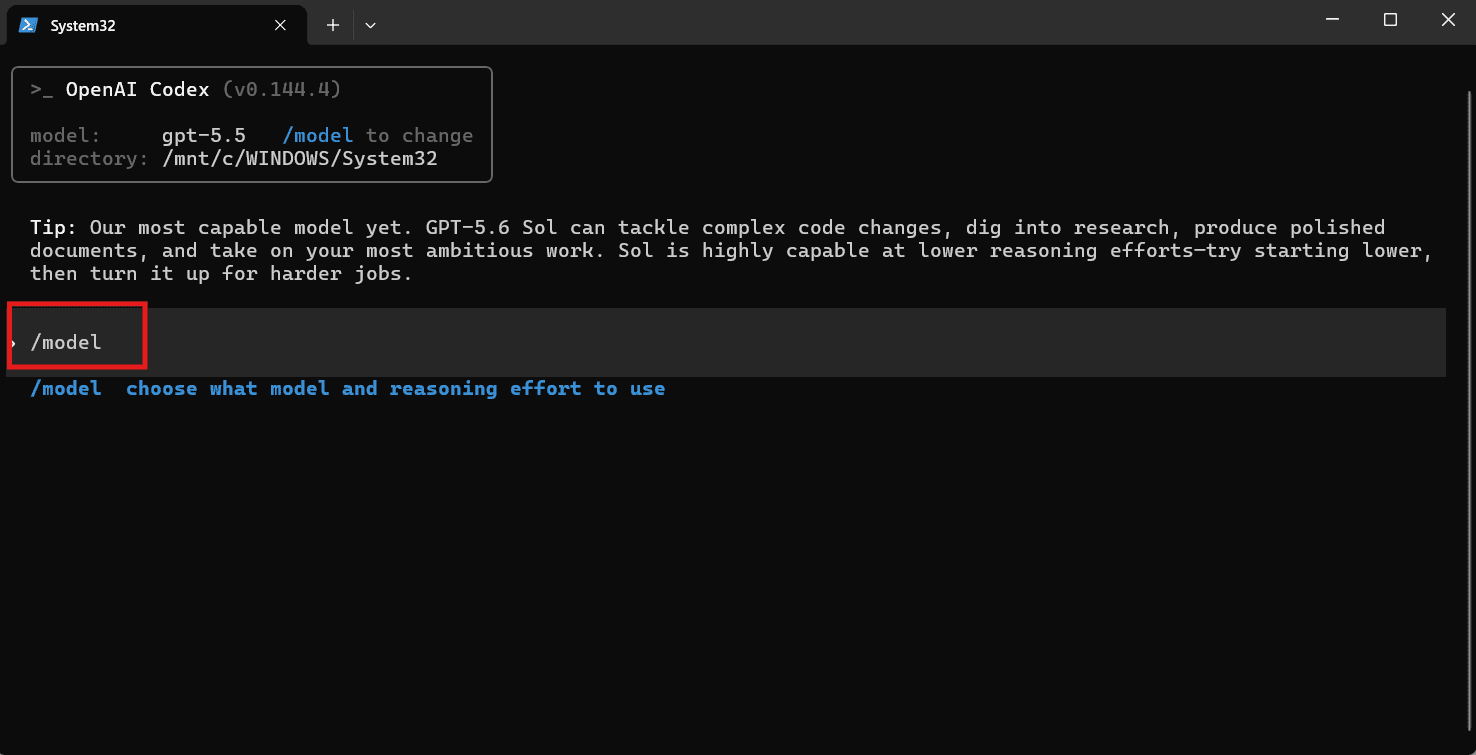
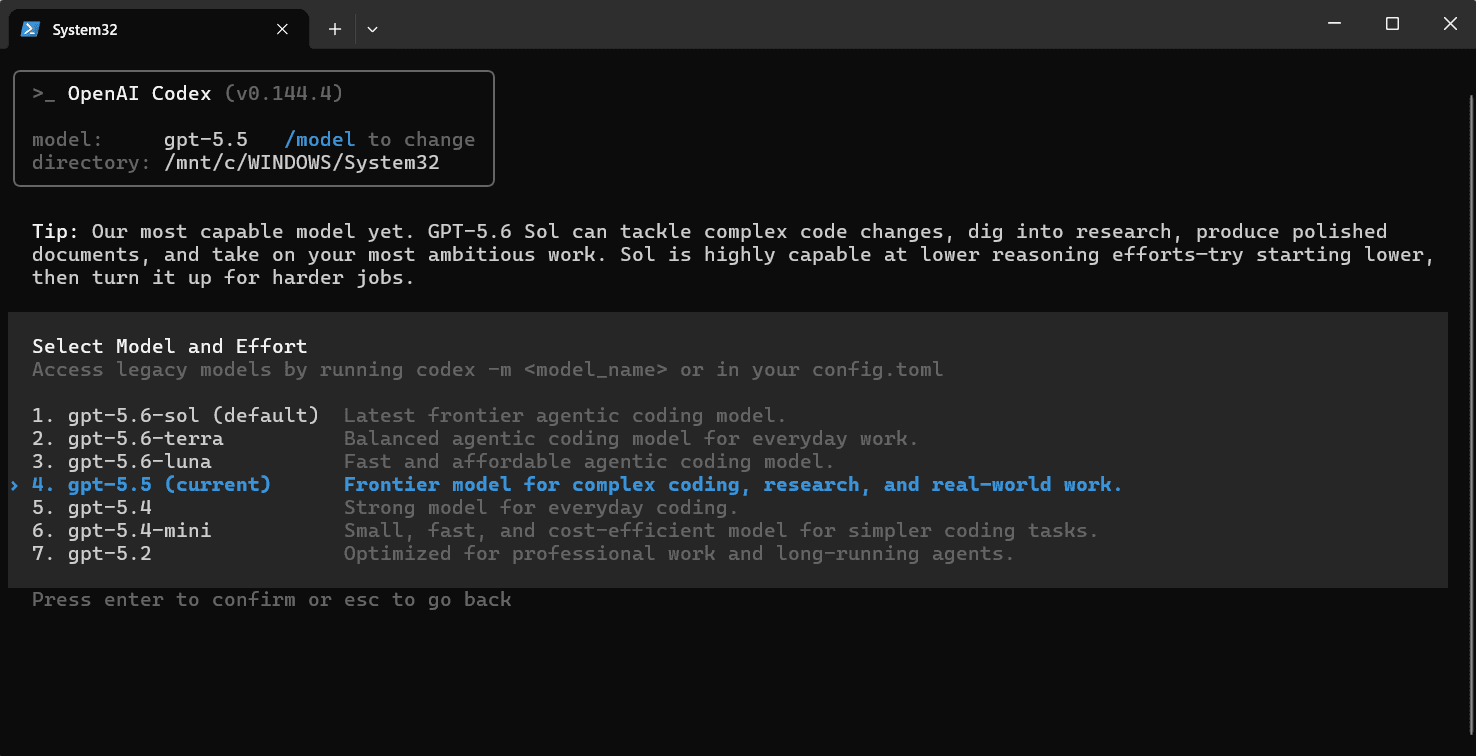
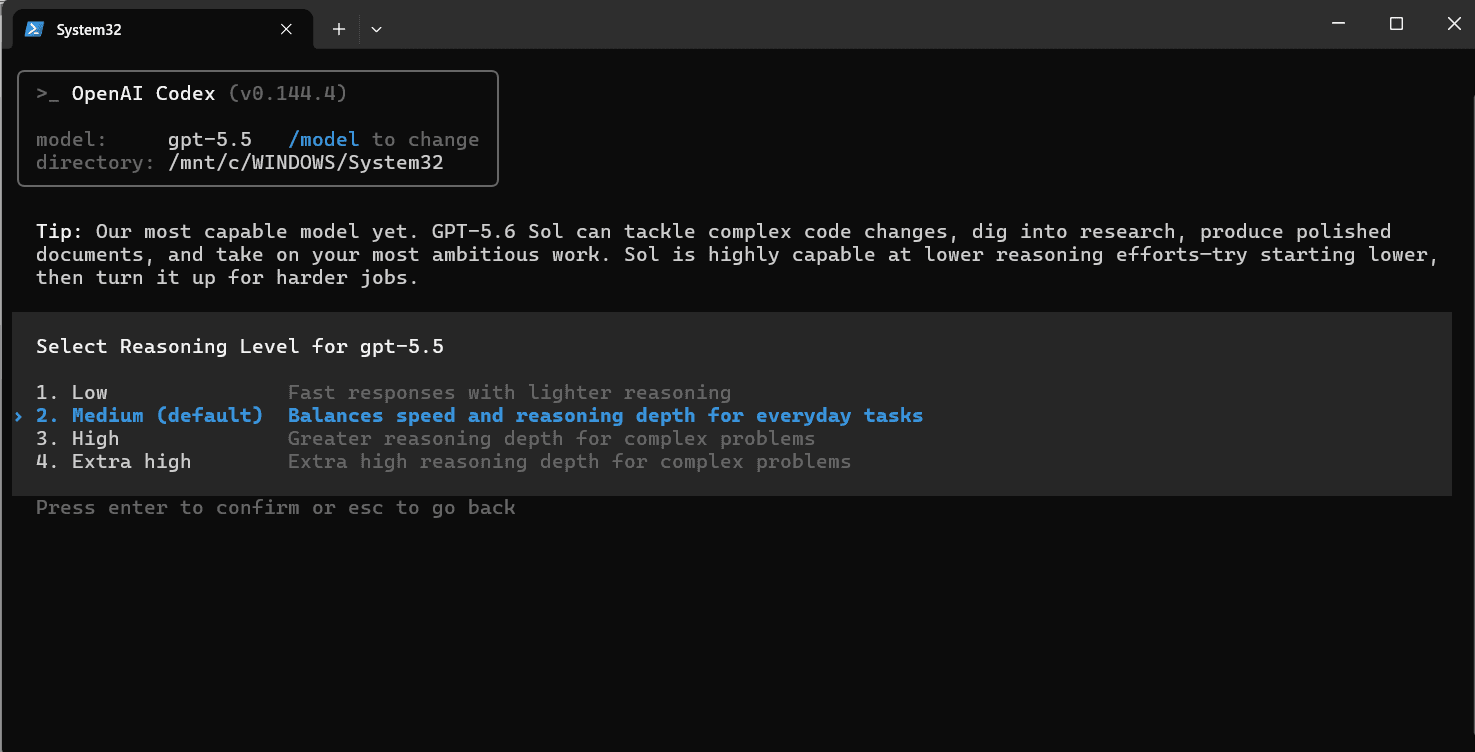
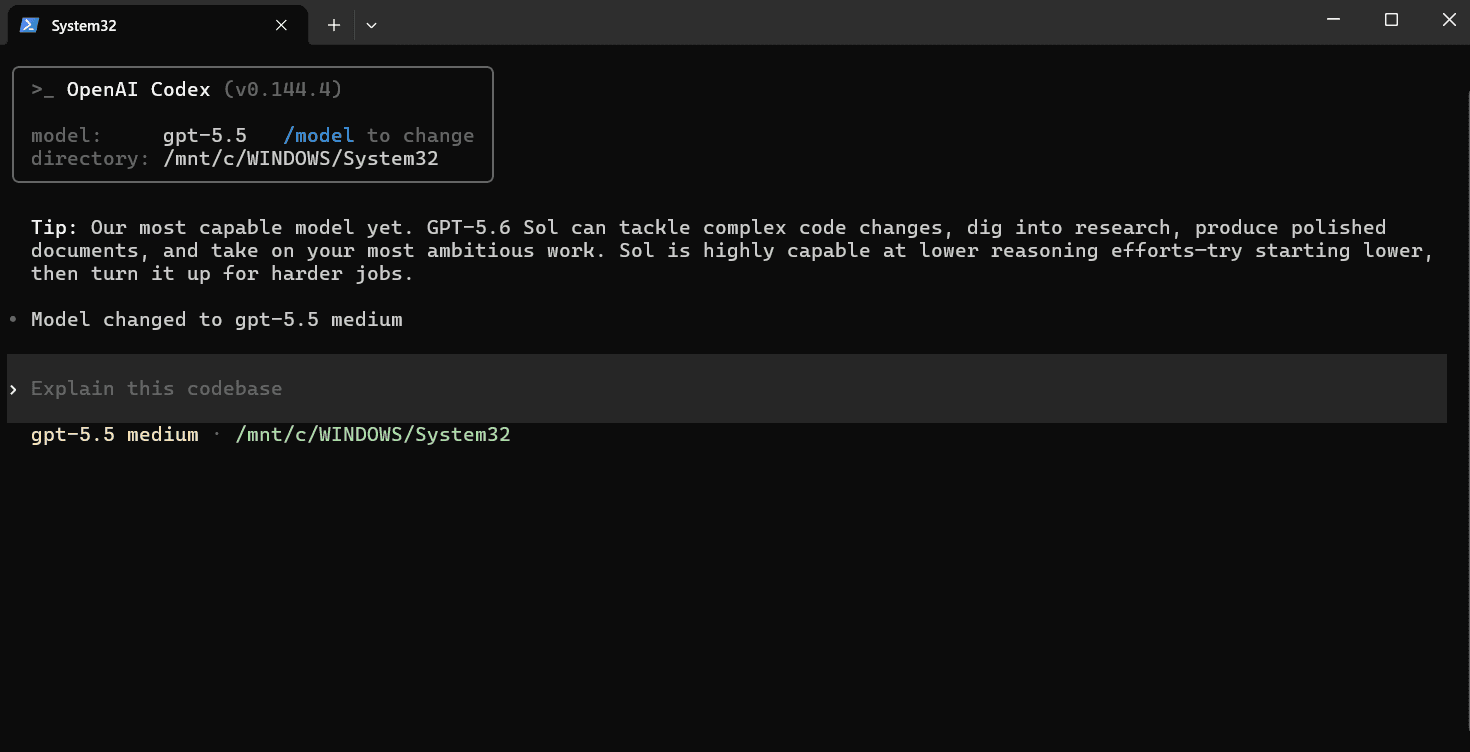
5. Start Using Codex CLI
Now you can start using Codex CLI!
Note: After modifying the API address, all models (including officially preset models) will call your configured, legally authorized self-owned or organizational access point. Please use your own deployed CoffeeRouter, or confirm that the service provider has a CoffeeRouter service with legal upstream authorization and compliance obligations. Do not connect API addresses or keys from unknown sources to a production environment.
macOS Configuration Guide
1. Install Homebrew (Skip if already installed)
Homebrew is the missing package manager for macOS.
Note: After modifying the API address, all models (including officially preset models) will call your configured, legally authorized self-owned or organizational access point.
6. macOS Common Issues and Solutions
Linux Configuration Guide
1. Install Node.js Environment
Codex CLI requires a Node.js environment to run.
2. Install Codex CLI
3. Modify Configuration File
4. Start Using Codex CLI
Now you can start using Codex CLI!
Note: After modifying the API address, all models (including officially preset models) will call your configured, legally authorized self-owned or organizational access point.