

New API
Configure CoffeeRouter as an OpenAI upstream channel in New API and test available models from the chat interface.
1. Add a channel
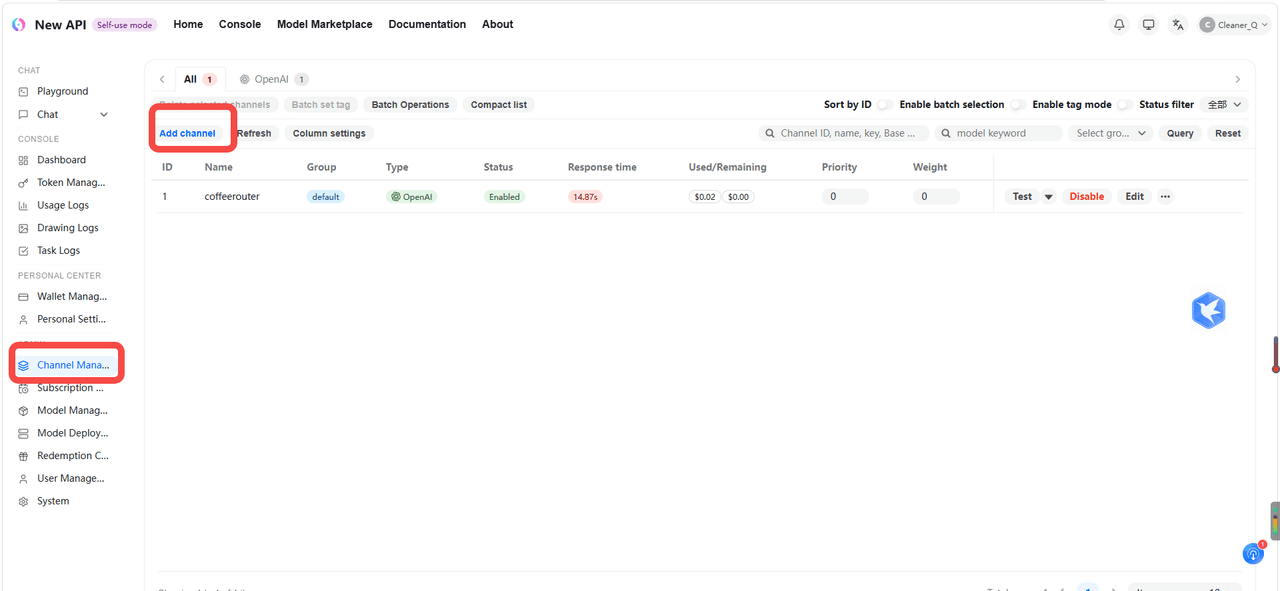
Sign in to the New API admin console, open Channel Management, and select Add channel.
2. Configure CoffeeRouter
Enter the following values when creating the channel:
| Field | Value |
|---|---|
| Type | OpenAI |
| Name | CoffeeRouter |
| Key | An API token from CoffeeRouter Token Management, such as sk-your-api-key |
| Base URL | The CoffeeRouter site root, such as https://www.coffeerouter.ai |
| Model | Select the models allowed by the current token as needed |
Use the site root as the Base URL and do not append another /v1. If you operate your own CoffeeRouter deployment, replace the example domain with your actual site address.
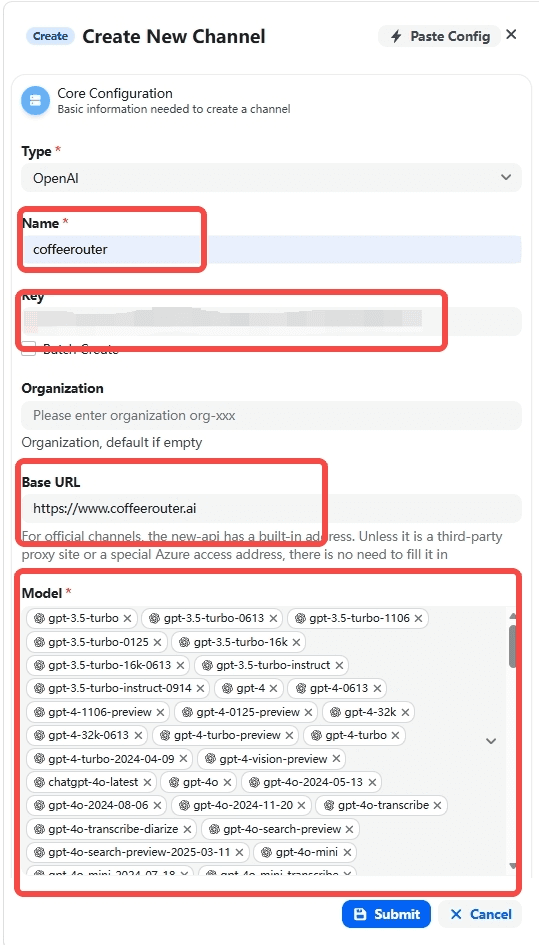
Select Submit to save the channel. Then use the test action in the channel list to verify connectivity.
3. Open the chat interface
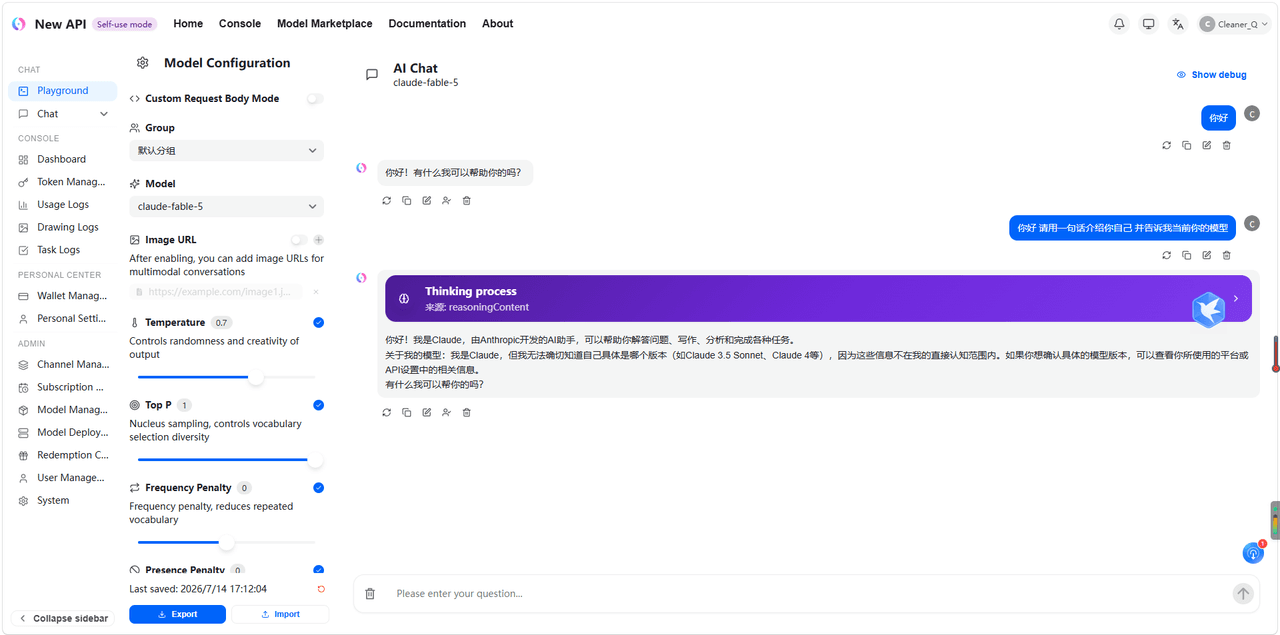
Open Playground or Chat, select the channel group and model you configured, and send a test message.
Security notes
- A CoffeeRouter API token is a calling credential. Never share the full token, configuration screenshots, or runtime logs.
- Create a dedicated token for New API and configure appropriate model, quota, and IP restrictions.
- If a token appears in a public screenshot or any untrusted location, revoke it immediately in CoffeeRouter and create a replacement.