

CCS
Connect Claude Code to CoffeeRouter with a CCS API profile and its local OpenAI-compatible protocol-conversion proxy.
How the integration works
This guide uses the official CCS OpenAI-Compatible Routing path:
Claude Code
    ↓ Anthropic Messages
Local CCS proxy (127.0.0.1, port selected by CCS)
    ↓ OpenAI Chat Completions
https://www.coffeerouter.ai/v1/chat/completions
Use this CoffeeRouter API Base URL:
https://www.coffeerouter.ai/v1
Do not enter the complete /chat/completions request URL or add a second /v1. CCS starts the local proxy, translates the protocol, and forwards the request to CoffeeRouter.
Prerequisites
Before you begin, make sure that:
- Node.js 18 or later is installed.
- Claude Code is installed and
claude --versionworks in your terminal. - You have signed in to CoffeeRouter and created an active token on the Token Management page.
- You know the exact model IDs allowed by the token. Each ID must match the value shown in CoffeeRouter.
1. Install CCS
Run this in PowerShell, Windows Terminal, or a macOS/Linux terminal:
npm install -g @kaitranntt/ccs@latest
Verify the installation:
ccs --version
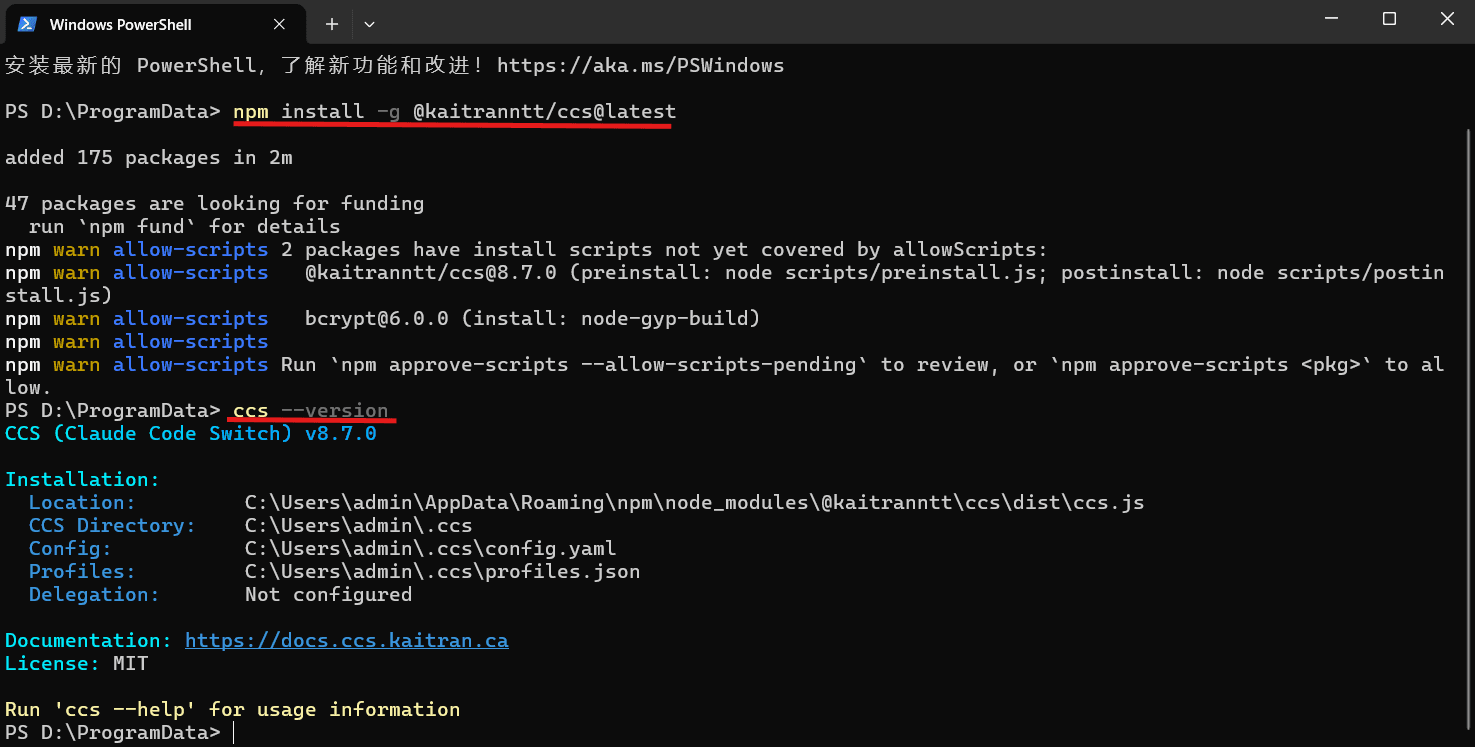
2. Open API Profiles
Run:
ccs config
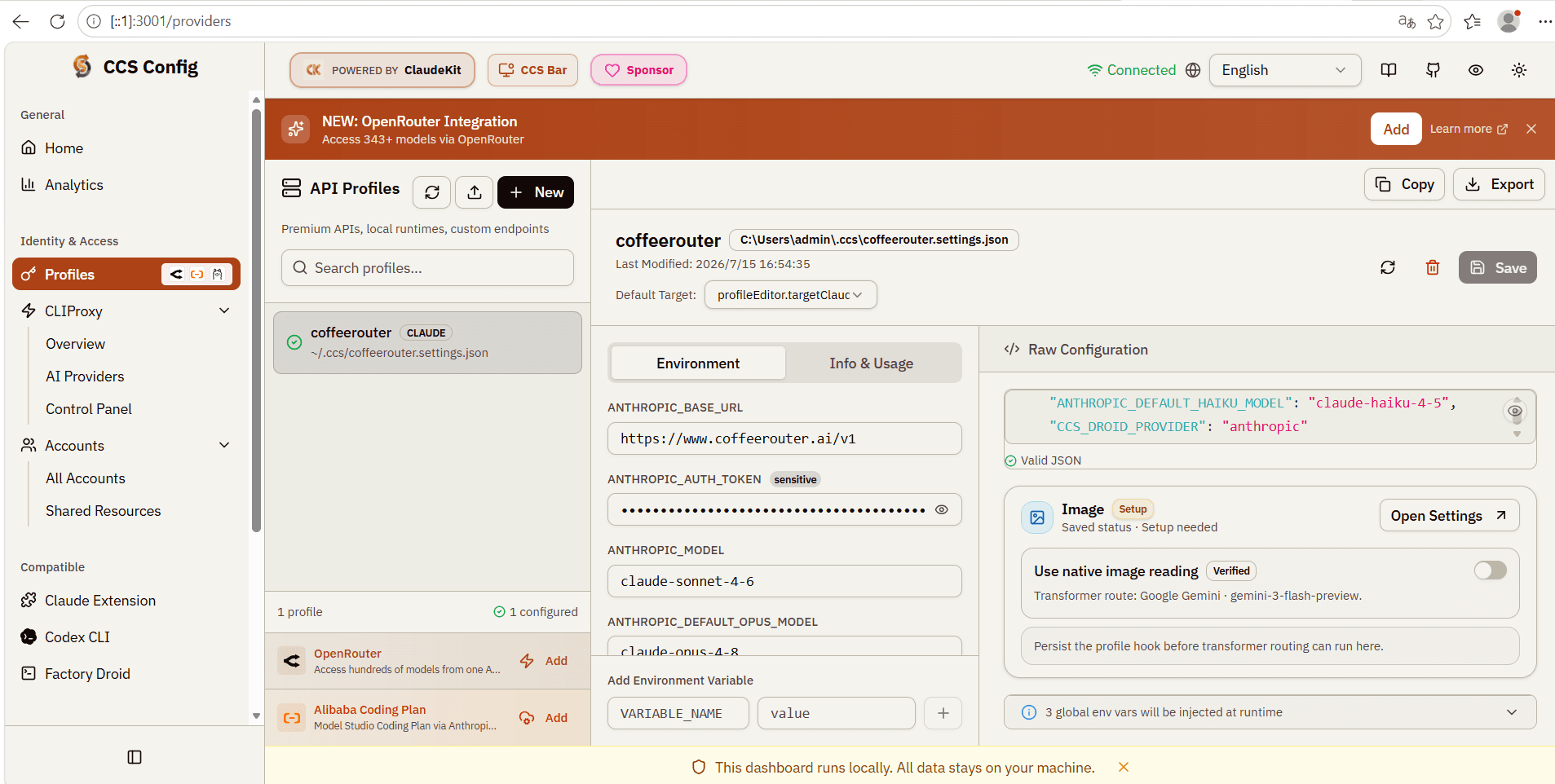
CCS opens its local configuration dashboard in your browser. Select API Profiles in the sidebar, then click New or Create Profile.
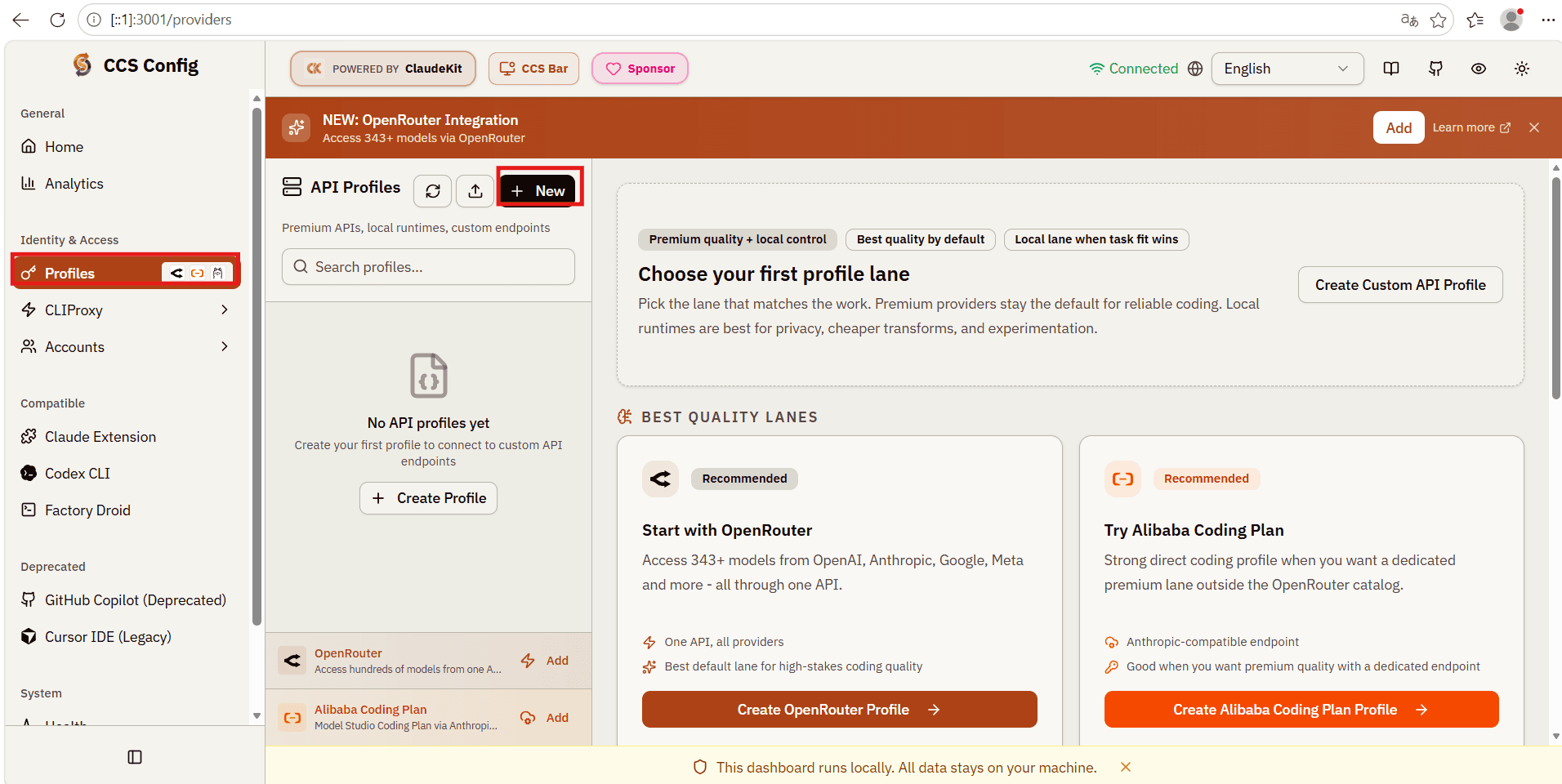
3. Create the CoffeeRouter profile
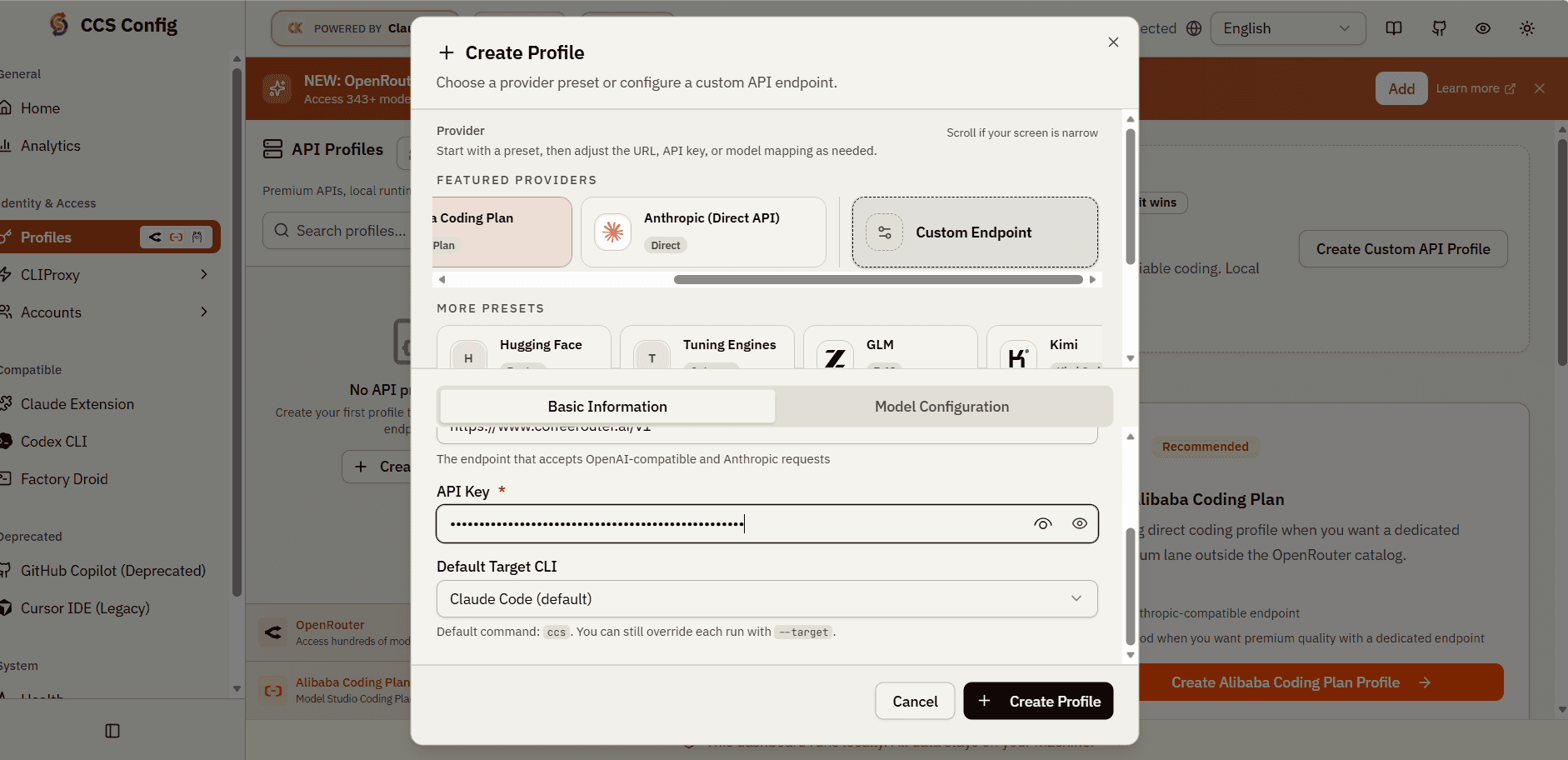
Enter these values under Basic Information:
| Field | Value |
|---|---|
| Profile Name | coffeerouter |
| API Base URL | https://www.coffeerouter.ai/v1 |
| API Key | Your CoffeeRouter token, for example sk-your-api-key |
| Default Target | Claude Code |
The profile name becomes part of the launch command. Lowercase letters, numbers, and hyphens are recommended.
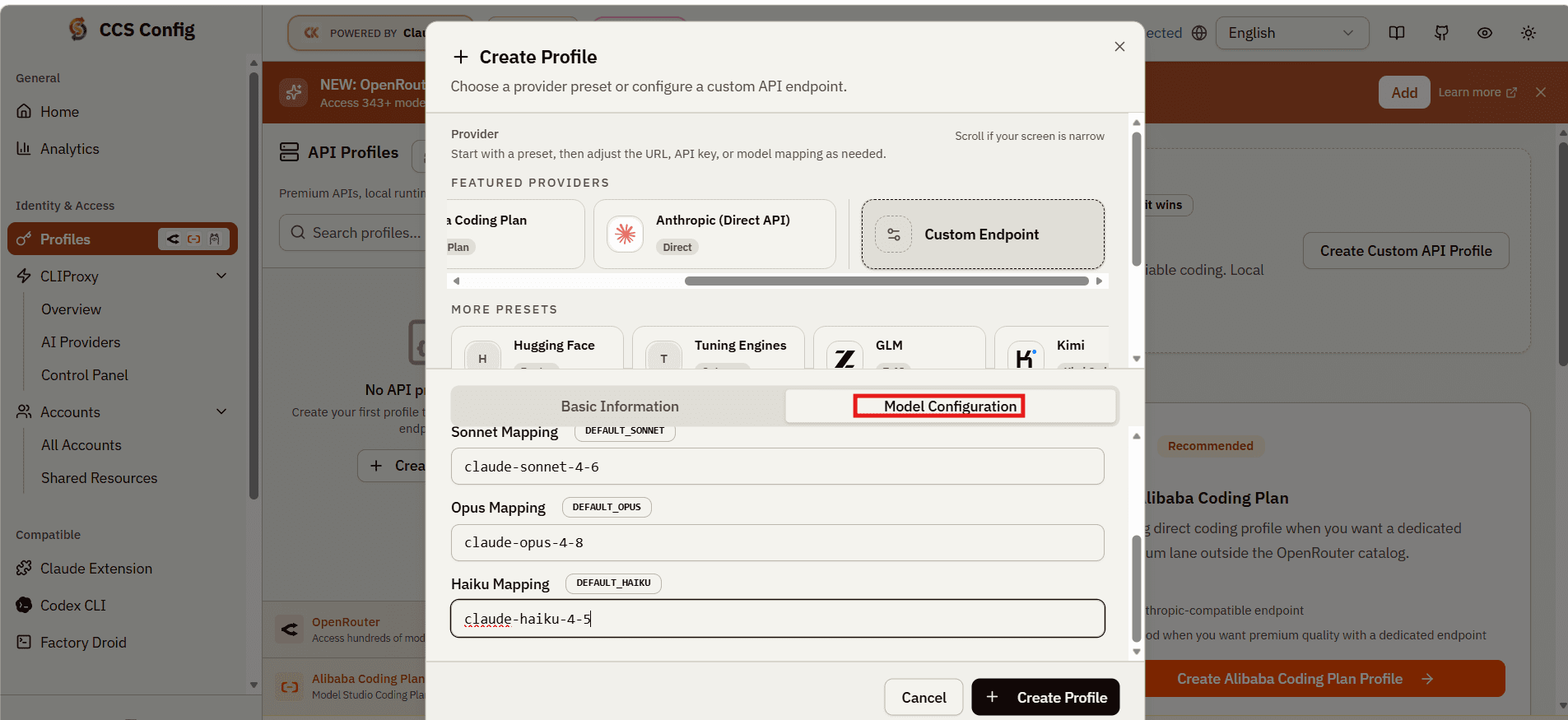
4. Configure model mappings
Open Model Configuration and enter model IDs allowed by the current CoffeeRouter token:
| Field | Purpose |
|---|---|
| Default Model | The default model, for example your-model-id |
| Opus Model | Model used when Claude Code requests the Opus tier |
| Sonnet Model | Model used when Claude Code requests the Sonnet tier |
| Haiku Model | Model used when Claude Code requests the Haiku tier |
If you only need one model, use the same exact model ID for all four fields. For separate mappings, verify that every ID is allowed by the token.
Enable the CCS [1m] option only when the selected model and upstream account actually support long context. The option cannot bypass upstream entitlements, quota, or billing requirements.
Save the profile when finished.
5. Confirm the OpenAI-compatible provider type
This check is required for CoffeeRouter. Open the new coffeerouter profile and confirm that the environment variables or Additional Variables contain:
CCS_DROID_PROVIDER=generic-chat-completion-api
This tells CCS that CoffeeRouter exposes OpenAI Chat Completions and that Claude Code traffic must go through the local protocol-conversion proxy.
If your CCS dashboard does not show this field, edit the profile settings file directly:
- Windows:
%USERPROFILE%\.ccs\coffeerouter.settings.json - macOS/Linux:
~/.ccs/coffeerouter.settings.json
The important fields should look like this:
{
  "env": {
    "ANTHROPIC_BASE_URL": "https://www.coffeerouter.ai/v1",
    "ANTHROPIC_AUTH_TOKEN": "sk-your-api-key",
    "ANTHROPIC_MODEL": "your-model-id",
    "ANTHROPIC_DEFAULT_OPUS_MODEL": "your-model-id",
    "ANTHROPIC_DEFAULT_SONNET_MODEL": "your-model-id",
    "ANTHROPIC_DEFAULT_HAIKU_MODEL": "your-model-id",
    "CCS_DROID_PROVIDER": "generic-chat-completion-api"
  }
}
6. Launch Claude Code
From the project directory where you want to work, run:
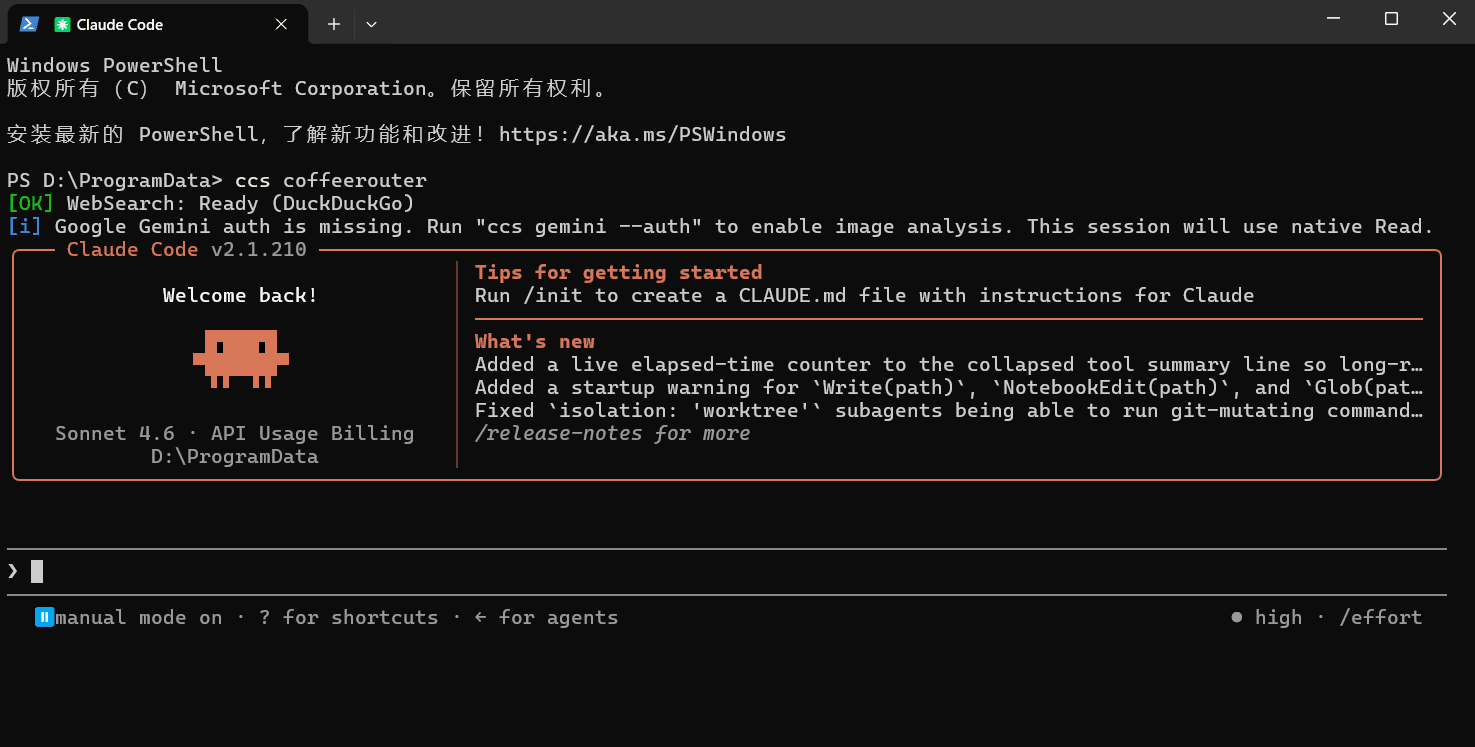
ccs coffeerouter
CCS starts the profile's local OpenAI-compatible proxy and launches Claude Code. The terminal normally prints a message similar to:
Using local OpenAI-compatible proxy for "coffeerouter" on port ...
Check the proxy from another terminal if needed:
ccs proxy status coffeerouter
Send a short test message in Claude Code and confirm that the model returns a response.
Optional: create the profile in the terminal
Instead of the dashboard, run the interactive wizard:
ccs api create coffeerouter
Enter the following when prompted:
- API Base URL:
https://www.coffeerouter.ai/v1 - API Key: your CoffeeRouter token
- Default Model: a model ID allowed by the token
- Opus / Sonnet / Haiku mappings: configure as needed
- Default Target: choose Claude Code, not Factory Droid
After the wizard completes, still verify CCS_DROID_PROVIDER as described above. Avoid putting the real token in a command-line --api-key argument because it can remain in shell history, process details, or recordings.
Configuration files and security
CCS stores its main configuration under ~/.ccs/. Profile settings files contain the complete CoffeeRouter token.
- Do not share
*.settings.json, exported profiles, terminal screenshots, or debug logs. - Do not commit
~/.ccs/to Git. - Use a dedicated CoffeeRouter token for CCS so model access, quota, IP rules, and revocation can be managed independently.
- If a token leaks, disable or delete it in CoffeeRouter immediately and update the CCS profile.
- The local CCS proxy binds to
127.0.0.1by default. Do not expose it to a LAN or the public internet without reliable authentication, firewall rules, and a trusted network.
Troubleshooting
Why must the Base URL include /v1?
This guide uses CoffeeRouter's OpenAI Chat Completions compatibility API. CCS appends /chat/completions, so
https://www.coffeerouter.ai/v1 resolves to https://www.coffeerouter.ai/v1/chat/completions.
Why do I see a 404 or /v1/v1?
Keep exactly one /v1 in the Base URL. Do not enter the full /v1/chat/completions URL or append another /v1 to an address generated by CCS.
Why did CCS not start the local proxy?
Confirm that CCS_DROID_PROVIDER is generic-chat-completion-api, then run ccs coffeerouter again. Use
ccs proxy status coffeerouter to inspect the profile's proxy state.
Why do I receive a 401 or 403?
Confirm that the CoffeeRouter token is complete, active, unexpired, and has available quota. Also check model permissions, IP allowlists, and other token restrictions.
Why does CCS report that the model does not exist?
Copy an allowed model ID from CoffeeRouter's Token Management page and enter it exactly. Do not use a display name or an abbreviated model name.
How do I stop the proxy or remove the profile?
Run ccs proxy stop coffeerouter to stop its local proxy. When you no longer need the profile, run
ccs api remove coffeerouter and revoke its CoffeeRouter token.