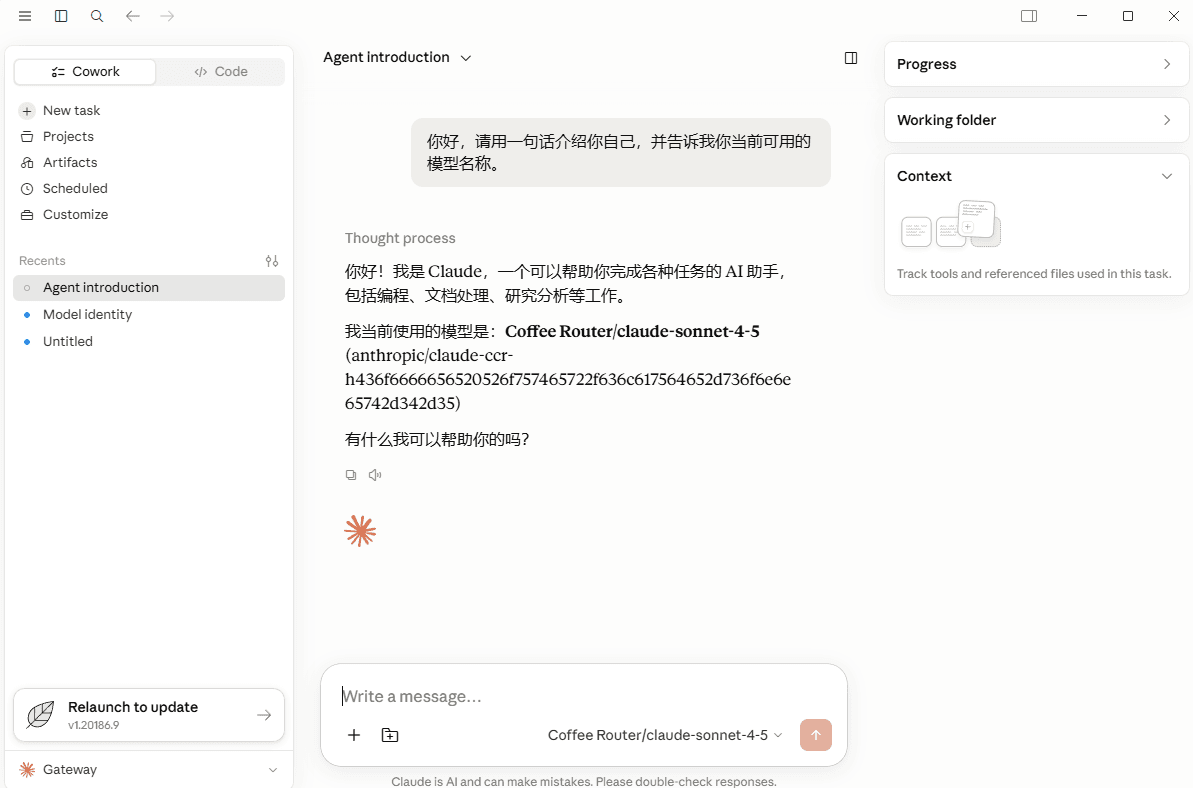

Claude Code Router
Configure CoffeeRouter as a custom API endpoint in Claude Code Router, select models, start the agent profile, and open Claude Code.
Follow these steps to add CoffeeRouter to Claude Code Router and start an agent with the custom provider.
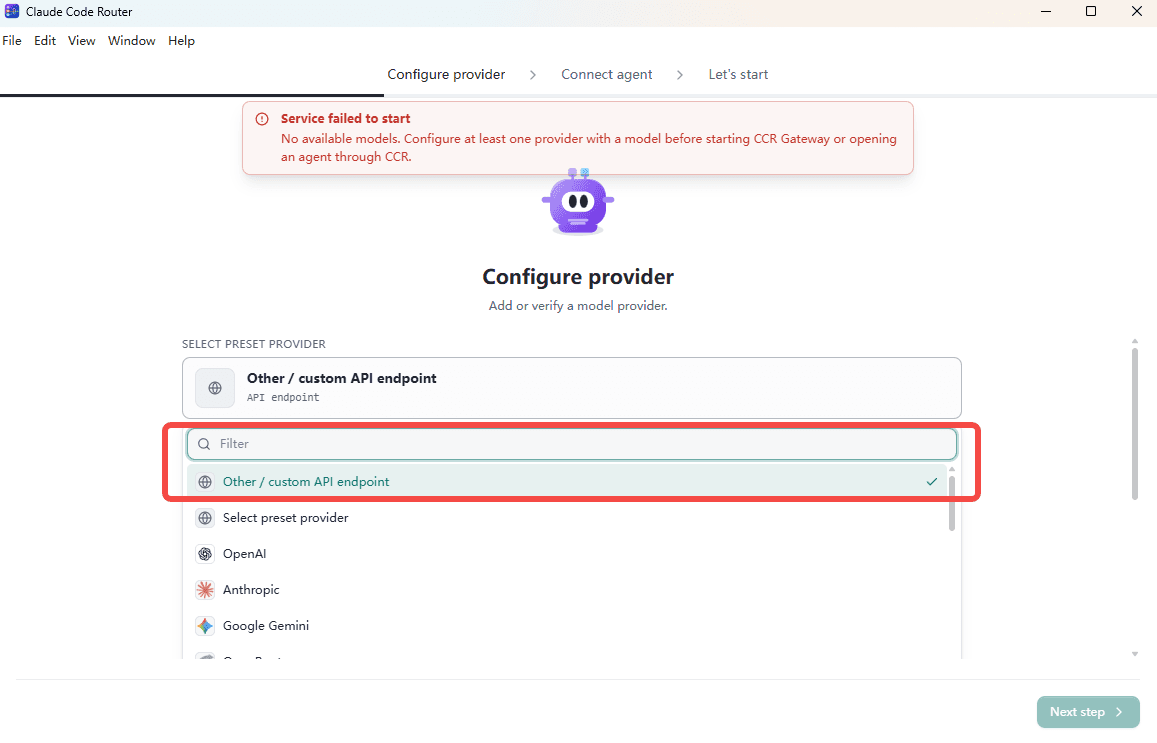
1. Choose a Custom API Endpoint
Open Claude Code Router, select Other, and choose the option for a custom API endpoint.
2. Configure the CoffeeRouter Provider
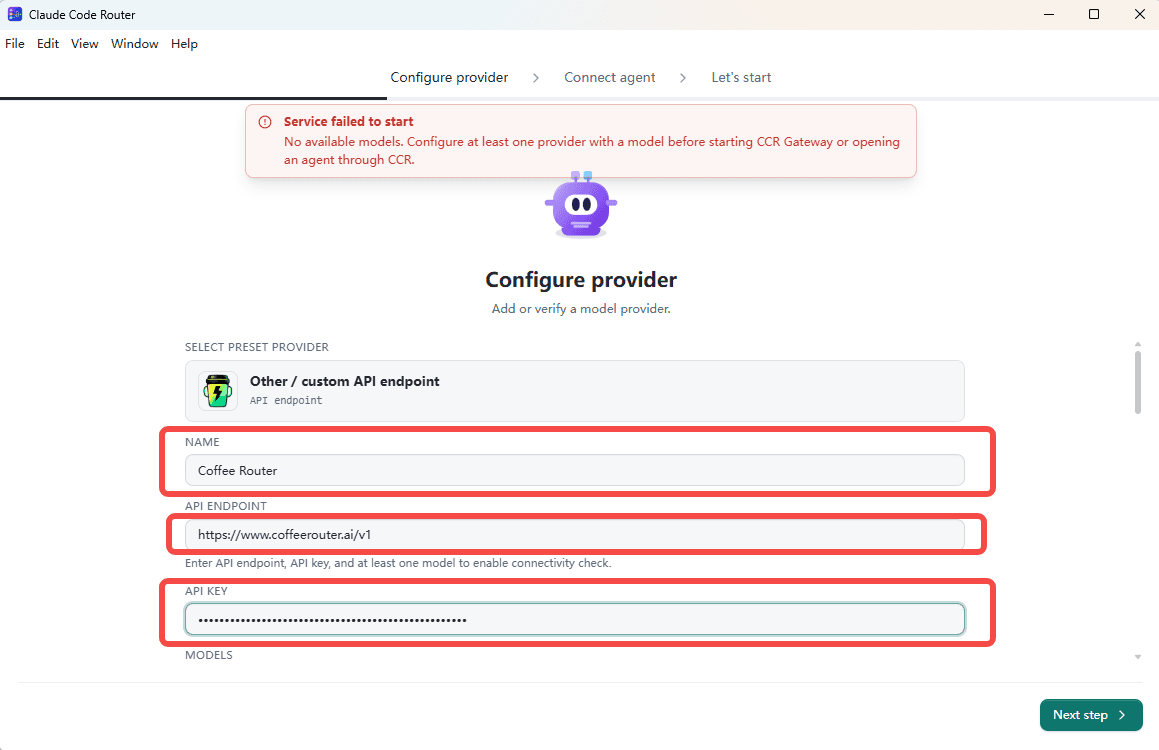
Enter the following values:
- Provider Name:
Coffee Router - API Endpoint:
https://www.coffeerouter.ai/v1 - API Key: Obtain it from CoffeeRouter. The placeholder used in this guide is
sk-your-api-key.
3. Select and Map Models
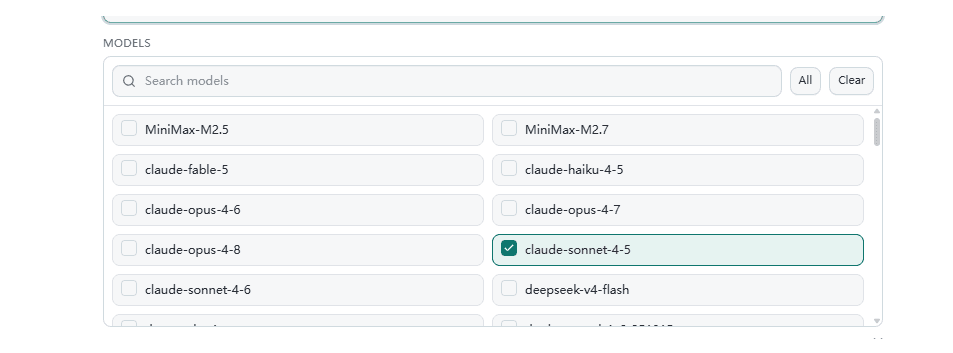
Select the models you want to use and adjust their mappings as needed. Keep each model ID consistent with the model name available to your CoffeeRouter token.
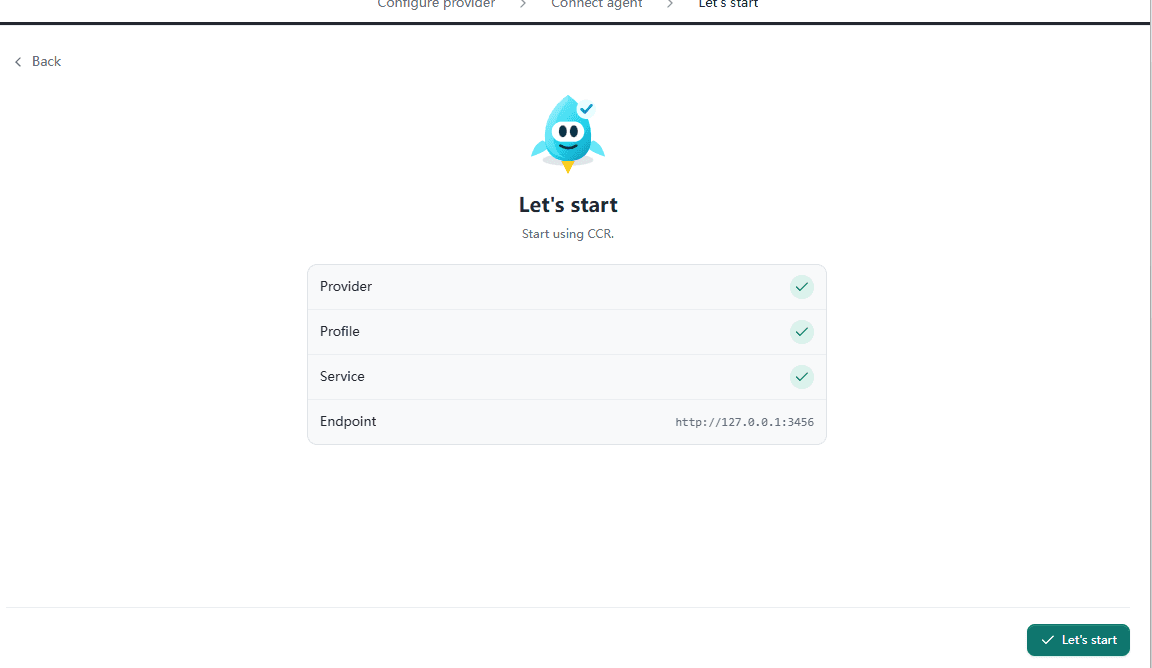
4. Continue from Let's Start
Go to Let's start, review the configuration, and click the button to continue.
5. Start CoffeeRouter from Agent Config
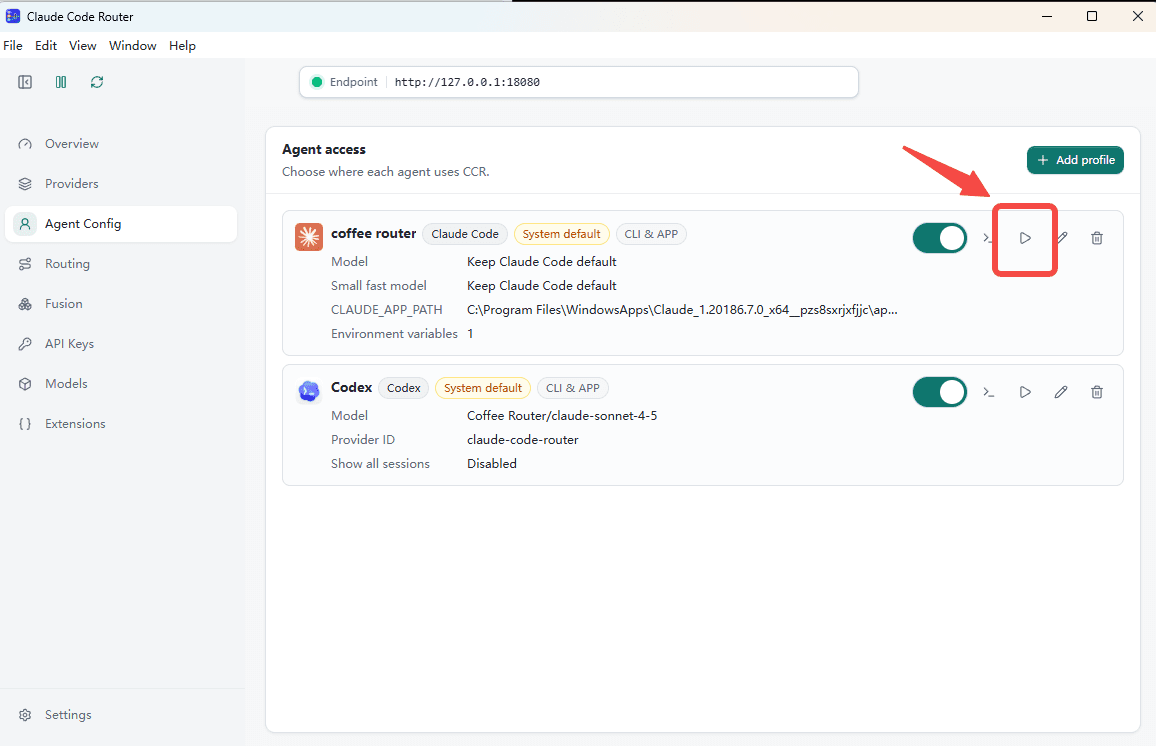
Return to Agent Config, find Coffee Router, and click the start button on its right.
6. Test in the Claude Window
After Claude Code Router opens the Claude window, send a message to verify that the configured model can respond successfully.