
Claude Code Router
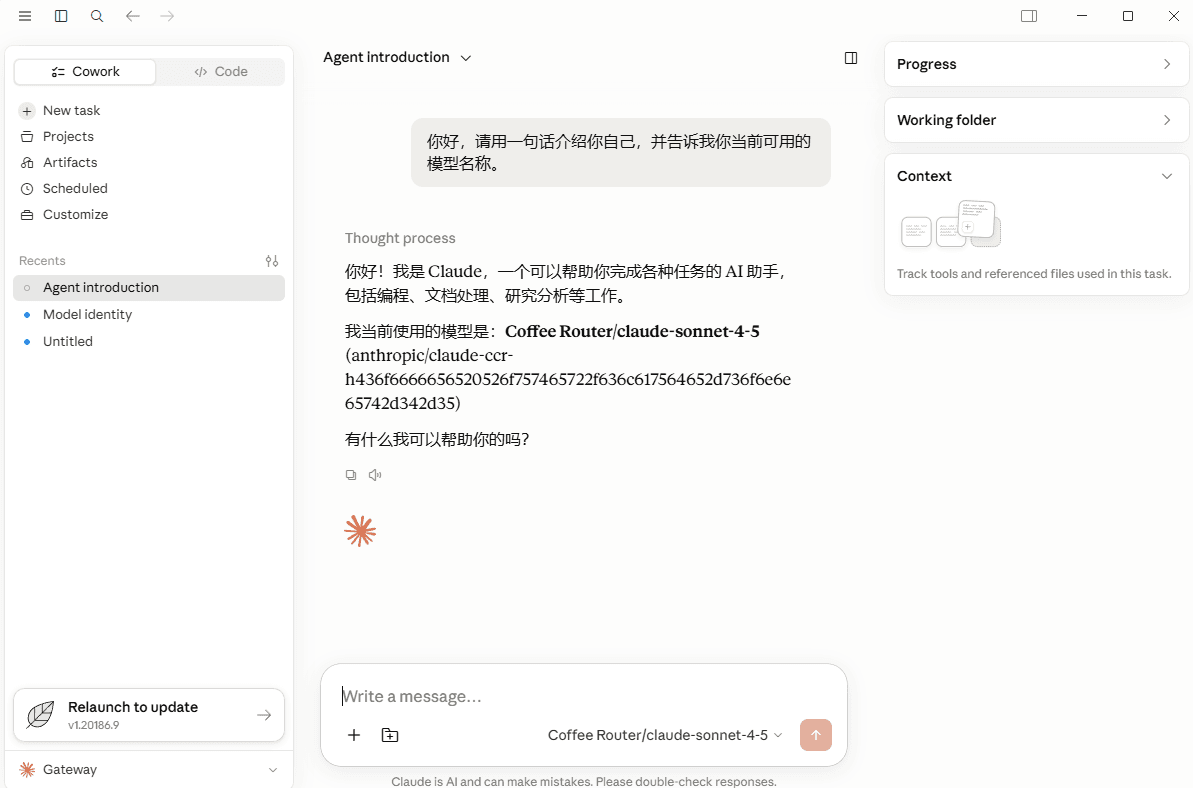
在 Claude Code Router 中設定 CoffeeRouter 自訂 API Endpoint、選擇模型、啟動 Agent 設定並開啟 Claude Code。
按照以下步驟,在 Claude Code Router 中新增 CoffeeRouter 自訂 API Endpoint、選擇可用模型,並啟動後跳轉至 Claude 視窗進行測試。
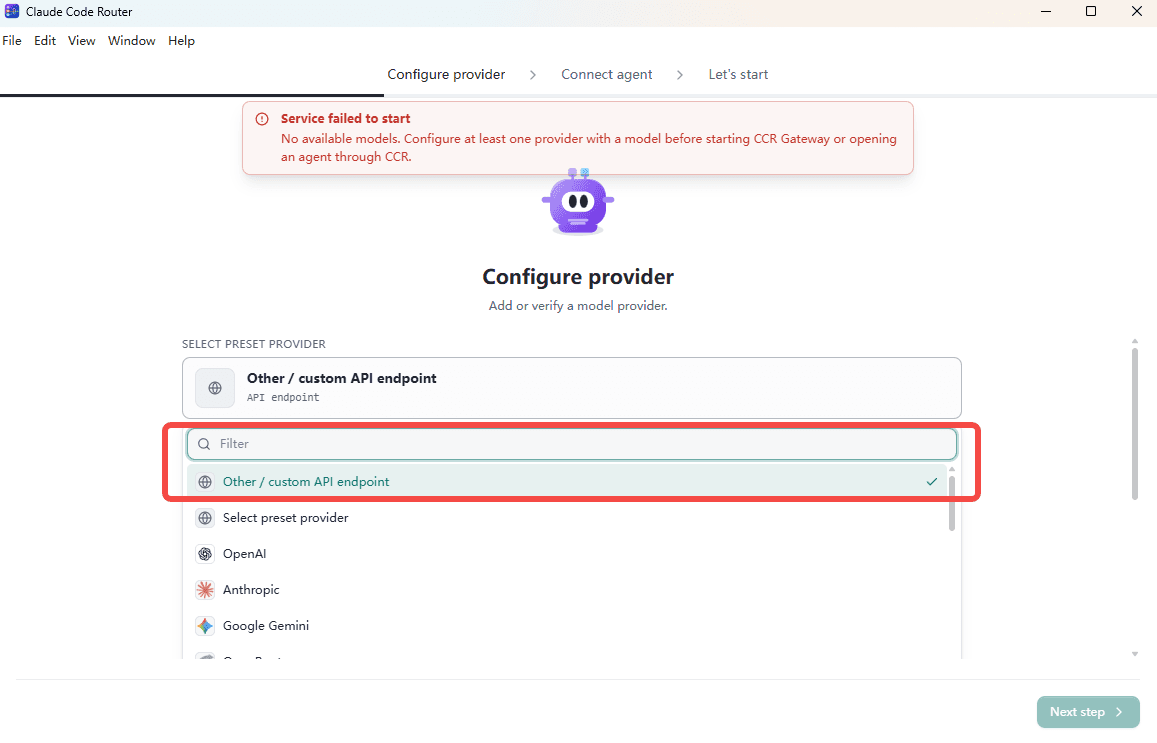
1. 選擇自訂 API Endpoint
在 Provider 選擇頁面選擇 Other / custom API endpoint,開始新增自訂服務商。
2. 填寫 CoffeeRouter Provider 設定
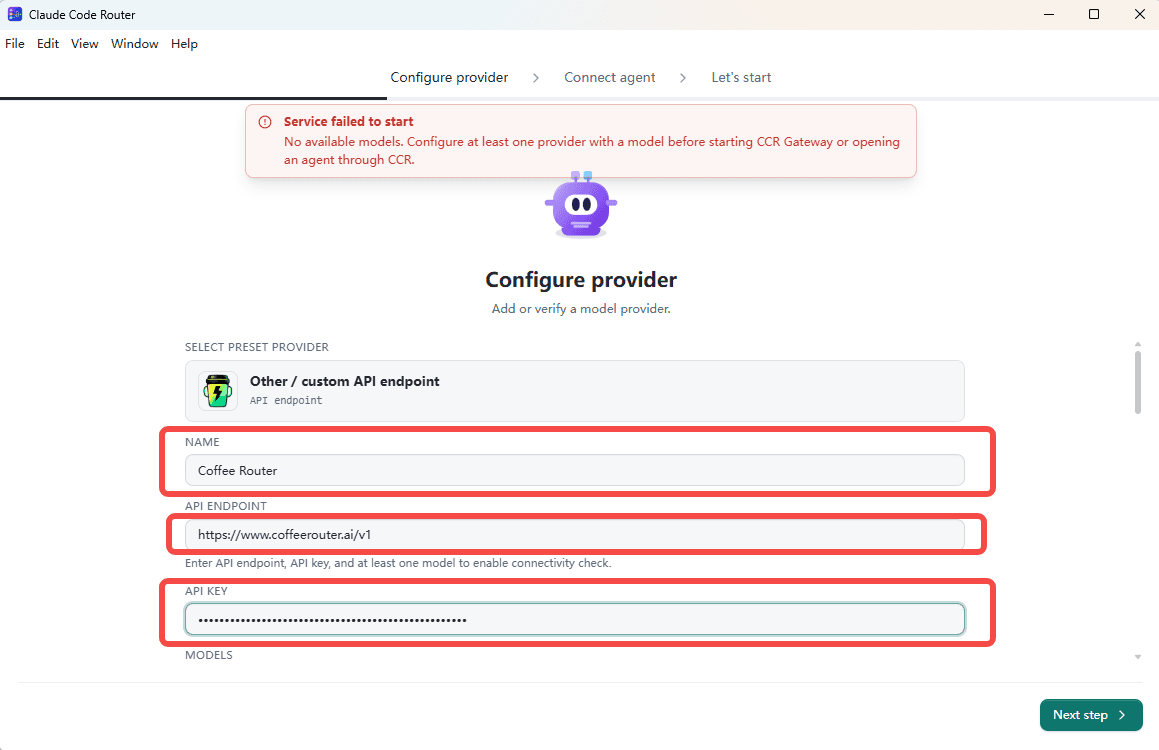
填寫以下資訊:
| 欄位 | 填寫內容 |
|---|---|
| Provider Name | Coffee Router |
| API Endpoint | https://www.coffeerouter.ai/v1 |
| API Key | 從 CoffeeRouter 取得,例如 sk-your-api-key |
請確認 API Endpoint 僅包含一個 /v1,不要填寫成 https://www.coffeerouter.ai/v1/v1。
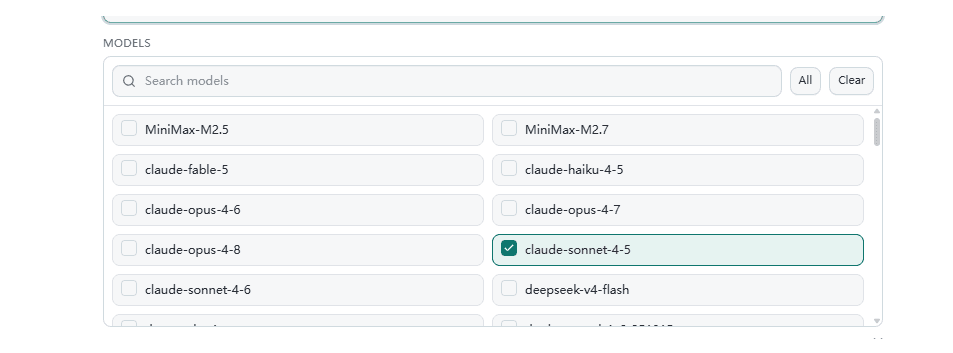
3. 選擇並調整模型
取得可用模型後,按需選擇要使用的模型並調整模型設定。模型 ID 應與 CoffeeRouter 中目前令牌可用的模型名稱一致。
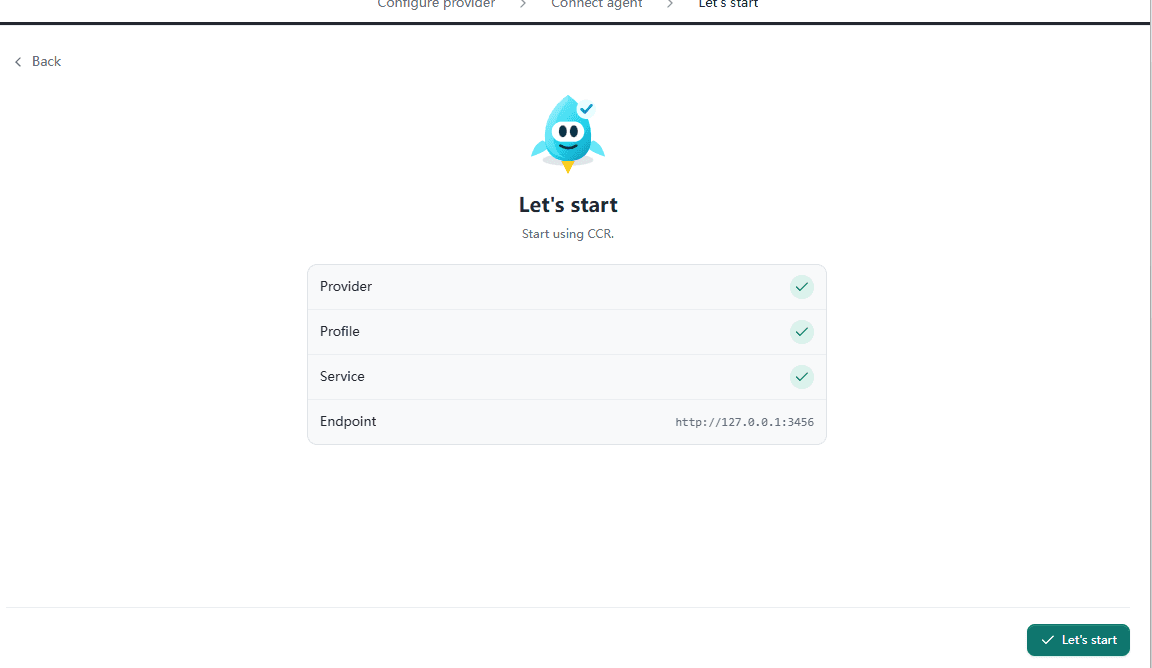
4. 進入 Let's start
確認 Provider 與模型設定後,進入 Let's start 頁面並點擊 Let's start,完成初始設定。
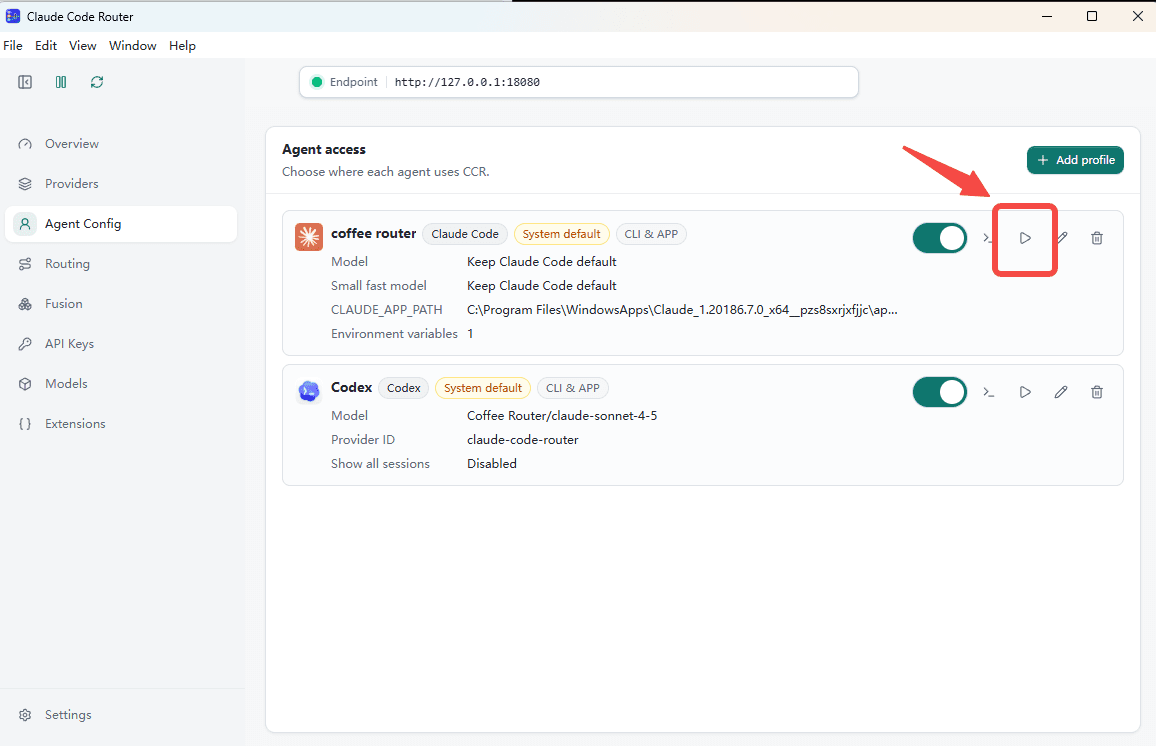
5. 從 Agent Config 啟動 Coffee Router
回到 Agent Config 頁面,找到 Coffee Router,然後點擊右側的啟動按鈕。
6. 在 Claude 視窗中測試
啟動後,系統會跳轉至 Claude 視窗。在聊天輸入框中傳送一則訊息,確認 CoffeeRouter 模型可以正常回覆。