

Cursor
Configure Cursor to use CoffeeRouter through a custom OpenAI API key and Base URL, add supported chat models, and troubleshoot plan or key errors.
Only Cursor Pro and higher subscribers can use their own API key (BYOK) to configure custom models and a custom Base URL. The free plan will return an error.
Install Cursor
Go to the Cursor website to download and install the app.
Configure CoffeeRouter
Open Settings
In Cursor, click the settings icon (the gear in the upper-right corner), then open Cursor Settings → Models.
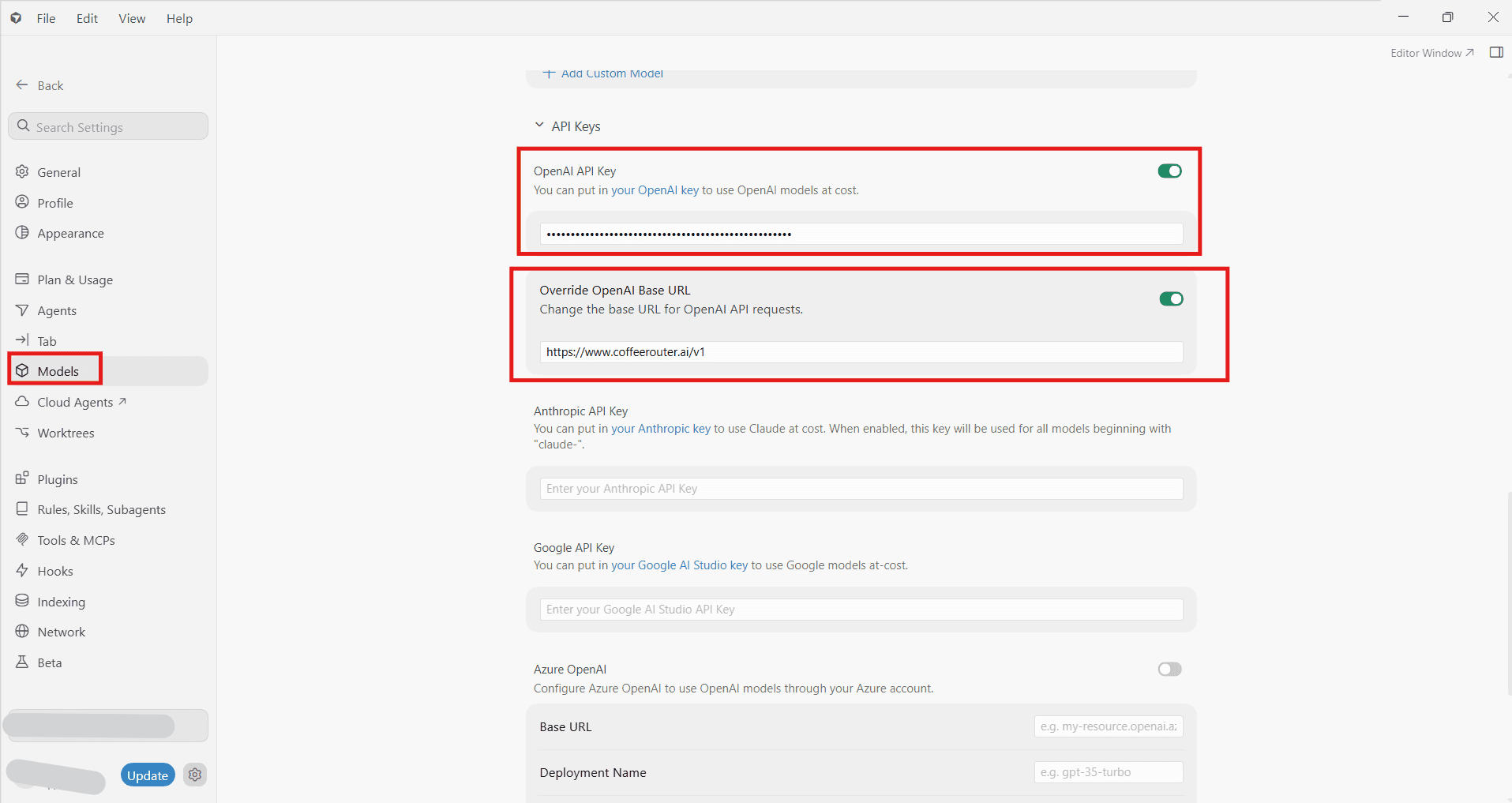
Configure the API Key and Base URL
- Enable OpenAI API Key and enter your CoffeeRouter token (API key).
- Enable Override OpenAI Base URL and enter:
https://www.coffeerouter.ai/v1
Add a Model
Search for the model name you want to use in Add or search model (for example, gpt-4o). If Cursor already includes a model with the same ID, enable and select it directly. Click Add Custom Model only when that model ID is not already listed.
Note: The OpenAI Base URL override applies only to chat models that Cursor recognizes as part of the OpenAI family. Cursor Tab and other proprietary features continue to use Cursor's built-in models.
Start Using It
Select the corresponding model in the chat panel to start using it.
💡 Configuration Preview
The following screenshot shows a completed configuration for reference:
Frequently Asked Questions
Error: The model xxx does not work with your current plan or api key.
This error means that the model is unavailable with the current plan, API key, or model configuration. First confirm that the Cursor account is on Pro or higher. If it is already subscribed to Pro, check the API key, Base URL, and model ID, and prefer an OpenAI chat model supported by Cursor.