
LobeHub
Configure CoffeeRouter in LobeHub as a custom Anthropic provider, fetch and enable models, and verify the connection in chat.
Connect LobeHub to CoffeeRouter manually by adding a custom Anthropic-compatible provider.
1. Open LobeHub Settings
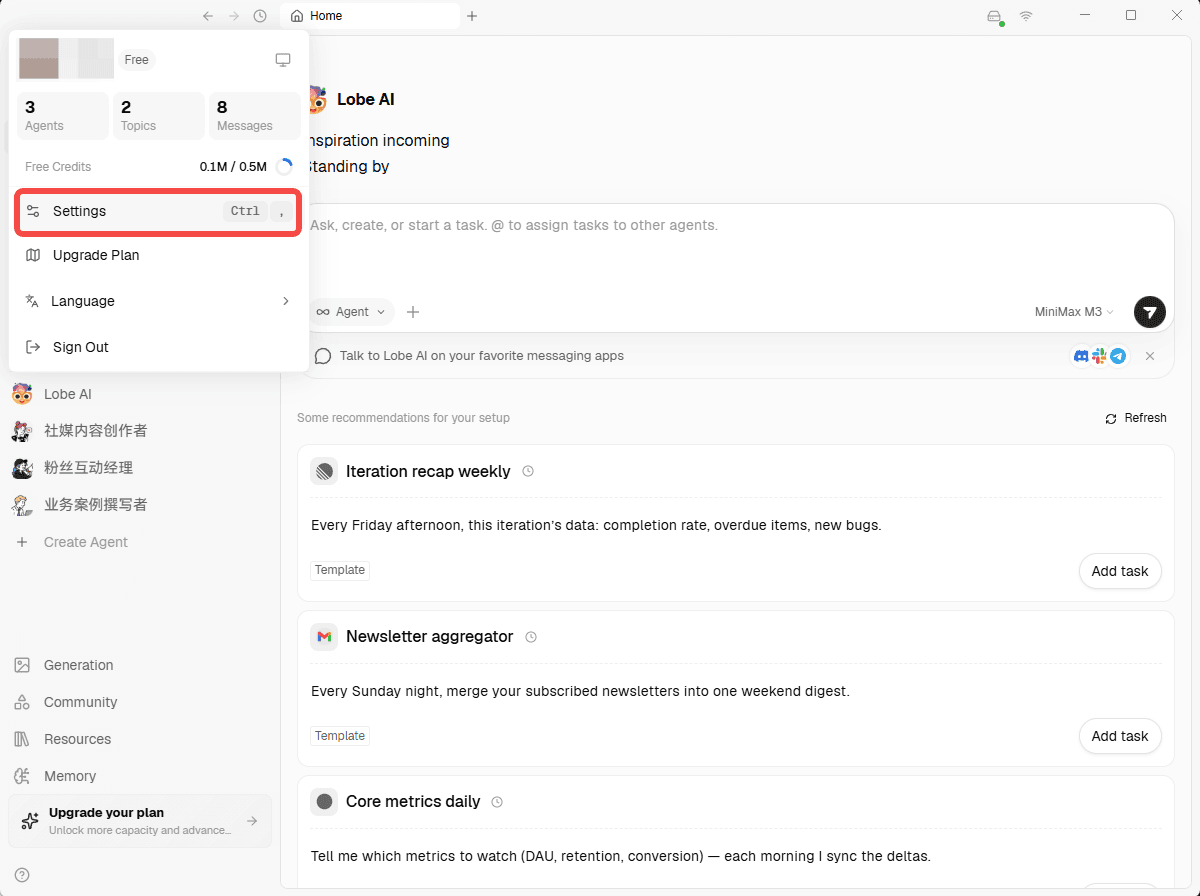
Open the account menu in LobeHub, then click Settings.
2. Add a Custom Provider
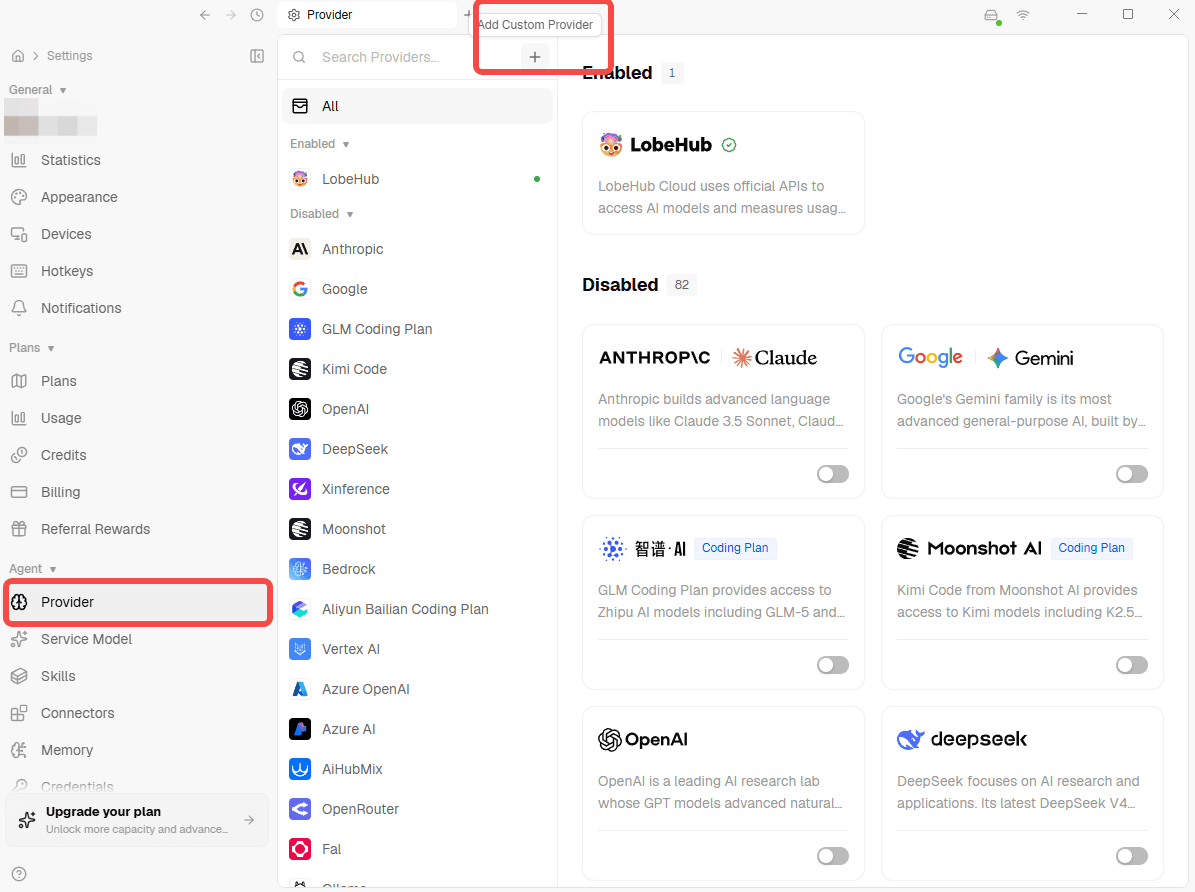
In Settings, select Provider, then click Add Custom Provider at the top of the provider list.
3. Configure CoffeeRouter
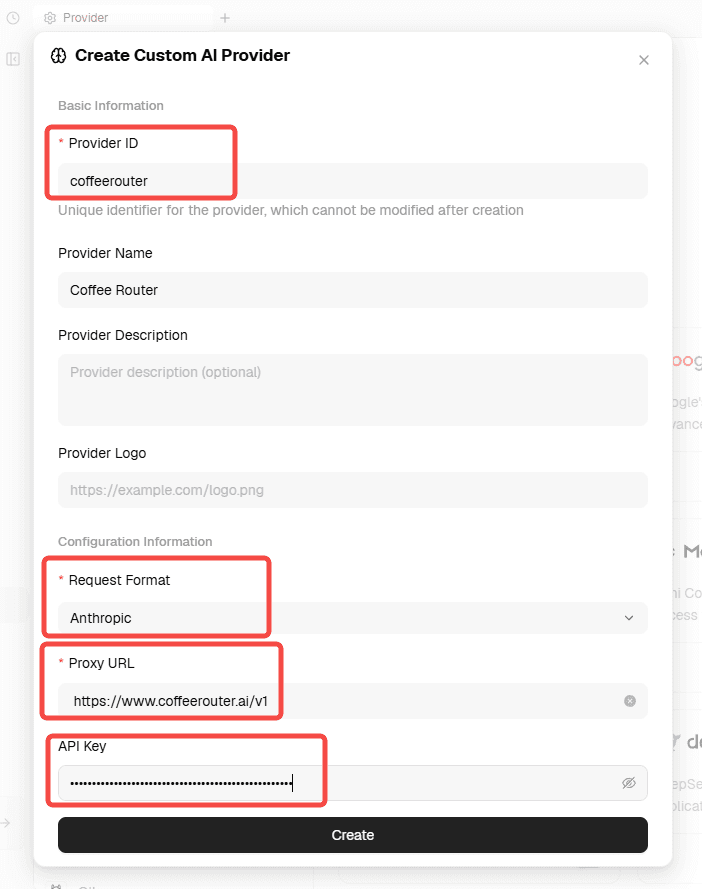
Enter the following values in the custom provider form:
- Provider ID:
coffeerouter - Provider Name:
Coffee Router - Request Format: Anthropic
- Proxy URL:
https://www.coffeerouter.ai/v1 - API Key: Obtain it from CoffeeRouter. The placeholder used in this guide is
sk-your-api-key.
Click Create after checking the values.
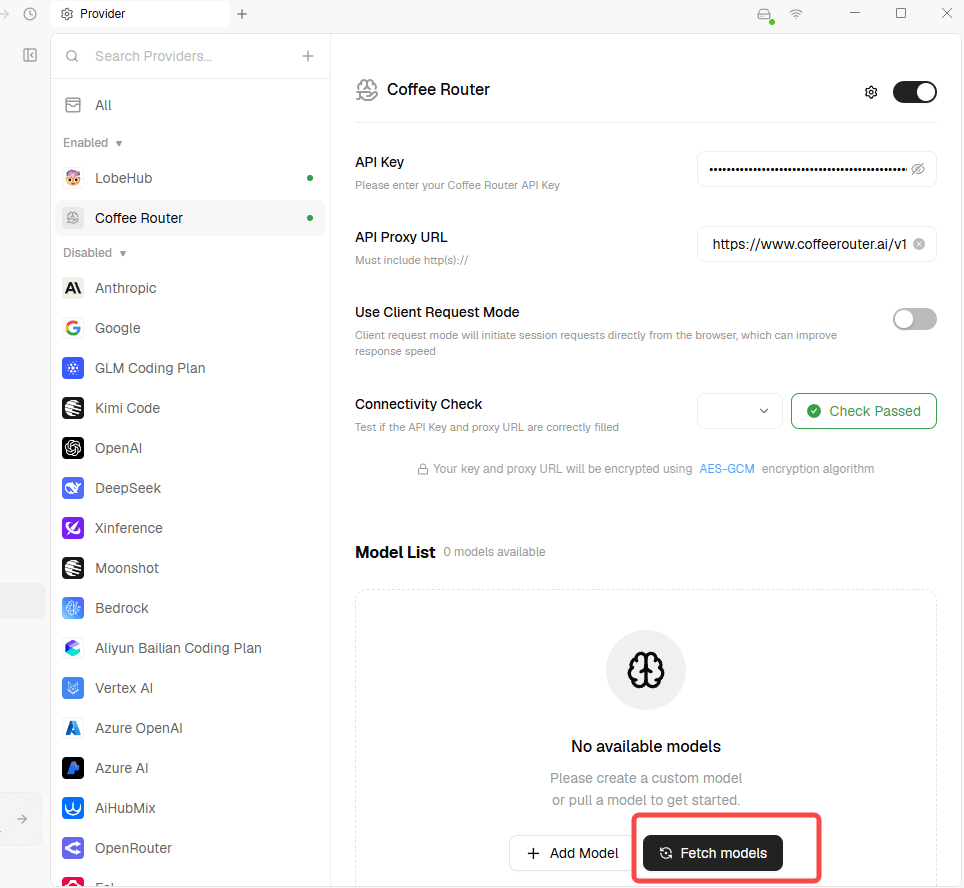
4. Fetch and Enable Models
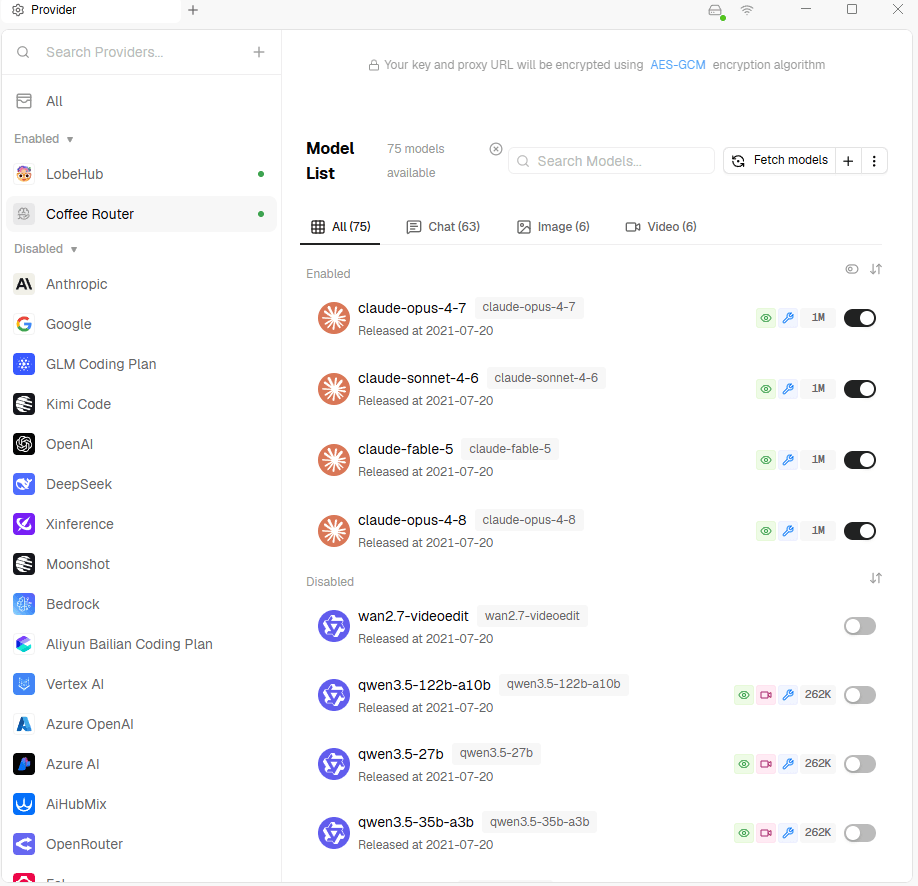
Open the new Coffee Router provider and click Fetch models. After the model list loads, enable the models you need and adjust the available models as required.
5. Test the Connection in Chat
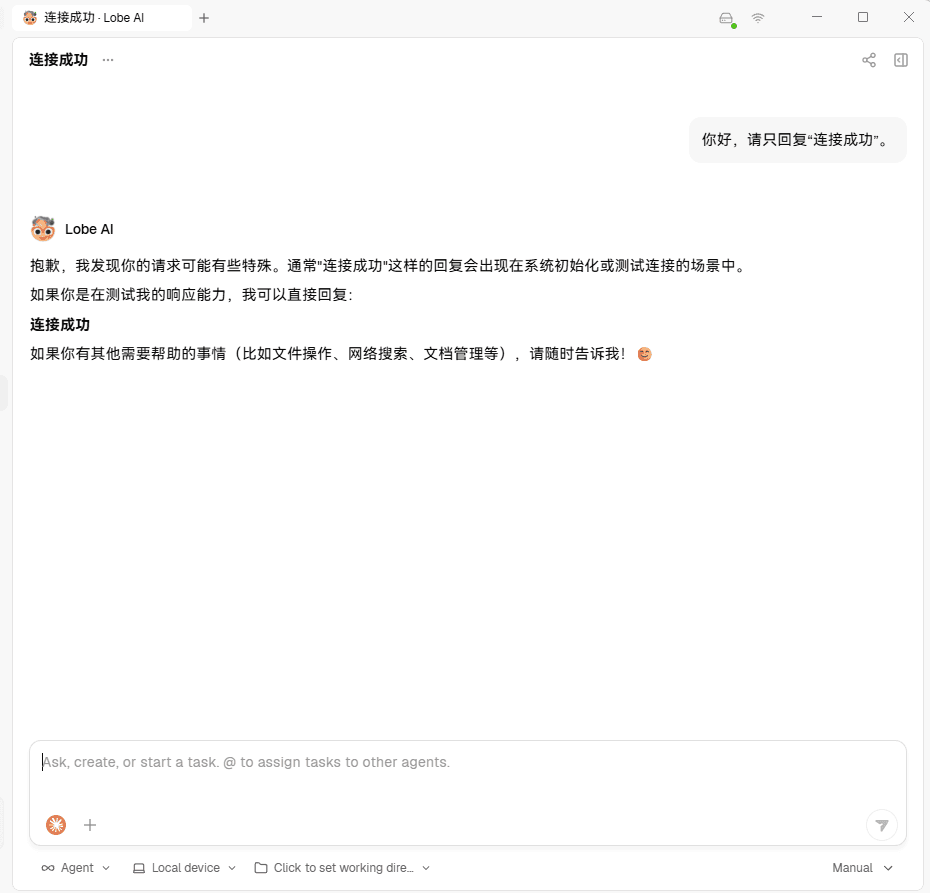
Return to the chat page, select an enabled CoffeeRouter model, and send a test message to confirm that the connection works.