

CLIProxyAPI
Deploy CLIProxyAPI as a local OpenAI-compatible gateway between Chatbox and CoffeeRouter, with separate local and upstream API keys.
Connection overview
This guide builds the following request path:
Chatbox → CLIProxyAPI → SOCKS5 proxy → CoffeeRouter → upstream model
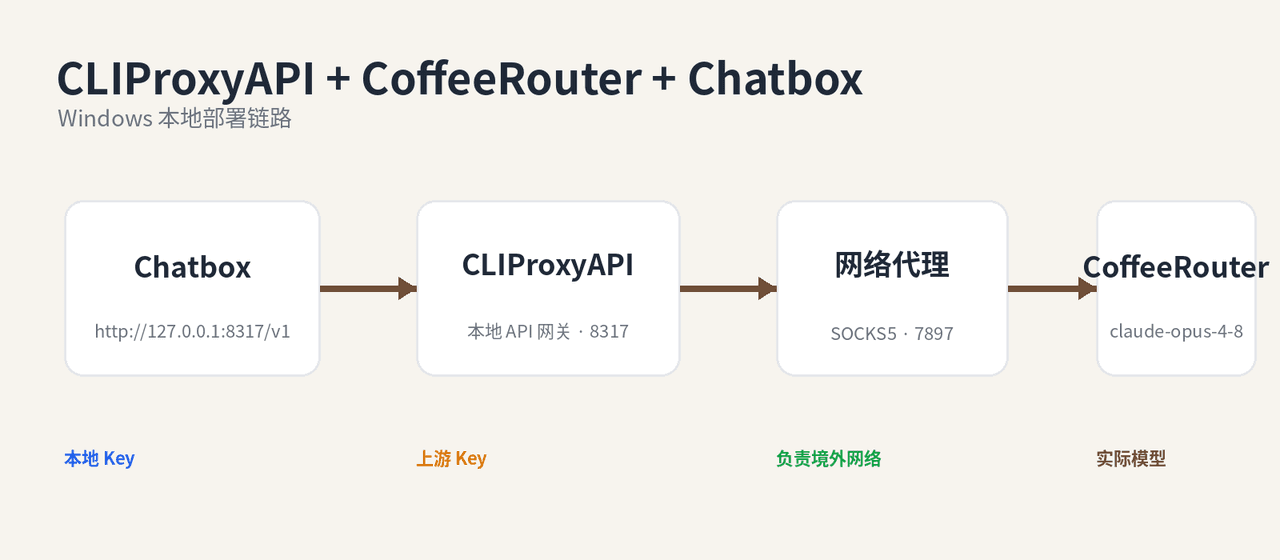
Before you begin, prepare:
- A CoffeeRouter token and the exact model IDs allowed by that token.
- Windows PowerShell.
- A running SOCKS5 proxy if CoffeeRouter must be reached through one. This guide uses
socks5://127.0.0.1:7897as the example. - Chatbox running on the same Windows computer as CLIProxyAPI.
1. Download and extract CLIProxyAPI
Open CLIProxyAPI Releases and download the latest Windows amd64 archive. Its name normally follows this pattern:
CLIProxyAPI_<version>_windows_amd64.zip
Extract it to a directory you control. A release archive normally includes cli-proxy-api.exe, config.example.yaml, README files, and the license.
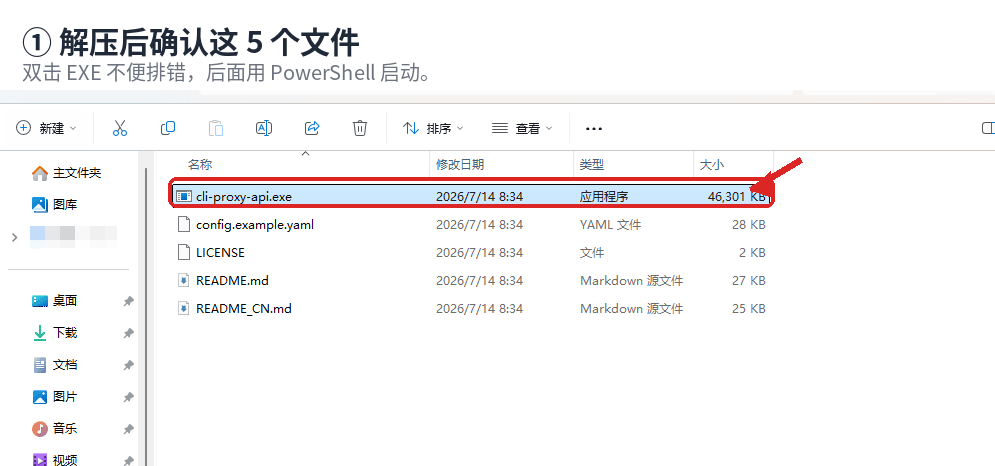
Create a new config.yaml in the same directory. Do not edit config.example.yaml directly. Keeping your active configuration separate prevents a future upgrade from replacing it and makes migration easier.
CLIProxyAPI provides a web management center, but the executable is not a complete native desktop application. On Windows, start it from PowerShell. After setup, the working directory should contain at least:
cli-proxy-api.execonfig.yamlREADME.mdorREADME_CN.md
2. Configure config.yaml
The following minimal example matches this guide. Replace all three placeholder secrets and never commit real secrets to a public document, screenshot, or Git repository:
host: "127.0.0.1"
port: 8317

remote-management:
  allow-remote: false
  secret-key: "replace-with-a-strong-management-key"
  disable-control-panel: false

auth-dir: "~/.cli-proxy-api"

api-keys:
  - "replace-with-a-strong-local-key"

debug: false
logging-to-file: true

openai-compatibility:
  - name: "coffeerouter"
    base-url: "https://www.coffeerouter.ai/v1"
    api-key-entries:
      - api-key: "sk-your-coffeerouter-key"
        proxy-url: "socks5://127.0.0.1:7897"
    models:
      - name: "your-upstream-model-id"
        alias: "your-local-model-alias"
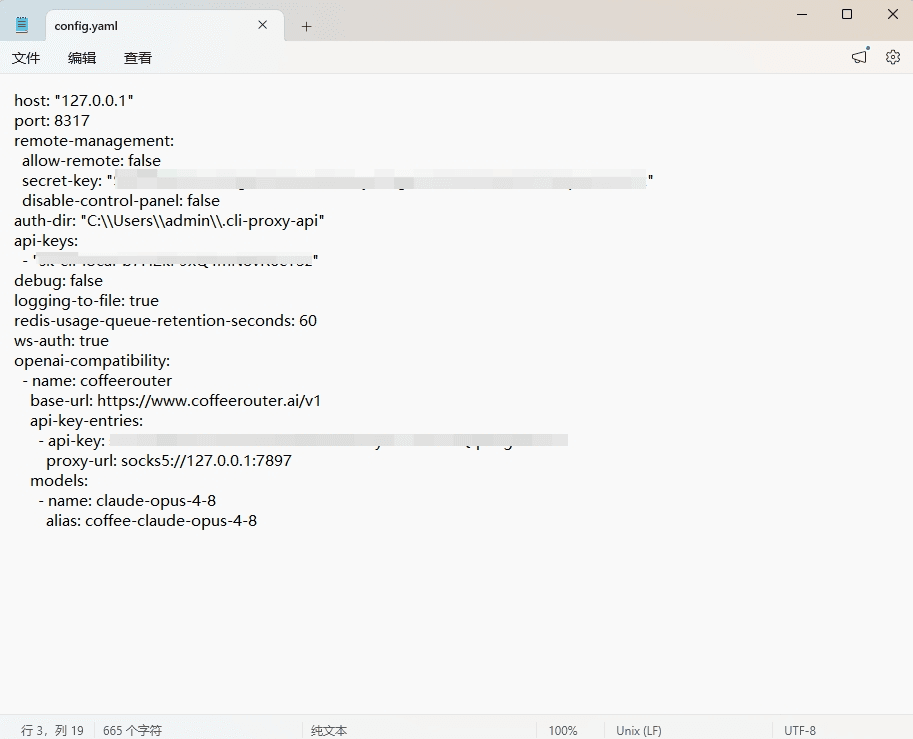
Key fields:
| Field | Purpose |
|---|---|
host: "127.0.0.1" | Accept local connections only instead of exposing the service to a LAN or the internet |
remote-management.secret-key | Separate secret used to sign in to the management center |
Top-level api-keys | Local key used by Chatbox and other clients when calling CLIProxyAPI |
base-url | CoffeeRouter's OpenAI-compatible endpoint, with exactly one /v1 |
api-key-entries[].api-key | Upstream key created in CoffeeRouter |
api-key-entries[].proxy-url | Network proxy used by this upstream key |
models[].name | Exact upstream model ID shown by CoffeeRouter |
models[].alias | Local model name exposed to clients |
This guide assumes that a SOCKS5 proxy is listening on 127.0.0.1:7897. If your network can reach CoffeeRouter directly, remove proxy-url. Do not configure a proxy port that is not running.
3. Start the service and open management
Open PowerShell, change to the extracted directory, and start the service:
cd "D:\迅雷下载\CLIProxyAPI_7.2.74_windows_amd64"
.\cli-proxy-api.exe --config .\config.yaml
The version in this path is only an example. Use your actual extracted directory.
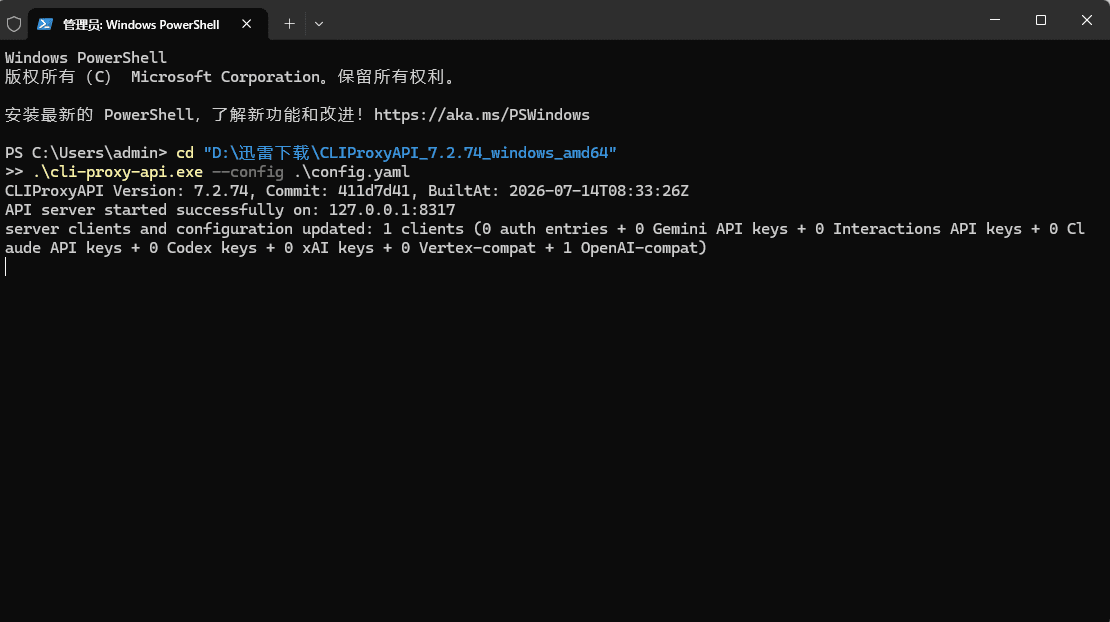
After the service reports that it is listening on 127.0.0.1:8317, keep this PowerShell window open. Closing it or pressing Ctrl+C stops the service.
Open this address in a browser:
http://127.0.0.1:8317/management.html
Sign in with remote-management.secret-key. The management secret is not the same as the local API key used for model requests.
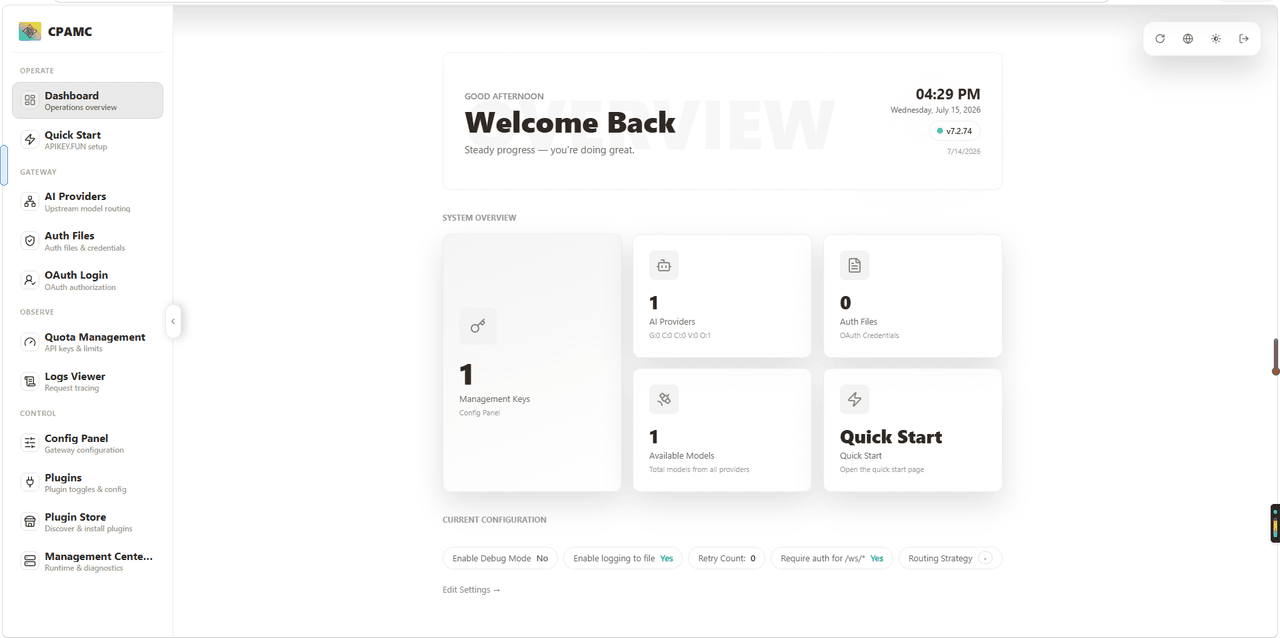
On first access, CLIProxyAPI may download management-panel assets. Keep disable-control-panel: false and make sure the network can reach the panel assets.
4. Add CoffeeRouter to CLIProxyAPI
Open AI Providers → OpenAI Compatible, then create or edit a provider with these values:
| Field | Value |
|---|---|
| Name | coffeerouter |
| Base URL | https://www.coffeerouter.ai/v1 |
| API key entry | Your CoffeeRouter upstream token, such as sk-your-coffeerouter-key |
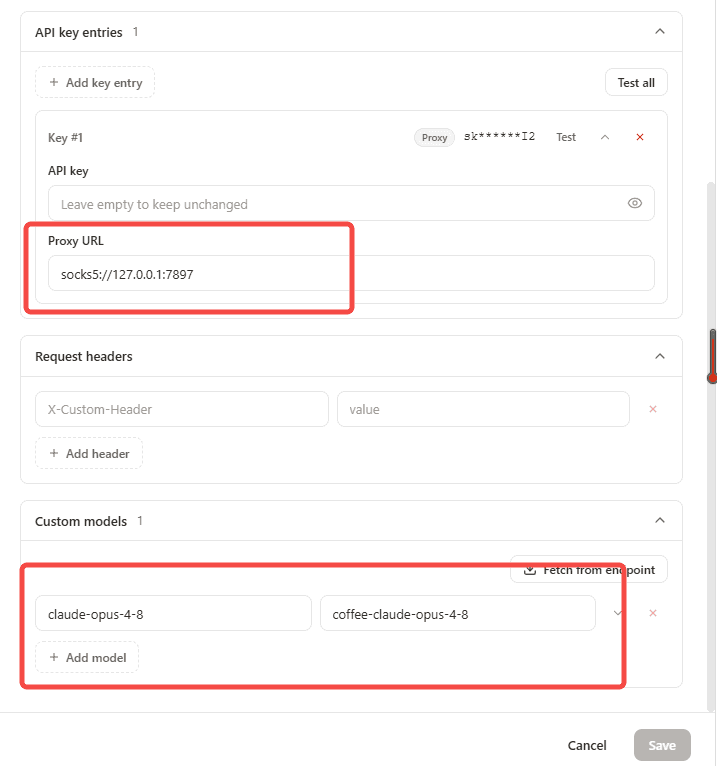
| Proxy URL | socks5://127.0.0.1:7897, only when that proxy is actually running |
| Test model | A model allowed by the current token |
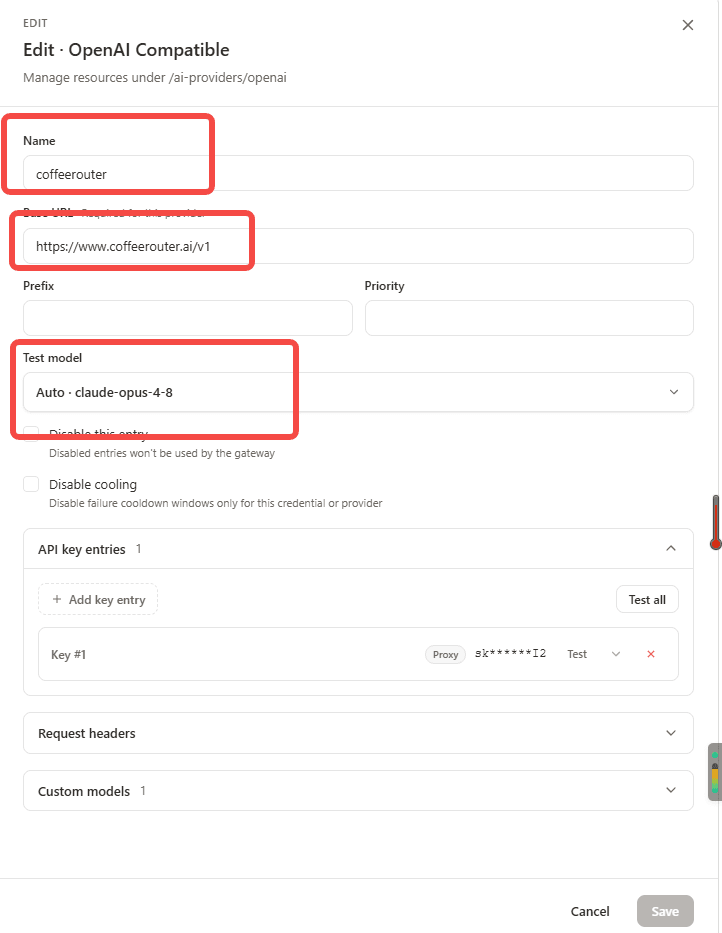
Add the required models under Custom models:
name: the exact upstream model ID shown by CoffeeRouter.alias: the name exposed to local clients, for examplecoffee-claude-opus-4-8.- You may add multiple models, but each alias should be unique.
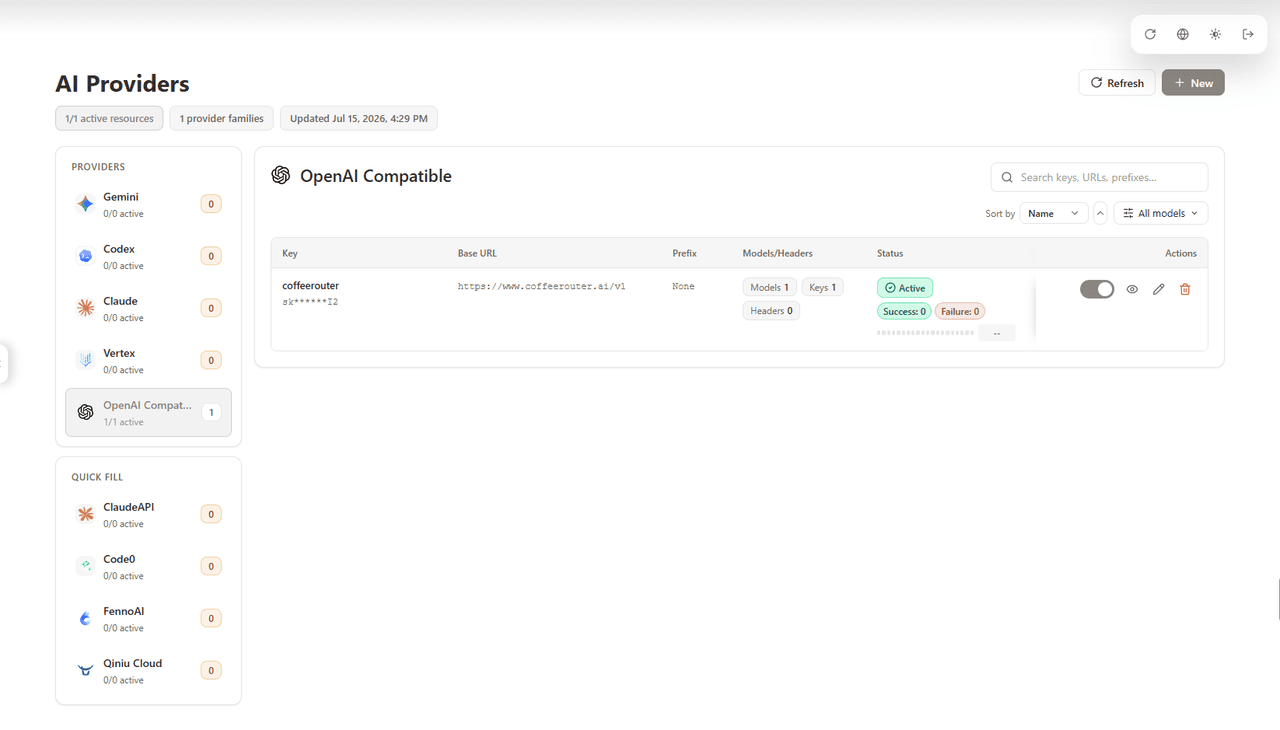
Save the provider and return to the list. A healthy entry shows Active and the expected model and key counts, such as Models 1 and Keys 1.
5. Understand the two API keys and proxy
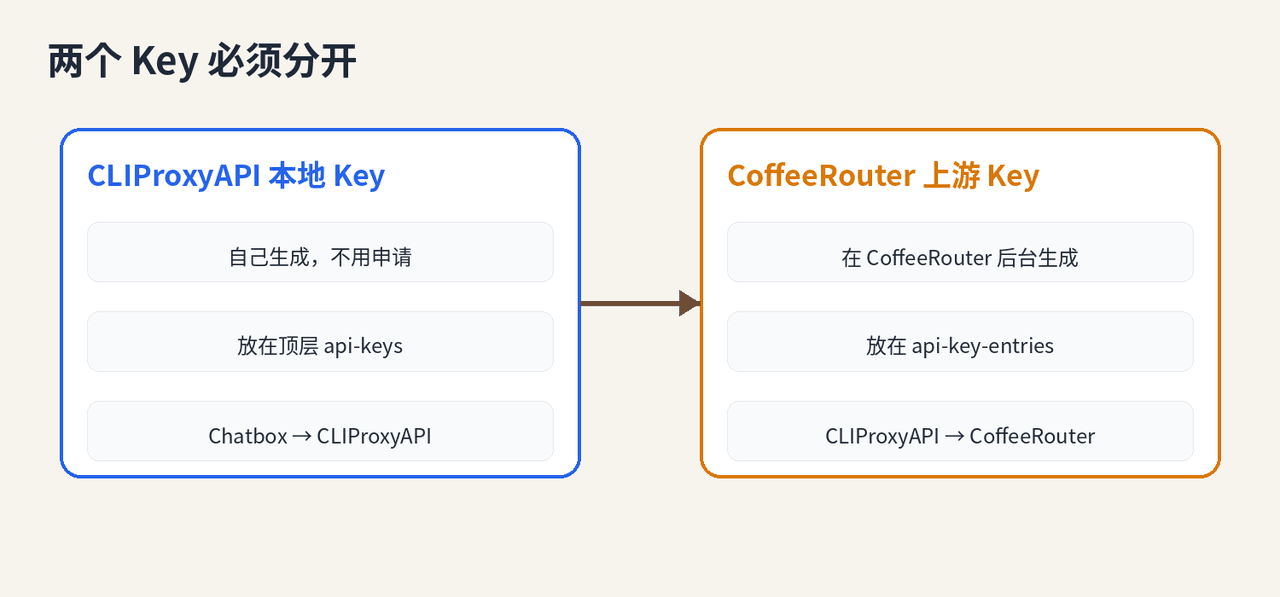
There are two API keys in the model request path:
- CLIProxyAPI local key: generate it yourself and place it in top-level
api-keys. Chatbox uses it when calling local port8317. - CoffeeRouter upstream key: create it in CoffeeRouter and place it in
openai-compatibility[].api-key-entries[].api-key. CLIProxyAPI uses it when calling CoffeeRouter.
remote-management.secret-key is a third, separate administration secret. It is used only for the management center and is not part of model requests.
The network proxy used by this guide is:
socks5://127.0.0.1:7897
It applies to the CLIProxyAPI-to-CoffeeRouter connection. Do not enter it in Chatbox. Verify that the proxy process is listening on port 7897 first.
6. Verify the local path with PowerShell
Check local port 8317:
Test-NetConnection 127.0.0.1 -Port 8317
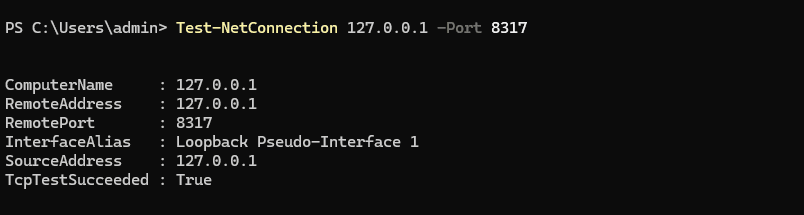
TcpTestSucceeded = True confirms that the local port is listening, but it does not prove the upstream model works. Send a real request next:
$localKey = "replace-with-a-strong-local-key"
$body = @{
    model = "your-local-model-alias"
    messages = @(
        @{ role = "user"; content = "Reply only OK" }
    )
    stream = $false
} | ConvertTo-Json -Depth 5

Invoke-RestMethod `
    -Uri "http://127.0.0.1:8317/v1/chat/completions" `
    -Method Post `
    -Headers @{ Authorization = "Bearer $localKey" } `
    -ContentType "application/json" `
    -Body $body
Replace $localKey with a value from top-level api-keys, and replace the model with the alias you configured. If the response contains OK, the complete path is working.
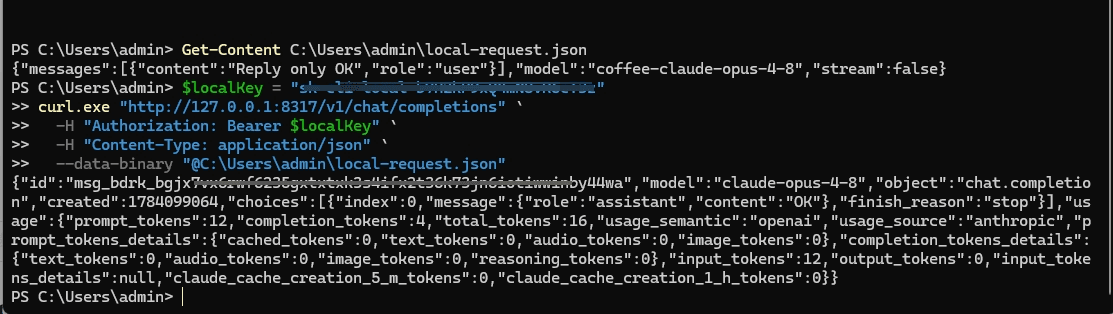
The successful path is:
local request → CLIProxyAPI → SOCKS5 → CoffeeRouter → upstream model
7. Configure and test Chatbox
In Chatbox, open Settings → Model Provider → Add → Add Custom Provider, then enter:
| Field | Value |
|---|---|
| Name | CLIProxyAPI |
| API Mode | OpenAI API Compatible |
| API Key | A CLIProxyAPI local key from top-level api-keys |
| API Host | http://127.0.0.1:8317/v1 |
| API Path | /chat/completions |
| Model | The model alias configured in CLIProxyAPI |
Do not enter the CoffeeRouter upstream key in Chatbox. The real upstream key stays only in CLIProxyAPI under api-key-entries.
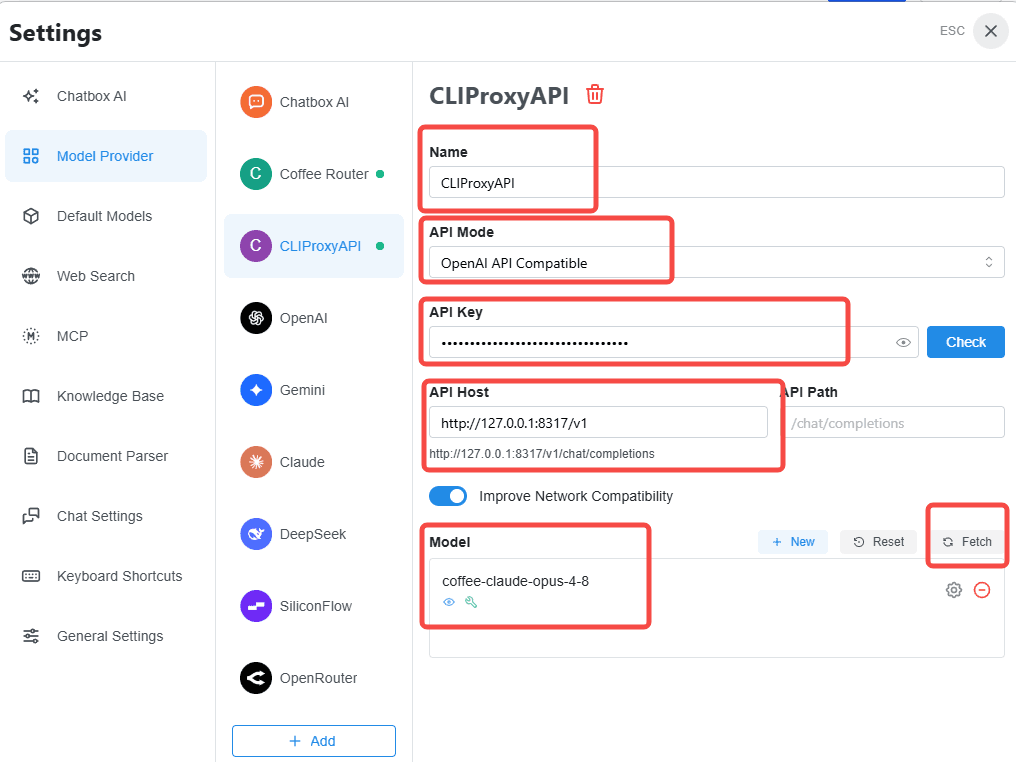
Use Check or Fetch to validate the provider, return to Chatbox, select the model, and send a test message.
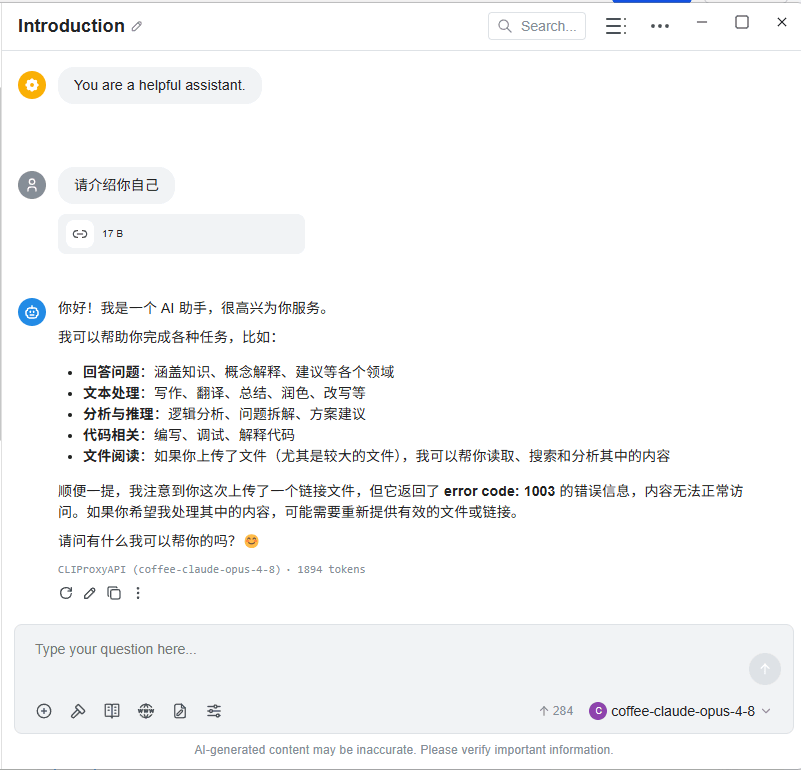
127.0.0.1 always refers to the current device. This guide requires Chatbox and CLIProxyAPI to run on the same computer. A client on another device cannot use this address, and exposing the management center directly to a LAN or the internet is not recommended.
Troubleshooting and security
The management page returns 404
Make sure remote-management.secret-key is not empty and disable-control-panel is false. First access also requires the management-panel assets to be reachable.
The port 8317 test fails
Keep the PowerShell process running, check config.yaml for YAML indentation errors, and verify that another process is not already using the port.
The API returns 401 or Invalid API Key
Clients calling the local endpoint must use a top-level api-keys value. The CoffeeRouter upstream key belongs only in api-key-entries.
Requests time out or cannot reach CoffeeRouter
If socks5://127.0.0.1:7897 is configured, verify that the proxy process and port are available. Remove proxy-url and test again if no proxy is required.
The model is not found
Use the local alias in client requests and make sure its name exactly matches the model ID shown in CoffeeRouter Token Management.